How to Build a Knowledge Base on WordPress with KnowX
Build a knowledge base on WordPress with the free KnowX theme: install it, set up topics and articles, pick a layout, brand it, and fix the common setup problems.

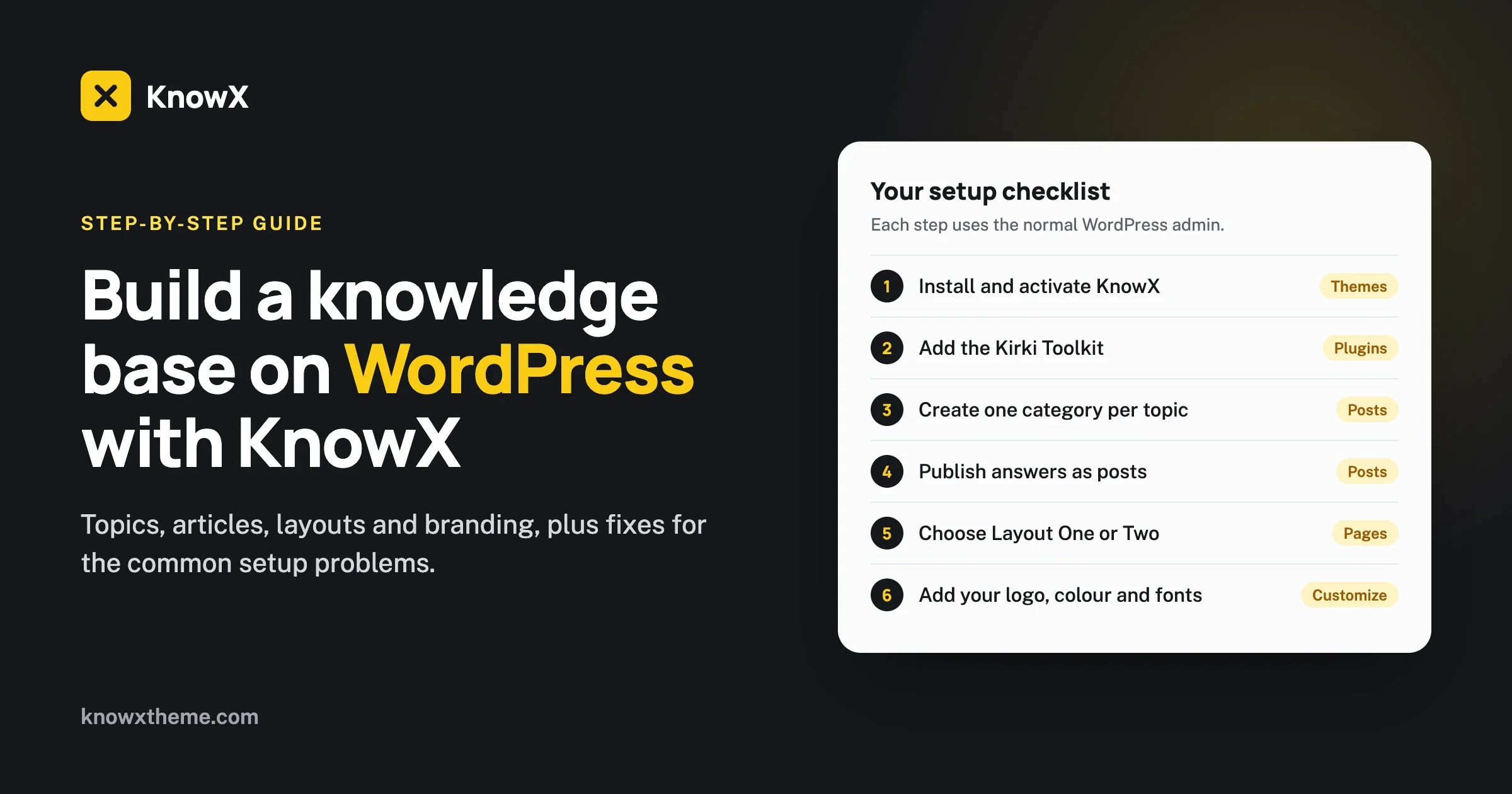
You can build a knowledge base on WordPress in an afternoon with the free KnowX theme. You install the theme, create one category per topic, publish your answers as normal posts, and the home page shows a search box and a tile for every topic. This guide walks through each step in order, shows where every setting lives, and ends with the problems people hit most and how to fix them.
We make KnowX, so everything here comes from the theme itself and its documentation. Where KnowX does not do something, we say so, and we point to what you can use instead.
Want to see the result before you start? Open the live KnowX demo. It runs in your browser with a sample help center already filled in, and you can open the Customizer and change anything.
What do you need to build a knowledge base on WordPress?
You need a WordPress site you can log in to as an administrator. That is all. KnowX runs on WordPress 4.8 or later and PHP 7.4 or later, which covers almost every host today.
It helps to have three more things ready, because they decide how good the result looks:
- A list of topics. Five to eight is a good start. Think of the questions people send you most and group them: Getting Started, Billing, Troubleshooting and so on.
- Three or four answers per topic. Short ones are fine. A knowledge base with twenty clear answers beats one with two hundred half-finished ones.
- Your logo and one brand colour. You will add them near the end.
If you do not have a WordPress site yet, any host that offers one-click WordPress will do. Install WordPress first, then come back here.
Step 1: How do you install KnowX?
KnowX is free on WordPress.org, so you install it from inside your dashboard.
- Log in to WordPress and go to Appearance > Themes.
- Select Add New Theme and search for KnowX.
- Select Install, then Activate.
You can also download the zip file from the KnowX page on WordPress.org and upload it from the same screen.
What happens the first time you activate it?
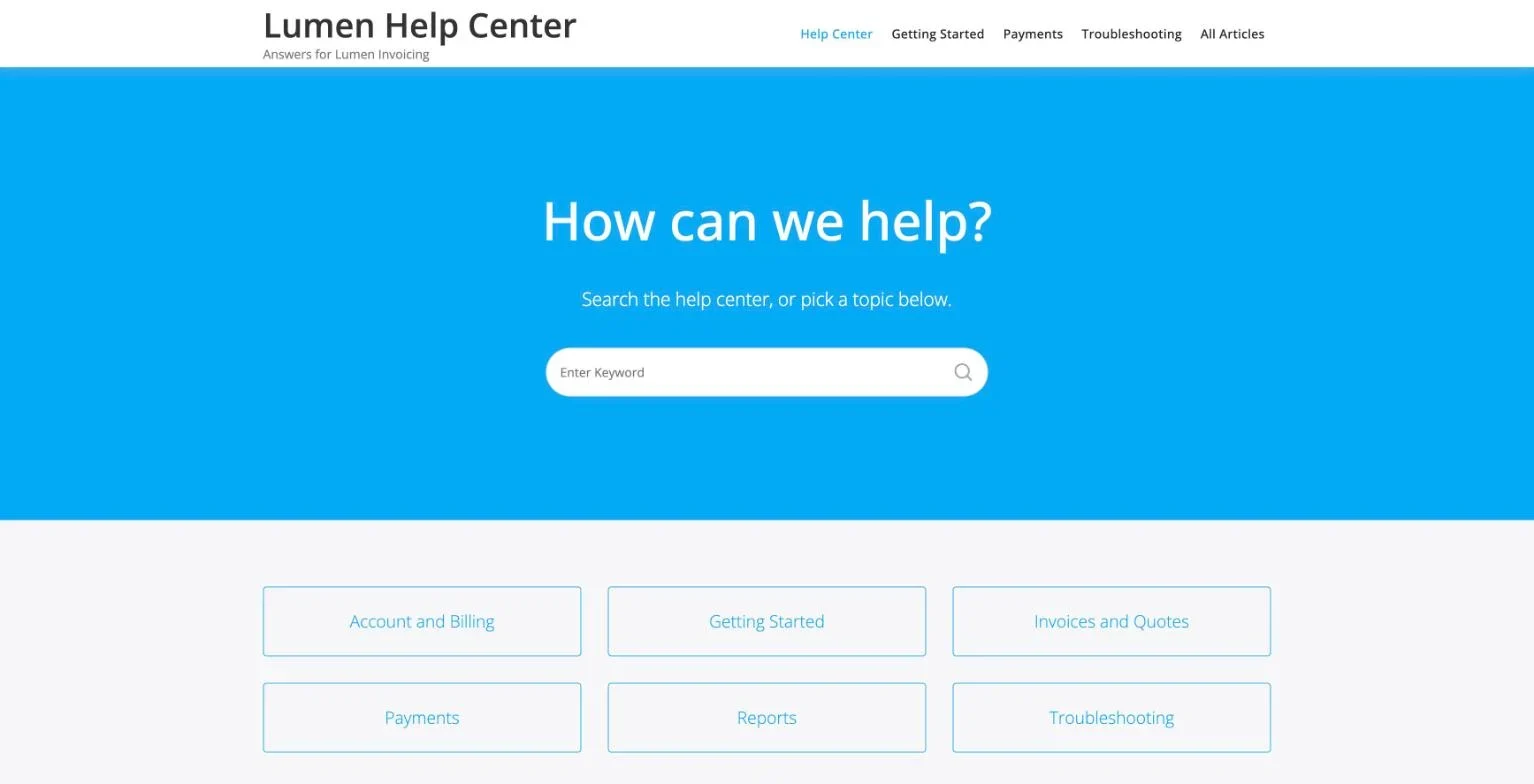
KnowX does one thing for you straight away. It creates a page called Knowledge Base, gives it the Knowledge Base Layout One template, and sets it as the front page of your site. Visit your home page and you will see a coloured hero area with a search box, a tile for each post category, and two lists below the tiles: Popular Articles and Recent Articles.
This happens once only. If you later choose a different front page, KnowX will not change it back. You can check or change the setting at any time under Settings > Reading.
On a brand-new site the only tile you will see is Uncategorized. That is normal. It fills up as you add topics in step 3.
Step 2: Why does KnowX ask you to install Kirki?
After activation, WordPress shows a notice recommending a few plugins. Install and activate Kirki Toolkit first. It is free.
KnowX uses Kirki to build its design settings. With Kirki active, the Customizer gains five KnowX panels: General, Typography, Knowledge Base, WP Login and Site Footer. Without Kirki those panels do not appear, and you will wonder where all the options went. This is the single most common setup question we see, so do it now.
The notice also recommends two optional plugins:
- Collapsing Categories, which gives you an expandable list of topics for the sidebar.
- WordPress Popular Posts, which counts article views. Layout One uses it to fill the Popular Articles list on the home page. Without it, that list says “No data found.”
If you plan to keep Layout One as your home page, install WordPress Popular Posts now, so the Popular Articles list starts counting from day one. Collapsing Categories can wait.
Step 3: How do you set up your topics?
In KnowX, a topic is a normal WordPress category. There is no special content type to learn.
- Go to Posts > Categories.
- Type the topic name, for example Getting Started.
- Add a one-line description that says what the reader will find. Layout Two can show this line under the topic name.
- Select Add New Category, and repeat for each topic.
How should you name topics?
Name each topic after what the reader is trying to do, in the words they would use. “Payments” is better than “Financial Operations”. “Troubleshooting” is better than “Known Issues and Resolutions”. If a customer would not type the word into a search box, pick a simpler one.
Keep the list short. When a home page shows fifteen topics, people stop reading and go to the contact form. If you have more than eight, look for two that can merge.
What about the Uncategorized topic?
WordPress puts any post without a category into Uncategorized, and KnowX will show it as a tile. You have two clean ways to deal with it. Rename it under Posts > Categories to something useful such as General, or hide it from the home page with the Exclude category setting described in step 6.
Step 4: How do you write and publish articles?
An article is a normal WordPress post. If you have ever written a blog post, you already know how.
- Go to Posts > Add New.
- Write the title as the reader’s question or task, such as “Reset your password”.
- Write the answer in the editor.
- In the sidebar, tick the one category the article belongs to.
- Select Publish.
Reload your home page. On Layout One the article appears in Recent Articles, and on its topic page when a reader selects the topic tile. On Layout Two it appears in the list under its topic.
What does a good article look like?
Use the same shape every time, so readers learn where to look:
- The answer first. One or two sentences that solve the problem for someone in a hurry.
- Before you start. Anything the reader needs, such as being logged in as an admin.
- Numbered steps. One action per step. Put button names in bold.
- If it did not work. The one or two things that usually go wrong, and what to do next.
Put each article in one category only. An article that sits in three topics shows up three times on a Layout Two page, which makes the knowledge base look bigger and feel messier.
Do articles lock you in to KnowX?
No. Because articles are ordinary posts and topics are ordinary categories, they stay exactly where they are if you ever change theme. You can also export them with the standard WordPress export tool under Tools > Export.
Step 5: Which home page layout should you choose?
KnowX ships two knowledge base layouts. They look different and they suit different jobs, so it is worth understanding both before you pick.
Layout | What it shows | Good for |
|---|---|---|
Knowledge Base Layout One | A hero with a search box, a tile for each top-level category, Popular Articles and Recent Articles, and a support call-to-action section at the bottom | A customer help center where the page is the front door and most people search |
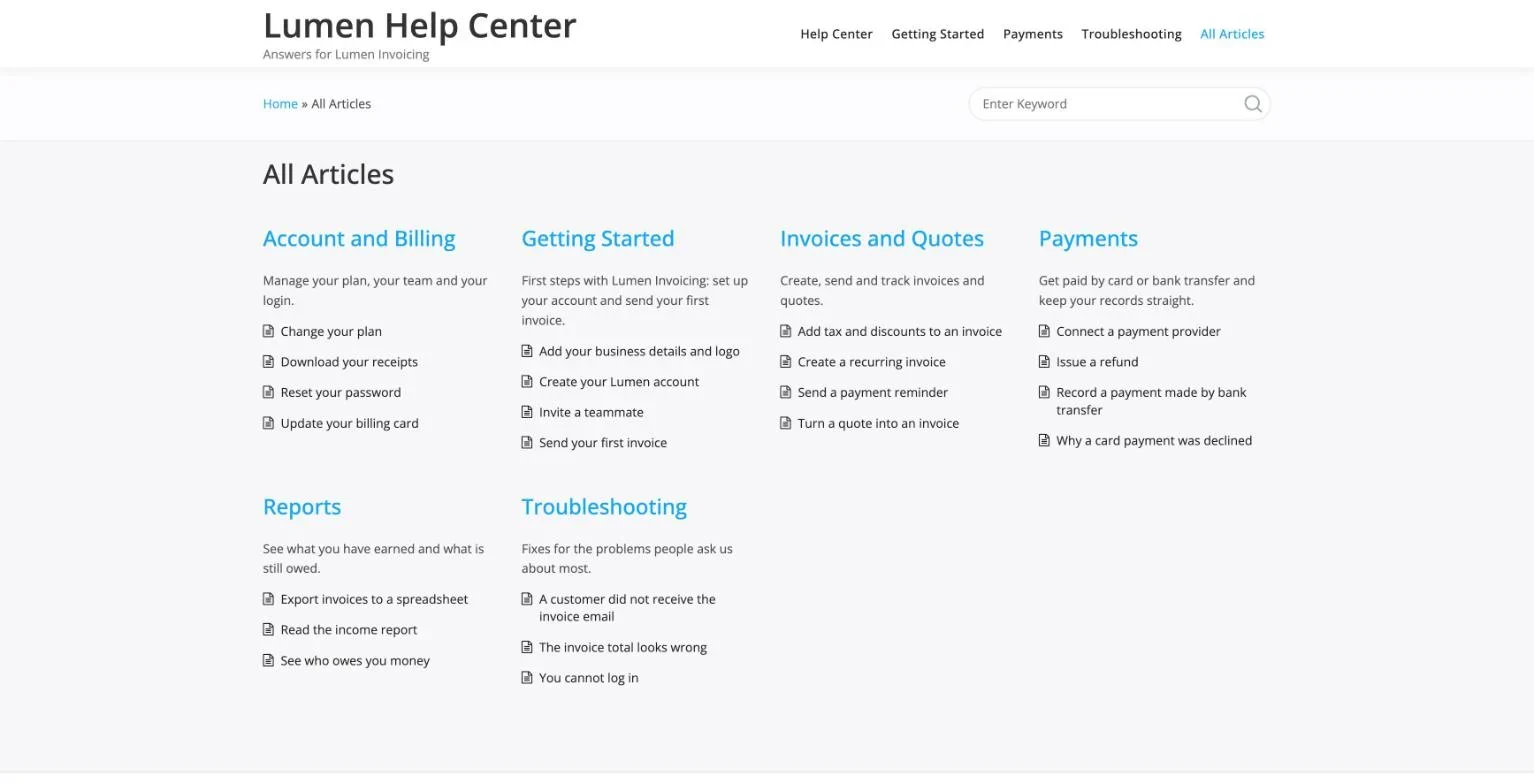
Knowledge Base Layout Two | Every category with its articles listed under it, on one page. No hero and no support section | A docs page inside a bigger site, or an internal knowledge base where people browse |
On Layout One, a tile shows the topic name only. Selecting it opens that topic’s page with all of its articles. On Layout Two, the articles are right there under each topic, so a reader can scan the whole knowledge base without leaving the page.
To switch, edit the Knowledge Base page, open the Template setting in the page sidebar, and choose the other layout. You can also create a second page with the other template and compare them side by side before you decide.
KnowX also includes two general page templates, Full-Width and Full-Width Container, for pages such as Contact or About.
Step 6: How do you control what the home page shows?
Go to Appearance > Customize > Knowledge Base. You will find a section for each layout. The two layouts have different settings, so open the one you chose.
Layout One: the hero section
Set the background, the heading and the line of text under it. Replace the default “Knowledge Base” heading with something that sounds like you, such as “How can we help?”. The hero title and the hero text each have their own font settings.
Layout One: the topic tiles
Layout One shows a tile for every top-level category, in alphabetical order. It shows a category even when it has no articles yet, so an empty topic is visible to visitors. Use Exclude category by ID to hide any topic that is not ready, and to remove Uncategorized or a News category.
Layout One: Popular Articles and Recent Articles
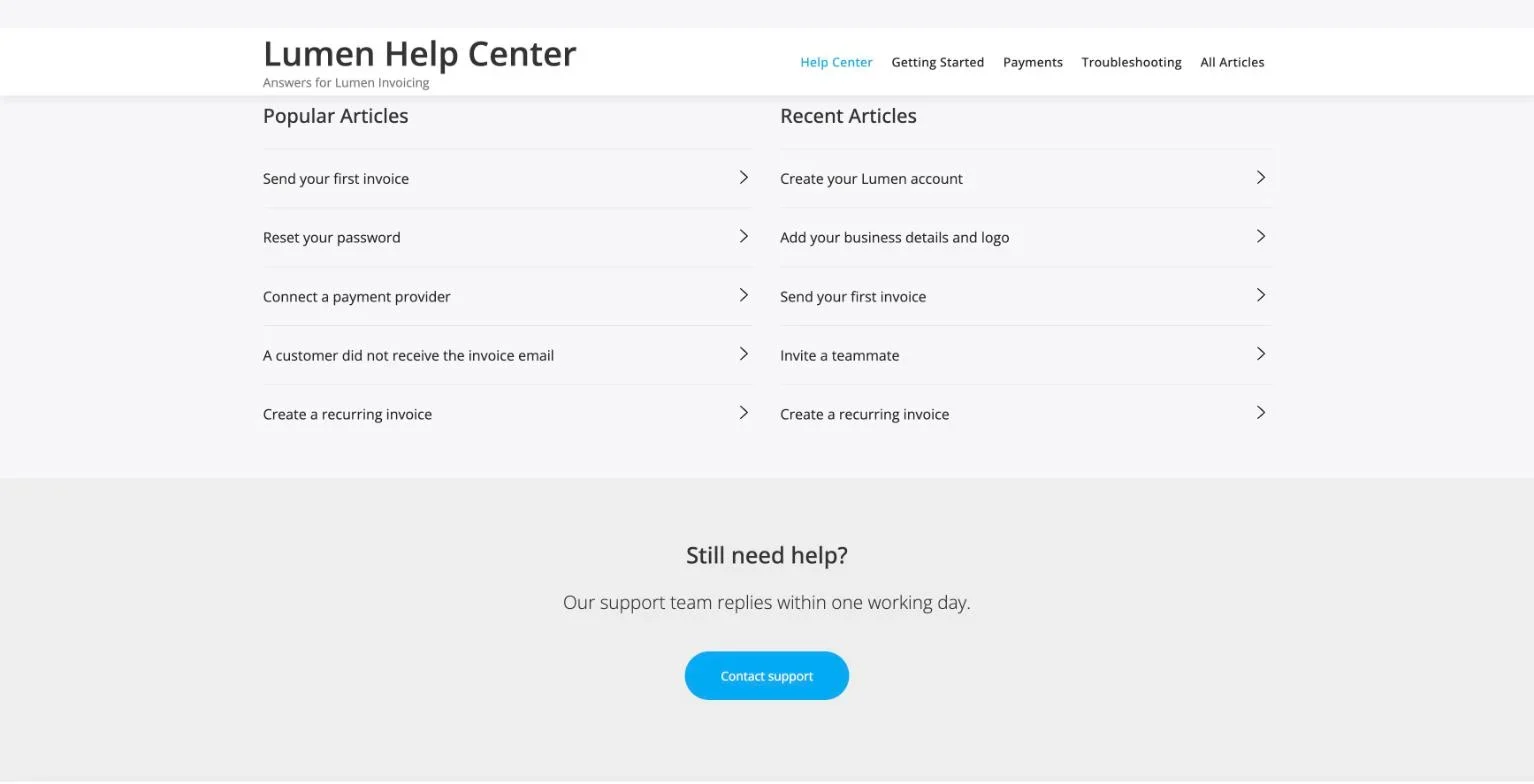
Recent Articles lists your five newest posts. It draws from every category, including any you have excluded from the tiles, so a site that also publishes news will see news posts here. Popular Articles lists your five most-viewed posts, and it gets its numbers from the WordPress Popular Posts plugin. If that plugin is not active, the list shows “No data found.” Install the plugin, and the list fills in as people read.
Layout One: the support section
This is the block at the bottom of the page for readers who did not find an answer. Set the heading, the text, the Button Text and the Button Link URL. Point the button at your contact page or your help desk.
Do not skip the text. Until you write your own, the support section shows placeholder filler text, and that is the first thing a visitor notices at the bottom of your home page.
Layout Two: the article lists
- Exclude category by ID hides topics you do not want on the page.
- Posts per category sets how many articles are listed under each topic. Four to six keeps the page easy to scan. Leave it empty and every article is listed.
- Order posts sorts the articles in a topic by date, newest first, or by name.
- Show page title, Show View All link and Show category description are simple on and off switches.
Turn on the View All link if any topic has more articles than your Posts per category number. Without it, readers cannot reach the rest from that page.
How do you find a category ID?
Go to Posts > Categories and hover over the category name. The link shown at the bottom of your browser contains tag_ID= followed by a number. That number is the ID. To exclude more than one, separate the numbers with commas.
Hiding topics on one page only
When you edit a page that uses a knowledge base template, KnowX adds a box that lets you exclude categories for that page alone. This is separate from the site-wide setting. It is useful when you run two knowledge base pages, for example one for customers and one for partners, each showing different topics.
Step 7: How do you make it look like your brand?
Everything here is in Appearance > Customize, and you see each change in the live preview before you save.
- Site Identity. Add your logo, site title and tagline.
- General. Set the site-wide layout and colours. Start with your one brand colour and leave the rest alone until you have looked at the result.
- Typography. Choose the fonts for headings and body text. One font family for both is a safe choice for a help site.
Resist the urge to change everything. A knowledge base is read by people who are stuck. Clear text and plenty of white space help them more than a clever colour scheme.
Step 8: How do you set up the header, menu and search?
KnowX has one menu location, called Primary, which sits in the header.
- Go to Appearance > Menus and create a menu.
- Add your most important topics, plus a link to your main website and your contact page.
- Tick Primary under Display location and save.
In the Customizer you can then switch on the sticky header, which keeps the menu in view as people scroll, and the sub-header. The sub-header is the strip under the header that holds the breadcrumbs and a search field. Leave both of those on. Search is how most people use a knowledge base, and breadcrumbs show a reader which topic they are in and give them a one-click way back.
KnowX has its own breadcrumbs built in. If you use Yoast SEO and have its breadcrumbs switched on, KnowX uses the Yoast trail instead, so you never get two.
Step 9: How do you use sidebars, widgets and the footer?
KnowX gives you a left sidebar and a right sidebar, and four footer widget areas with a copyright bar below them.
Go to Appearance > Widgets to fill them. Good choices for an article sidebar are:
- the KnowX Categories widget, which lists your topics so readers can jump between them,
- a search widget, and
- a popular articles widget, if you installed WordPress Popular Posts.
Use the footer areas for links people expect at the bottom of a help site: your main website, your contact page, your status page and your privacy policy. Edit the copyright line under Customize > Site Footer.
Step 10: How do you brand the login screen?
If staff or customers log in to your site, the default WordPress login page with the WordPress logo looks out of place. Open Customize > WP Login to set your own login logo, where the logo links to, its title, and the login page title. It takes two minutes and makes the site feel finished.
Step 11: How do you keep it fast?
Fonts are the usual slow spot on a simple site. KnowX can host Google Fonts on your own server so the browser does not have to fetch them from Google. Find the option under Customize > Site Footer > Site Performance. It also preloads the fonts, and it has a button to flush the stored copies if you change fonts later.
Beyond that, the normal WordPress advice applies: use a caching plugin or your host’s cache, and keep images in articles to a sensible size.
What will KnowX not do?
KnowX is a theme. It controls how your knowledge base looks and how articles are grouped. It does not include:
- article voting or “was this helpful?” feedback,
- search analytics that show what people looked for,
- AI answers or a chatbot,
- ticketing,
- access rules per article or per role, or
- live search suggestions as you type.
WordPress keeps a revision history for every post, which covers version history for most teams. For the rest, you add a WordPress plugin if and when you need it. If you want everything above in one product from day one, a hosted tool may suit you better, and we compare the two fairly on our page about WordPress as knowledge base software.
Can you make the knowledge base private?
Not with KnowX alone. For a staff-only knowledge base you need a plugin or a server rule that makes every visitor log in first. We explain the options on the internal knowledge base page.
What should you check before you launch?
Run through this list once. It takes ten minutes and catches almost everything.
- Every topic has a plain name and a one-line description.
- Every topic has at least three articles. Exclude the ones that do not, until they do. Layout One shows empty topics too.
- Every article sits in exactly one category.
- Uncategorized is renamed or excluded.
- The hero heading and text are yours, not the defaults.
- The support section has your own text, not the placeholder.
- If you use Layout One, WordPress Popular Posts is active, so Popular Articles is not empty.
- The support button goes to a page that works.
- The Primary menu is assigned and the search field is visible.
- You have opened the home page and one article on a phone.
- You have searched for three questions a real customer asked last week, and found the answers.
That last check is the one that matters. If a real question does not lead to an answer, either the article is missing or its title uses different words from the ones your customers use. Fix the title first.
What are the common problems, and how do you fix them?
The Customizer has no KnowX panels
What you see: the Customizer shows only the standard WordPress sections. There is no Knowledge Base, Typography or WP Login panel.
Check: go to Plugins and look for Kirki Toolkit.
Fix: install and activate Kirki Toolkit, then reload the Customizer.
Prevent: keep Kirki active and updated. The KnowX panels need it every time you open the Customizer, not only during setup.
Your home page changed after activating the theme
What you see: the site’s old home page has been replaced by the Knowledge Base page.
Check: open Settings > Reading and look at the Homepage setting.
Fix: choose the page you want as the home page and save. You can still reach the knowledge base at its own address and add it to your menu.
Prevent: nothing to do. KnowX sets the front page only on first activation and never again.
A new article does not show on the home page
What you see: you published an article, but you cannot find it on the home page.
Check: is the post published, not a draft, and is it in the right category? Then check which layout you use. Layout One lists only the five newest articles under Recent Articles. Layout Two lists articles under each topic, up to your Posts per category number.
Fix: on Layout One, nothing is wrong. Select the topic tile and the article is on that page. On Layout Two, raise Posts per category or turn on Show View All link.
Prevent: if you want readers to see every article from the home page, use Layout Two.
Popular Articles says “No data found.”
What you see: the Popular Articles list on Layout One is empty apart from that message.
Check: go to Plugins and look for WordPress Popular Posts.
Fix: install and activate it. The list fills in once your articles have been viewed.
Prevent: install it on day one, before you share the knowledge base.
The bottom of the home page shows filler text
What you see: a block near the footer with a heading about not finding what you are looking for, and a line of placeholder Latin text.
Check: open Customize > Knowledge Base and find the support section settings for Layout One.
Fix: write your own heading and text, and set the button text and link.
Prevent: add this to your launch list. It is easy to miss because it sits at the bottom of the page.
A topic you do not want is on the home page
What you see: Uncategorized, News or another category appears as a tile.
Check: find the category’s ID under Posts > Categories.
Fix: add the ID to Exclude category by ID in the Knowledge Base panel, or use the exclude box on the page itself.
Prevent: change the default post category under Settings > Writing to a real topic, so new posts never land in Uncategorized.
The home page looks empty
What you see: a hero, one or two tiles, and short article lists.
Check: count your categories and the posts in each.
Fix: this is a content gap, not a theme problem. Add topics and at least three articles to each.
Prevent: write the first twenty articles before you announce the knowledge base.
Questions people ask about KnowX
Is KnowX free?
Yes. It is a free theme on WordPress.org under the GPL v3 licence. Your only costs are your own hosting and domain.
Is KnowX a block theme?
No. It is a classic theme. You design the site in the Customizer and write articles in the block editor. KnowX adds a colour palette, font sizes, wide alignment and block styles to the editor, plus a footer block pattern.
Does it work with Elementor?
Yes. KnowX registers theme locations so Elementor can control the header and footer if you use it. You do not need a page builder to use the knowledge base layouts.
Can you add a forum next to the knowledge base?
Yes. KnowX detects bbPress and adds forum sidebars and a breadcrumb rule for it.
Can you translate it?
Yes. The theme is translation ready.
Where is the full documentation?
In the KnowX documentation. Help with the theme goes through the Wbcom Designs support desk.
Your knowledge base on WordPress: where do you go from here?
Start small. Install the theme, create five topics, and publish three answers in each. That is fifteen articles, and it is enough to take real questions off your inbox this week.
See the full list of what the theme includes on the KnowX features page, or read how teams use it as a customer help center.
If you would rather have it built for you, or you are moving a knowledge base off another tool, we take that on as custom development. It starts with a call to look at what you have today.