How to Write a Knowledge Base Article People Finish (Template)
A five-part knowledge base article template you can copy, with three finished examples and a five-minute review checklist.

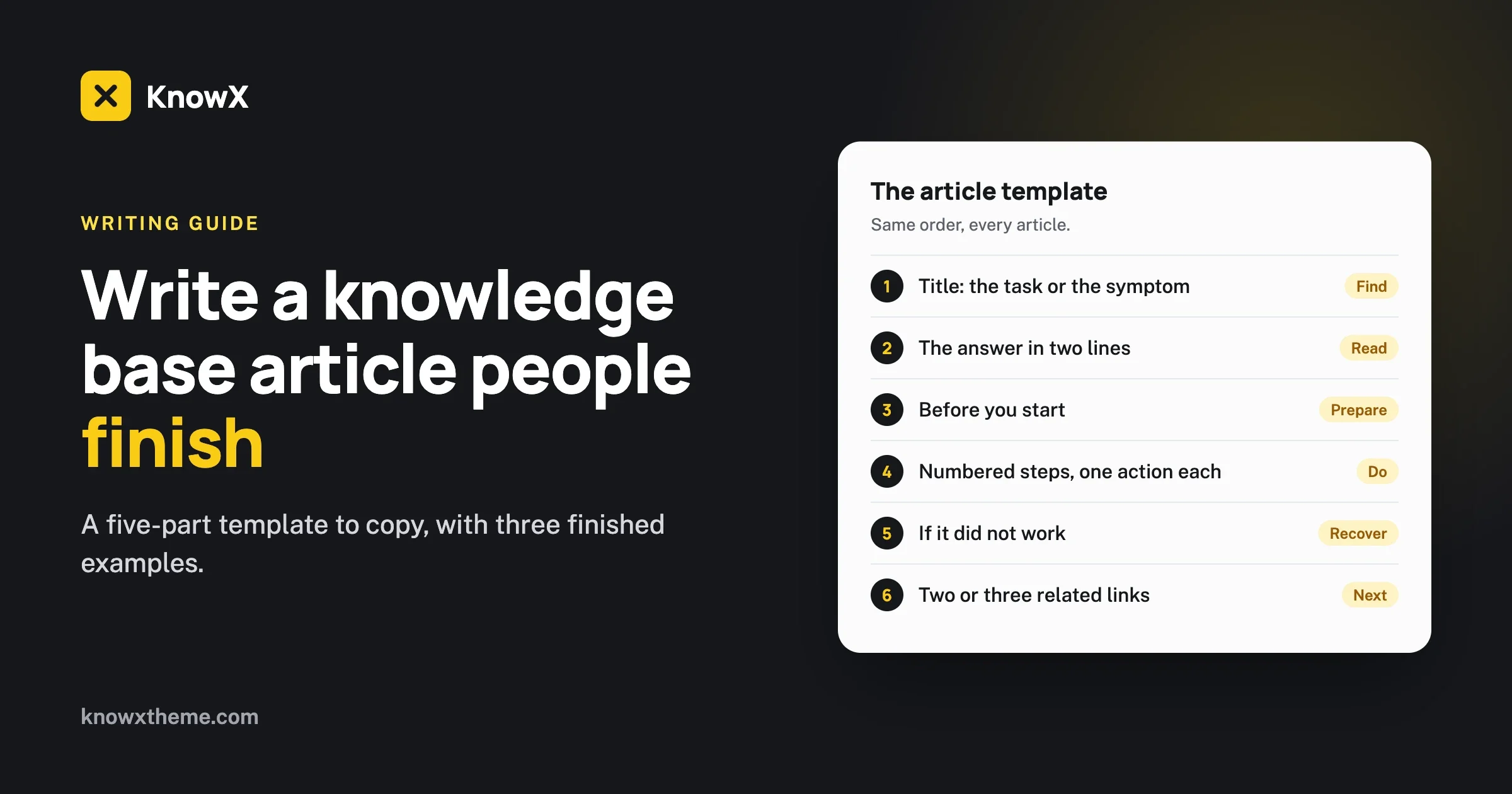
A knowledge base article people finish has five parts, in this order: a title that is the reader’s own task or problem, the answer in the first two lines, anything they need before they start, numbered steps with one action each, and what to do if it did not work. Write every article in that shape and readers stop reading and start scanning, which is what you want from someone who is stuck. This guide explains each part, gives you a template to copy, and shows two finished examples.
Why do people abandon help articles?
Because the article makes them work before it helps them. A reader arrives with a problem and a little patience. Every sentence that is not the answer uses some of that patience up.
The usual reasons a reader gives up:
- The title did not match. They are not sure this article is about their problem.
- The answer is buried. Two paragraphs of background come first.
- The steps are a paragraph. They lose their place every time they switch to the product and back.
- It covers too much. The one thing they need is somewhere in three screens of text.
- It dead-ends. The steps did not work, and the article has nothing more to say.
Each part of the template below removes one of those reasons.
The knowledge base article template
Copy this into your editor and fill it in. Delete any section an article truly does not need, but keep the order.
TITLE
The task, starting with a verb. Or the symptom, in the reader's words.

ANSWER (one or two sentences)
What to do, or what is going on, in plain words.

BEFORE YOU START (optional)
- What the reader needs: a role, a plan, a file, a setting.

STEPS
1. One action. Name the button in bold.
2. One action.
3. One action. Say what the reader should now see.

IF IT DID NOT WORK
- The most common cause, and the fix.
- The second most common cause, and the fix.
- How to contact support, and what to send.

RELATED (two or three links at most)
- The next thing the reader is likely to need.
That is the whole template. The rest of this guide is how to fill each part well.
Part 1: How do you write the title?
Write the title as the task the reader wants to do, starting with a verb, in the words they would type into a search box.
Weak title | Strong title | What changed |
|---|---|---|
Recurring Invoices | Create a recurring invoice | Names the task, not the feature |
Password Information | Reset your password | A verb and a clear outcome |
Payment Provider Integration Guide | Connect a payment provider | Shorter, in the reader’s words |
Email Delivery Issues | A customer did not receive the invoice email | The symptom as the reader sees it |
How to go about changing the plan you are currently on | Change your plan | Three words do the job |
Task titles and problem titles
Most articles are tasks: “Send your first invoice”. Start those with a verb. Troubleshooting articles are problems, and for those the title is the symptom: “The invoice total looks wrong”. The reader searches for what they can see. They do not know the cause yet, so a title built on the cause will not match their search.
Leave these out of titles
- “How to”. It adds two words to every title and makes a list of titles harder to scan. “Reset your password” is enough.
- Your product name, unless you have several products.
- Internal names for features that the screen does not show.
Part 2: How do you write the first two lines?
Give the answer. If a reader stops after two sentences, they should still leave with what they came for.
Compare two openings to the same article.
Slow: “Invoicing is an important part of running any business, and our platform offers a range of flexible options for getting invoices to your customers. In this article we will look at how you can send an invoice.”
Fast: “To send an invoice, open it and select Send. Your customer gets an email with a link to view and pay it.”
The slow version tells the reader things they already know and promises to help later. The fast version helps now. An experienced user reads it and is finished. A new user reads it, knows they are in the right place, and carries on to the steps.
For problem articles, name the cause
Open a troubleshooting article with the most likely cause and its fix: “This usually means the email went to your customer’s spam folder. Ask them to check there, then resend the invoice from the invoice page.” Most readers need nothing more.
What not to put first
- A definition of the feature.
- A sentence about what the article will cover.
- Reassurance or apology. Be kind by being quick.
Part 3: What goes in “Before you start”?
Anything that would stop the reader halfway. If a task needs admin rights, say so before step one, not at step four when the button they need is missing.
Typical items:
- The role or permission needed.
- The plan the feature is on, if it is not on all of them.
- Something to have ready: a file, an account number, a logo.
- A setting that must already be switched on.
Keep it to a short list. If there is nothing to say, leave the section out. An empty heading is noise.
Part 4: How do you write steps people can follow?
Number them, put one action in each, and name what the reader will click exactly as it appears on screen.
One action per step
A reader following steps looks at the article, switches to the product, does one thing, and switches back. A numbered step with a single action tells them exactly where to pick up again. A step that hides three actions in one sentence makes them reread it every time.
Hard to follow: “Go to settings and find the billing section, then update your card details and save.”
Easy to follow:
1. Open Settings.
2. Select Billing.
3. Enter your new card details.
4. Select Save.
Use the exact words on the screen
If the button says “Save changes”, write Save changes, in bold, with the same capital letters. Readers match shapes, not meanings. A step that says “confirm” when the button says “Save changes” makes them stop and wonder.
Say what should happen
After the step that matters most, tell the reader what they should now see: “A green banner confirms the invoice was sent.” This is how they know it worked, and it is where they notice if it did not.
Keep the number of steps honest
Three to seven steps is comfortable. If you have twelve, the article probably covers two tasks. Split it, and link the second from the end of the first.
Start steps with the place, then the action
“In Settings, select Billing“ works better than “Select Billing in Settings”, because the reader has to get to the place before they can do the action.
Part 5: What goes in “If it did not work”?
The one or two things that usually go wrong, the fix for each, and a way to reach a person. This section is what separates a helpful article from a frustrating one.
You already know what goes wrong, because it is in your support inbox. For each article, look at the tickets that came from people who had read it. Their problems are your list.
End the section with the contact step, and tell the reader what to send: “If the invoice still does not arrive, contact support with the invoice number and your customer’s email address.” That one sentence saves a round of questions and gets them an answer sooner.
Example 1: A finished task article
Create a recurring invoice
To bill a customer the same amount on a schedule, open an invoice and switch on Repeat. We send it automatically on the dates you choose.
Before you start
- You need the Owner or Admin role.
- The customer needs an email address on their record.
Steps
1. Open Invoices and select New invoice.
2. Choose the customer and add the items.
3. Switch on Repeat.
4. Choose how often: weekly, monthly or yearly.
5. Choose the date of the first invoice.
6. Select Save. The invoice now shows a Repeats label.
If it did not work
- You cannot see Repeat: you may be signed in as a Member. Ask an Owner or Admin.
- The first invoice was not sent: check the start date. Invoices go out on the morning of that date.
- Still stuck? Contact support with the customer name and the invoice number.
Related
- Stop a recurring invoice
- Send a payment reminder
It is about a hundred and fifty words. A reader who knows the product stops after the first two lines. A new reader follows six steps and sees a label that confirms it worked.
Example 2: A finished problem article
A customer did not receive the invoice email
The email most often lands in the customer’s spam folder. Ask them to look there, then resend the invoice.
Check these in order
1. Open the invoice and look at Activity. If it says Sent, the email left our system.
2. Check the customer’s email address on the invoice for a typing mistake.
3. Ask the customer to search their spam or junk folder for your business name.
4. Select Resend on the invoice.
If it still does not arrive
- Copy the invoice link from Share and send it to the customer yourself.
- Contact support with the invoice number and the customer’s email address, and we will check the delivery record.
Prevent it next time
- Ask new customers to add your sending address to their contacts.
A problem article follows the same shape with two changes. The steps become checks, in order from most to least likely. And there is a short “prevent it” line at the end, so the reader does not come back with the same problem.
Example 3: A finished reference article
Not every article is a task or a problem. Some are lookups: what the roles can do, which file types are accepted, what each status means. These have no steps, so the shape changes slightly. The answer still comes first, and the detail goes in a table.
What each role can do
There are three roles. Owners can do everything, Admins can do everything except change the plan, and Members can create and send invoices only.
Roles at a glance
- Owner: invoices, payments, reports, team, plan and billing.
- Admin: invoices, payments, reports and team.
- Member: create and send invoices, view their own.
Change someone’s role
See “Change a teammate’s role”.
A reference article should answer a “what” or “which” question in the first two lines, then lay the facts out so they can be scanned. Link to the task article for the “how”. Do not mix the two, or the reference becomes a long page that is hard to keep right.
How do you write so that search finds the article?
Use the reader’s words in the three places search looks hardest: the title, the first paragraph and the headings. This helps the search box inside your knowledge base and search engines outside it in the same way.
- Put the main words in the title. “Reset your password” will be found by “reset password”, “password reset” and “forgot password reset”.
- Use a second phrasing in the first paragraph. If people also say “forgot my password”, write “If you forgot your password, you can reset it from the login page.”
- Include the exact error message. If the screen says “Card declined: insufficient funds”, put those words in the article. People paste error messages into search.
- Add the words people use by mistake. If customers call an invoice a “bill”, mention “bill” once in the first paragraph.
Then test it. Type the three phrasings you would expect a customer to use into your own search box. If the article is not in the first few results, change the title before you change anything else.
How should you use screenshots and video?
Use a screenshot where words fail, and nowhere else.
- Use one when a control is hard to describe: a small icon, an option inside a menu, a screen with many similar buttons.
- Skip it when the step is “Select Save”. The reader can find a button with a name.
- Crop tightly. Show the part of the screen that matters, not the whole window.
- Write alt text that says what the image shows, for people using screen readers and for when images do not load.
- Never put a step only in an image. The text must work without it.
Every screenshot is a promise to update it when the product changes. An article with ten images will be wrong after the next redesign. An article with one will probably survive.
Video suits the few tasks where seeing movement helps, such as dragging items into order. Keep the written steps beside it. Many people cannot play sound where they are, and nobody can scan a video.
How long should a knowledge base article be?
As short as it can be while still letting a new user finish the task without help. For most task articles that is between one hundred and three hundred words.
If an article grows past two screens, ask whether it is answering more than one question. “Manage your invoices” is five articles: create, edit, send, delete, repeat. Split it. Short articles are easier to find, quicker to read and simpler to keep correct, because a product change usually touches one of them, not all five.
What words should you use?
- Say “you”. “You can change your plan at any time”, not “Users can change their plan”.
- Use the present tense and the active voice. “Select Save”, not “The Save button should be selected”.
- Use the same word for the same thing every time. If it is an invoice in step one, it is not a bill in step three.
- Choose the short word. “Use”, not “utilise”. “Help”, not “assistance”.
- Cut filler. “Simply”, “just” and “easily” add nothing, and they sting when the task is not going well for the reader.
- Pick one verb for clicking. “Select” works on phones and computers alike.
How do you review an article before you publish?
Run this check. It takes five minutes.
- Follow your own steps in the live product, exactly as written. This catches more mistakes than rereading.
- Read only the title and the first two lines. Would that alone help someone?
- Check every button name against the screen.
- Count the steps. More than seven? Look for a split.
- Read the “If it did not work” section. Does it end with how to contact you and what to send?
- Ask someone else to follow it without your help. Watch where they pause.
How do you keep articles correct?
An article that was right last year and is wrong today does more harm than no article, because readers trust it.
- Tie articles to product changes. Add “update the help article” to the checklist for any change to a screen or a flow.
- Review the top twenty every quarter. They carry most of your readers. Follow each one step by step.
- Fix reported errors the same day. A reader who took the trouble to tell you has done you a favour.
- Delete what is dead. An article about a feature you removed should go, with a redirect to the closest live article.
How do you use this template in WordPress with KnowX?
In KnowX, our free knowledge base theme, an article is a normal WordPress post, so the template maps straight onto the block editor.
- The post title is your task or symptom.
- The first paragraph is the answer.
- Use Heading blocks for Before you start, Steps and If it did not work.
- Use a numbered List block for the steps.
- Tick one category for the topic.
To save typing, write the empty template once, select its blocks and save them as a pattern in the editor. Every new article then starts from the same shape. WordPress also keeps a revision history for each post, so you can see what changed and go back if an edit was wrong.
KnowX adds breadcrumbs and a search field above each article, so a reader who lands from a search engine can see which topic they are in. It does not add “was this helpful?” voting or view reports. If you want those, they come from a plugin. The setup guide is here: build a knowledge base on WordPress with KnowX.
Questions about writing knowledge base articles
Should every article follow the template exactly?
Keep the order and drop the parts you do not need. A two-step task may have no “Before you start”. The value comes from every article feeling familiar.
Who should write the articles?
The people who answer the questions. Support staff know what customers ask and how they phrase it. Have one person edit for a consistent voice.
Should you write for beginners or experts?
For beginners, with the answer first. Experts read the first two lines and leave. Beginners carry on to the steps. One article serves both.
How many links should an article have?
Two or three related links at the end, and links in the text only where a step depends on another article. A page full of links sends readers away before they have finished.
What should you write first?
The answers to the ten questions your support inbox repeats most. Then group them using our guide to structuring knowledge base categories.
What should you do next?
Take your most-read article and rewrite it with the template. Move the answer to the top, turn paragraphs into numbered steps, and add the “If it did not work” section from your support tickets. Then do the next four. Five rewritten articles will reach more readers than fifty new ones.
To see the template in a working help center, open the live KnowX demo, or see how teams use it as a customer help center.