WordPress Knowledge Base: Theme or Plugin?
Should your WordPress knowledge base use a theme or a plugin? What each does, where each stops, and a ten-minute checklist to decide.

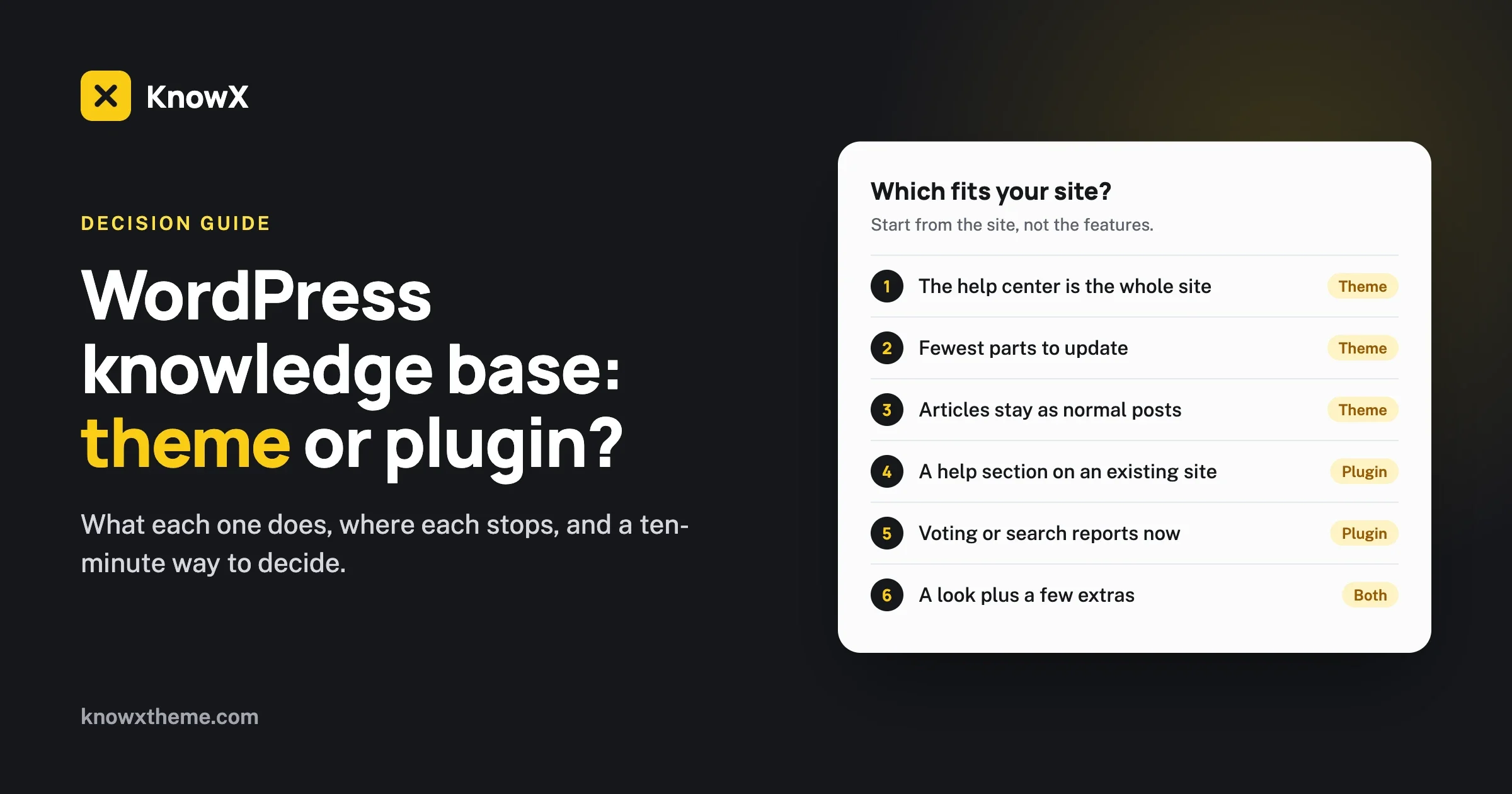
Choose a knowledge base theme when the whole site is the help center and you want it to look right with as few moving parts as possible. Choose a knowledge base plugin when the help center is one section of an existing site whose design must not change, or when you need features such as article voting and search reports. Many sites end up using a theme for the look and a small plugin or two for extras. This guide explains what each one does in WordPress, where each stops, and how to decide in ten minutes.
We make KnowX, a free knowledge base theme, so we know the theme side best. We have kept this guide about the decision, not about products. We do not name or rank plugins here, because their features and prices change, and you should read each one’s own page on the day you choose.
What is the difference between a theme and a plugin in WordPress?
A theme controls how your whole site looks. A plugin adds a feature. You can have only one theme active at a time, and as many plugins as you need.
Theme | Plugin | |
|---|---|---|
What it controls | Layout, colours, fonts, header, footer, page templates | One feature or a set of features |
How many you can run | One | Many |
If you switch it off | The site takes on another theme’s look. Your content stays. | That feature disappears. Content the plugin created may be hidden until it is back. |
That last row matters more than it seems. It decides what happens to your articles if you change your mind later, and we come back to it below.
What does a knowledge base theme do?
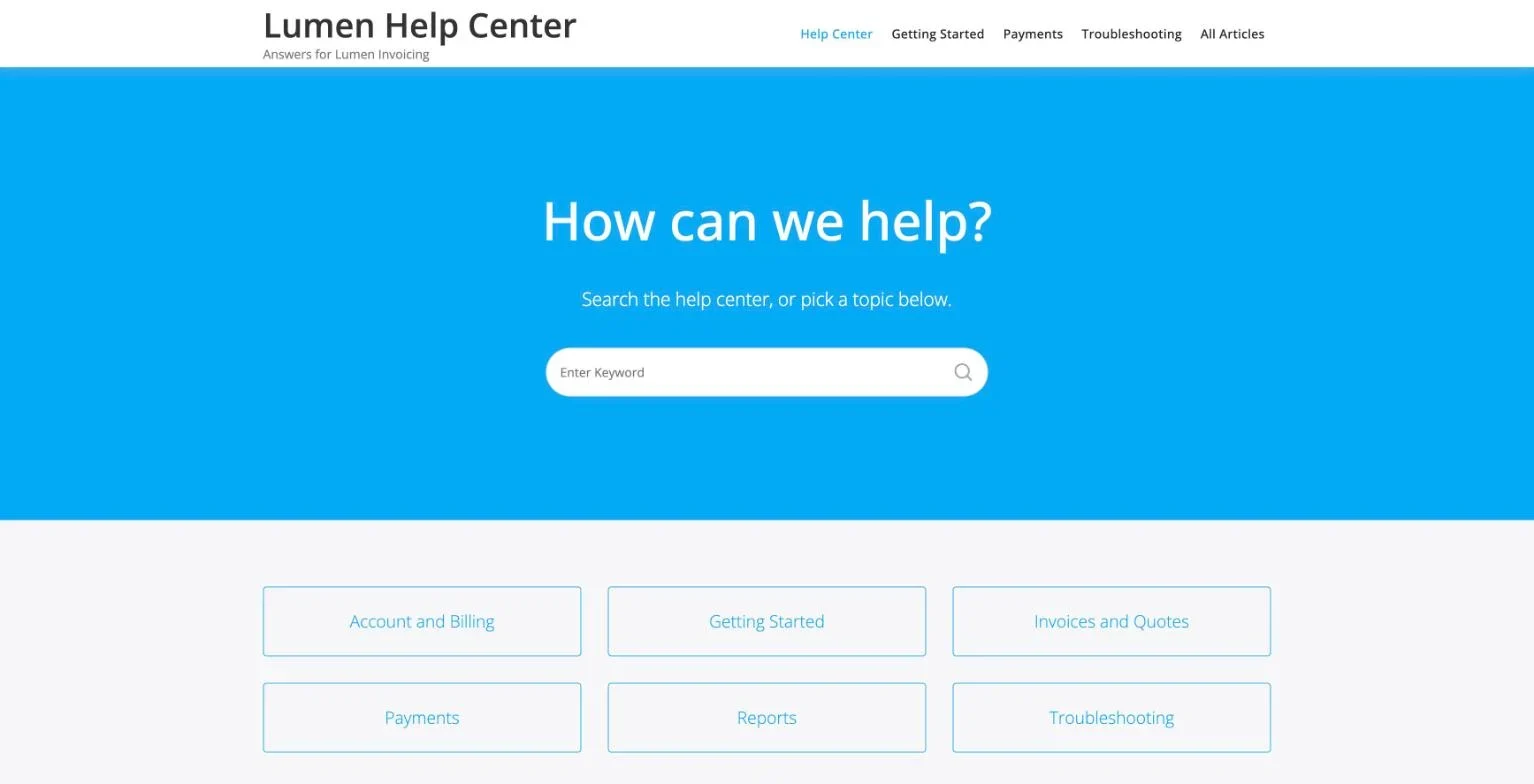
A knowledge base theme turns standard WordPress content into a help center. It gives you a home page built for finding answers, and article pages built for reading them.
With our theme, KnowX, that means:
- A knowledge base home page, created for you on first activation, with a search box and a tile for each topic.
- A second layout that lists every topic with its articles on one page.
- Article pages with breadcrumbs and a search field above the content.
- A support section at the bottom of the home page for readers who are still stuck.
- Design settings in the Customizer for colours, fonts, header, footer and the login screen.
Where the content lives with a theme like KnowX
In standard WordPress posts and categories. An article is a post. A topic is a category. KnowX does not create its own content type. This has one big advantage: if you switch to a different theme, every article is still there, in the Posts screen, exactly as you wrote it. Nothing is locked to the theme.
It has one trade-off too. Posts are also what a blog uses. If the same site needs both a blog and a knowledge base, you have to keep them apart with categories, for example by excluding the blog categories from the knowledge base page. That hides them from the topic tiles and from Layout Two. The Recent Articles list on Layout One still shows the newest posts from every category. That works, and it needs a little care.
What a theme does not do
A theme is about presentation. KnowX does not include article voting, search reports, AI answers, a chatbot, ticketing or access rules per article. Those are features, and in WordPress features come from plugins.
What does a knowledge base plugin do?
A knowledge base plugin adds a help section to whatever theme you already run. Plugins differ a great deal, so treat this as a description of the type, and check any one plugin’s own page for what it includes.
A plugin of this kind usually:
- Adds its own content type for articles, separate from blog posts, with its own categories. You see a new menu item in the dashboard, often called Docs or Knowledge Base.
- Provides its own templates for the help home page, the category pages and the articles, which sit inside your theme’s header and footer.
- May add features such as a live search box, article feedback, view counts, a table of contents, or access control. Which of these are free and which are paid varies by plugin.
Where the content lives with a plugin
In the plugin’s own content type. This keeps help articles neatly apart from blog posts, which is tidy on a site that has both. The trade-off is the mirror image of the theme’s. If you deactivate the plugin, WordPress no longer knows how to show that content type. The articles are still in the database, but they vanish from the dashboard and the site until the plugin, or another tool that understands that content type, is active again. Moving to a different plugin later can mean converting the articles.
What a plugin does not do
It does not redesign your site. The help pages take their fonts, colours and header from your theme. On a well-built theme this looks good straight away. On others you may spend time adjusting styles so the help pages match the rest of the site.
Which should you choose?
Start from your site, not from the feature lists. Four situations cover almost everyone.
Situation 1: A new site that is only a help center
Choose a theme. You are building help.yourcompany.com or docs.yourproduct.com from nothing. A knowledge base theme gives you the whole look in one step, with the fewest parts to maintain. Add a plugin later only if you find you need a specific extra.
Situation 2: An existing site that needs a help section
Choose a plugin. You have a company site with a design you like, and you want /help or /docs added to it. Changing the theme would change every page. A plugin adds the section and leaves the rest alone.
Situation 3: You need voting, reports or access control from day one
Choose a plugin, or a theme plus plugins. These are features, so they come from plugins either way. If one knowledge base plugin covers everything on your list, it may be simplest to use it for the lot. If you like a theme’s design, you can pair it with small single-purpose plugins.
Situation 4: A site with both a blog and a knowledge base
Either can work. Decide how separate they must be. A plugin keeps articles and blog posts in different places in the dashboard, which is easier for a team with many writers. A theme such as KnowX keeps everything as posts, which is simpler, as long as you are happy to keep the two apart with categories. Another clean answer is two sites: your main site on its own theme, and the help center on a subdomain with a knowledge base theme.
What do three typical setups look like?
It helps to see the choice played out. Here are three small teams and what each would sensibly pick.
A software company launching help.example.com
They have a product, forty questions that repeat in support, and no help site yet. The help center will be its own site on a subdomain. Nothing else will live there.
Setup: WordPress with a knowledge base theme. Six categories, forty posts, the search-first home page, and the support section pointing at their contact form. Three small plugins: the one the theme needs for its settings, one for popular articles, and a caching plugin.
Why: the whole site is the help center, so the theme does everything in one step and there is very little to maintain.
A consultancy adding guides to its existing website
They have a company site with a design they paid for and like. They want a /guides section with how-to articles for clients, and their blog must carry on as before.
Setup: their current theme, plus a knowledge base plugin that adds a separate article type and its own templates.
Why: changing the theme would change every page on the site. The plugin adds one section and keeps guide articles apart from blog posts in the dashboard.
A membership organisation with public help and a members’ forum
They want public articles anyone can read, a forum where members help each other, and a few articles only members can see.
Setup: a knowledge base theme for the look, bbPress for the forum, and an access plugin for the members-only articles.
Why: the theme handles the help center, and each extra need is met by one plugin built for that job. This is the “theme plus plugins” route.
In all three, the first question decided most of it: is the knowledge base the whole site, or a part of one?
How do you test either option in an afternoon?
Do not decide from screenshots. Both options are quick to try, and an afternoon of testing tells you more than a week of reading comparisons.
- Make a test site. Use a staging copy from your host, or a free browser-based WordPress sandbox. Never test on your live site.
- Add real content. Create three categories and paste in six real answers from your support inbox. Dummy text hides problems that real titles reveal.
- Install the theme or the plugin and follow its setup guide. Note how long it takes and where you got stuck.
- Use it as a reader. Search for something using a customer’s words. Open an article on your phone. Find the way to contact support.
- Use it as a writer. Add a seventh article. Was it obvious where to go and what to click?
- Try to leave. Switch the theme, or deactivate the plugin, and see what happens to your six articles. Then switch back.
Step six is the one people skip. It shows you, in two minutes, how tied your content would be to the tool. With a theme that uses posts, the articles stay visible. With a plugin that owns its content type, they disappear until it is active again. Neither result is a fault. It is just better to know before you have two hundred articles.
A ten-minute decision checklist
Answer each question, then count.
Question | If yes, lean towards |
|---|---|
Is the knowledge base the whole site? | Theme |
Do you want the fewest parts to update? | Theme |
Should articles stay as ordinary posts you can take anywhere? | Theme |
Is the knowledge base a section of an existing site? | Plugin |
Must the current site design stay exactly as it is? | Plugin |
Do you need article feedback or search reports now? | Plugin |
Do some articles need to be visible only to certain users? | Plugin |
Do many writers work on both a blog and help articles? | Plugin |
If the answers split evenly, look at the first and fourth questions. Whether the knowledge base is the whole site or a part of one settles most cases.
Can you use a theme and a plugin together?
Yes. This is common and often the best result. The theme gives the site its help center look. One or two small plugins add the specific features you need.
With KnowX, for example:
- Kirki Toolkit (free) provides the theme’s Customizer panels. KnowX recommends it on activation, and you need it for the design settings.
- WordPress Popular Posts (free) counts views and fills the Popular Articles list on the Layout One home page.
- Collapsing Categories (free) gives you an expandable topic list for the sidebar.
- Yoast SEO, if you use it with breadcrumbs on, supplies the breadcrumb trail.
- bbPress, if you want a community forum beside the knowledge base. KnowX detects it and adds forum sidebars.
What we would not do is run a knowledge base theme and a full knowledge base plugin for the same content. You would have two home pages, two sets of templates and two places to put articles. Pick one to own the articles.
Keep the plugin count low
Every plugin is something to update and something that can conflict. Add one when you have a clear need and remove it if you stop using it. A help center with a theme and three well-chosen plugins is easier to live with than one with twelve.
What should you check before choosing any knowledge base theme or plugin?
These checks apply to ours and to everyone else’s.
- Last updated. Look at the date of the latest release. Software that has not been updated for a long time may not keep up with WordPress.
- Tested up to. Check which WordPress version it has been tested with.
- What is free and what is paid. Read the list carefully. The feature you need most may be in the paid version.
- Where articles are stored. Posts, or a custom content type? This decides how easy it is to leave.
- A live demo. Try it as a reader would. Search for something. Open it on a phone.
- Documentation and support. Is there a clear setup guide, and a way to get help?
For KnowX, you can check all of this on its WordPress.org page, and try the live demo in your browser.
What goes wrong, and how do you fix it?
Help pages do not match the rest of the site
What you see: after adding a plugin, the help pages have different fonts or spacing from your other pages.
Check: look in the plugin’s settings for style or template options.
Fix: use those settings first. If they are not enough, a small amount of custom CSS usually closes the gap.
Prevent: test the plugin on a staging copy of your site, with your theme, before you commit.
Blog posts appear in the knowledge base
What you see: with a theme that uses posts, a news post shows up under a help topic or in Recent Articles.
Check: which category is the post in?
Fix: put blog posts in their own category and exclude that category from the knowledge base page. In KnowX this is the Exclude category by ID setting. It removes the category from the topic tiles and from Layout Two. In the current version of KnowX it does not remove those posts from the Recent Articles list on Layout One, so if that matters, use Layout Two for the knowledge base page or run the blog on a separate site.
Prevent: decide on day one whether this site will also carry a blog. If the blog is large, consider a separate site for the help center.
Articles vanished after deactivating a plugin
What you see: the Docs menu is gone from the dashboard and the help pages return errors.
Check: was the plugin that owns the article content type switched off?
Fix: reactivate it. The articles are still in the database and will reappear.
Prevent: before you replace a knowledge base plugin, export the articles and plan how they will be converted.
Two tools fighting over the same pages
What you see: two help home pages, or settings that seem to have no effect.
Check: are you running a knowledge base theme and a knowledge base plugin together?
Fix: choose one to own the articles and remove the other.
Prevent: one tool for the knowledge base structure, small plugins for extras.
The theme’s settings are missing
What you see: with KnowX, the Customizer shows no Knowledge Base panel.
Check: is Kirki Toolkit installed and active?
Fix: install and activate it, then reload the Customizer.
Prevent: install the recommended plugins when the theme prompts you.
What about block themes and the Site Editor?
WordPress has two kinds of theme. Classic themes are customised in the Customizer, with menus and widgets. Block themes are edited in the Site Editor.
KnowX is a classic theme. You set up the design in the Customizer and write articles in the block editor, where KnowX adds a colour palette, font sizes and block styles. If you specifically want to design every template in the Site Editor, look for a block theme, and check what knowledge base layouts it offers. If you want to choose a layout, set your colours and start writing, a classic knowledge base theme gets you there with less to learn.
What does each option cost?
WordPress is free. KnowX is free, under the GPL licence. The plugins it recommends are free. Your cost is hosting and a domain.
Knowledge base plugins range from free to paid yearly licences, and many have a free version with a paid upgrade. We do not list prices here, because they change. Read the plugin’s own pricing page, and check whether the features you need are in the free version.
We compare the wider costs, including hosted tools, in what free knowledge base software really costs.
Questions about knowledge base themes and plugins
Is a theme or a plugin better for SEO?
Neither has a built-in advantage. Search engines care about clear titles, useful answers, sensible structure and a fast site. Both routes can deliver those.
Can you switch from a plugin to a theme later, or the other way?
Yes, with some conversion work. Moving from a plugin’s content type to posts, or back, means converting the articles and redirecting the old addresses. It is routine work for a developer and we do it as part of knowledge base migration.
Do you need a page builder?
No. KnowX’s knowledge base layouts work without one. If you use Elementor, KnowX registers theme locations so Elementor can control the header and footer.
Can a theme-based knowledge base be private?
Not with KnowX alone. A staff-only site needs a plugin or a server rule that requires login. See our internal knowledge base page.
Which is easier for a non-technical owner?
For a new, stand-alone help center, a theme. You install it, the home page is created for you, and you write articles as posts. Our guide shows every step: build a knowledge base on WordPress with KnowX.
What should you do next?
Answer the first question: is the knowledge base the whole site, or part of one? If it is the whole site, try a theme. Open the KnowX demo, and see the full list on the KnowX features page. If it is part of an existing site, shortlist two plugins, read their own pages today, and test each on a staging copy with your theme.
Either way, write your first twenty answers before you spend long on tools. Good articles move easily between a theme and a plugin. Missing ones are the problem no tool can solve.