Moving a Knowledge Base Off a Hosted Tool: What to Check First
Five checks before you move a knowledge base off a hosted tool: the export, images, links, redirects and lost features. Plus a safe order of work.

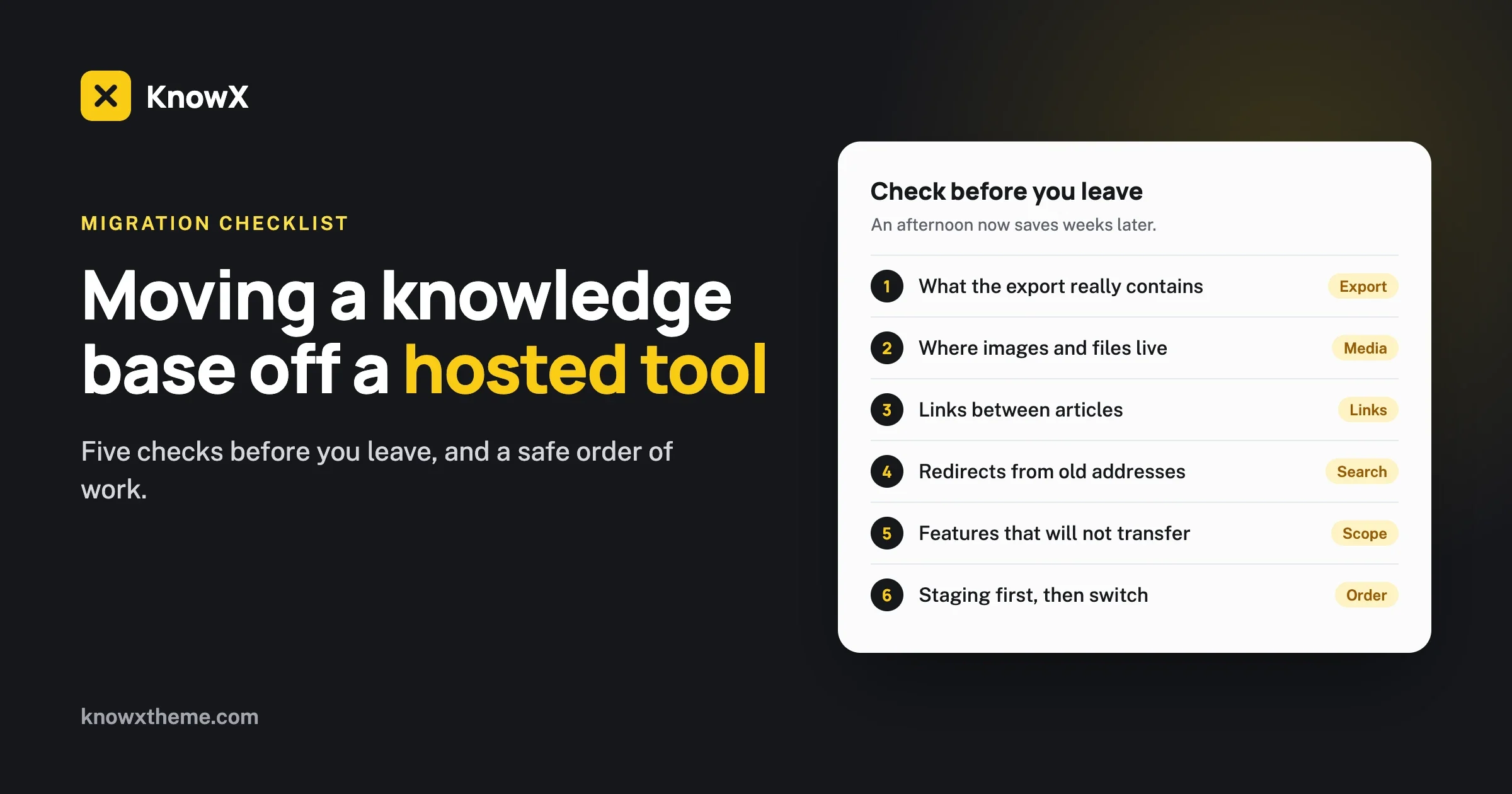
Before you move a knowledge base off a hosted tool, check five things: what the export actually contains, what happens to images and attachments, how links between articles will be rewritten, whether the old addresses can redirect to the new ones, and which features will not come with you. Then do the move on a staging site first, review it, and only then switch. This guide walks through each check, gives you an order of work, and covers the problems that catch most teams.
We build WordPress sites and we make KnowX, a free knowledge base theme, so our examples use WordPress as the destination. The checks apply wherever you are going. We do not name hosted tools here or describe their export features, because those change. Read your own tool’s export documentation on the day you plan the move.
Is moving the right decision?
Sometimes the best outcome of this guide is that you stay where you are. Moving a knowledge base is a few days to a few weeks of careful work, and it is worth it only when the reason is solid.
Good reasons to move:
- The bill grows with every writer you add, and you mostly use the tool to publish articles.
- You want the knowledge base on your own domain, in your own design, without limits set by a plan.
- You want your content in a system you control and can back up yourself.
- The tool is being retired, or its plans have changed in a way that no longer fits.
Reasons to stay:
- You rely every day on features built into the tool, such as ticketing tied to articles, AI answers or detailed search reports.
- Nobody on the team can look after a website, and you do not want to pay someone to.
- The export is so poor that the move would mean retyping everything, and the current cost is bearable.
If you are unsure, do checks one to five below. They take an afternoon, cost nothing, and you will know.
Check 1: What does the export really contain?
Run an export today and open the file. Do not rely on the feature list. The file is the truth.
Look for the answer to each of these:
- Is every article there? Count them against the number in your dashboard. Check that drafts and unlisted articles are included if you need them.
- What format is it? HTML, Markdown, CSV, JSON and XML are all workable. A PDF is not. It is a picture of your content, not your content.
- Is the structure included? Can you tell which category each article belongs to, and the order of articles within a category?
- Is the formatting kept? Headings, numbered lists, tables, bold text and code samples should survive.
- Are the details there? Titles, addresses or slugs, publish and update dates, authors, and any search descriptions.
- What about translations? If you publish in more than one language, are all versions exported and linked to each other?
If there is no export
Check whether the tool offers an API, a way for a program to request your articles one by one. A developer can usually build an export from that. If there is neither, the last resort is copying from the public pages, which loses drafts and needs more clean-up. Find this out before you plan anything else.
If the export is on a higher plan
Some tools keep export for paid tiers. It can be worth upgrading for one month to get a clean file. Compare that cost with the hours a manual copy would take.
Check 2: What happens to images and attachments?
This is where most moves go wrong quietly. An export file often contains the text of your articles and only links to the images, which still sit on the old tool’s servers. Everything looks fine after the move, until the day you close the old account and every image breaks.
- Open the export and find an image. Is the file itself in the export, or is it a web address pointing back to the old tool?
- If it is an address, every image has to be downloaded and uploaded to the new site, and every article updated to point to the new copy.
- List your attachments. PDFs, spreadsheets and downloads need the same treatment.
- Check embedded video. Videos hosted on a video service will keep working. Videos uploaded straight into the old tool need moving.
- Keep the alt text. Image descriptions matter for accessibility. Make sure they come across.
In WordPress, images belong in the media library of your own site. A proper move downloads each one, uploads it there and rewrites the article. After that, nothing depends on the old tool.
Check 3: How will links between articles be handled?
Your articles link to each other. After the move, every one of those links points at the old address. Each has to be rewritten to the new one.
- Build a map. A simple spreadsheet with two columns: old address, new address, one row per article. Almost every later step uses it.
- Rewrite internal links from the map. This can be done automatically once the map exists.
- Find links that use internal IDs. Some tools link by an article number, not a readable address. Those need the map too.
- Check anchor links. Links that jump to a heading inside an article depend on how the new system names headings.
- Check links from outside the knowledge base. Your app, your emails, your website and your canned support replies all link to help articles. List the places, so you can update them or rely on redirects.
Check 4: Can the old addresses redirect to the new ones?
Redirects send anyone who follows an old link to the right new page. They keep bookmarks, search results and links in old emails working. Whether you can have them depends on where your knowledge base lives today.
If it is on your own domain or subdomain
For example help.yourcompany.com. You control that address. When you point it at the new site, you can redirect every old article address to its new one, using the map from check 3. This is the best case, and it is one reason to put any knowledge base on your own domain from the start.
If it is on the tool’s domain
For example yourcompany.sometool.com. You do not control that address. Find out whether the tool lets you set a redirect or a notice when you leave, and for how long. If it does not, old links will stop working when you close the account. Plan for that:
- Update every link you control before the switch: in your app, your website, your email templates and your saved replies.
- Keep the old knowledge base online for a while with a clear note at the top of each article pointing to the new address, if the tool allows it.
- Submit the new site to search engines so the new pages are found quickly.
Why redirects matter for search
Search engines have your old addresses on record. A redirect tells them the page has moved, so the new page can take its place. Without redirects, the old pages drop out and the new ones start from nothing.
Check 5: Which features will not come with you?
Be honest about this before the move, not after. A hosted knowledge base tool usually does more than publish articles. List what you use, then decide what replaces each.
You may have today | On WordPress with KnowX |
|---|---|
Articles grouped by topic, with search | Yes. Articles are posts, topics are categories. |
“Was this helpful?” votes, and their history | Not in KnowX. A plugin can add voting. Past votes do not transfer. |
Search reports and view counts | Not in KnowX. A plugin or your analytics tool can count from now on. History does not transfer. |
AI answers or a chatbot | Not in KnowX. A separate tool if you need it. |
Tickets linked to articles | Not in KnowX. Tickets stay in your help desk. |
Articles visible only to some users | Not in KnowX. Needs an access plugin. |
Version history | WordPress keeps revisions from the move onwards. Old history does not transfer. |
Several writers at no extra cost | Yes. No per-seat fee. |
If three or four rows in the middle of that table are things you use every day, think again about whether to move. If they are things you were paying for and rarely opened, you have just confirmed your reason.
What is the right order of work?
Do it in this order. Each step protects you from a mistake in the next.
1. Take stock
Export everything. Count the articles. List the categories. Note which articles get the most views, because those are the ones to check by hand later.
2. Clean before you move
A move is the best chance you will get to drop dead weight. Delete articles about features that no longer exist. Merge duplicates. Fix the titles you have always meant to fix. Moving two hundred good articles is easier than moving four hundred mixed ones, and the result is a better knowledge base.
3. Decide the new structure
Keep your categories if they work. If they do not, change them now, not after the move. Our guide to structuring knowledge base categories has a method.
4. Build the address map
One row per article: old address, new address. Where you can, keep the last part of the address the same. It makes redirects simple and mistakes rare.
5. Set up a staging site
A staging site is a private copy that only your team can see. Build the new knowledge base there. Never import straight into a live site. On WordPress that means installing WordPress and the theme on staging, creating the categories and setting up the home page. Our guide covers that part: build a knowledge base on WordPress with KnowX.
6. Import a small batch first
Move ten articles. Pick varied ones: one with a table, one with many images, one with code, one long, one short. Look at each closely. Fix how the import handles them before you run the rest. Problems found on ten articles are cheap. The same problems found on four hundred are not.
7. Import everything, then the images
Run the full import. Then move the images and attachments into the new site and rewrite the articles to use them. Then rewrite the internal links from the map.
8. Review
Compare counts: articles out, articles in. Open the twenty most-viewed articles and read each one next to its original. Click every link in them. Search for five common questions. Look at three articles on a phone.
9. Prepare redirects and outside links
Load the redirects from the map. Update the links in your app, website, email templates and saved replies, ready to go live at the same moment.
10. Switch
Choose a quiet time. Point the address at the new site, or publish the new address. Test ten old links straight away to confirm they redirect.
11. Watch for two weeks
Check for pages not found and fix each with a redirect. Ask the support team to report any broken link a customer mentions. Keep the old account open, in read-only form if you can, until you are sure nothing is missing.
12. Close the old account
Only after one final check that no image or file on the new site is still loading from the old one. Then take a last export for your records and close it.
What goes wrong, and how do you fix it?
Images disappear weeks after the move
What you see: broken images across the new site, shortly after you cancelled the old tool.
Check: open a broken image’s address. Does it point at the old tool’s servers?
Fix: if the old account can be reopened, do it, then download and re-upload the images properly.
Prevent: before closing the old account, search the new site’s content for the old tool’s domain name. There should be no results.
Formatting is scrambled
What you see: steps that were numbered are now plain paragraphs, tables are lines of text, and odd characters appear.
Check: compare the export file with the original article. Was the formatting lost in the export or in the import?
Fix: adjust the import for that pattern and rerun it on staging.
Prevent: the ten-article test batch, chosen to include your trickiest formatting.
Links go to the wrong place, or nowhere
What you see: a link in one article opens the old site, or a page not found.
Check: is that article in your address map, with the right new address?
Fix: correct the map and rerun the link rewrite.
Prevent: run a link check across the whole staging site before the switch.
Search traffic drops after the switch
What you see: fewer visitors arriving from search engines.
Check: test old addresses. Do they redirect to the matching new article, or to the home page, or nowhere?
Fix: add the missing redirects, each to its own matching article. Submit the new sitemap to search engines.
Prevent: one redirect per article, from the map. Never send every old address to the home page. Search engines treat that as the content having gone.
Something was left behind
What you see: a customer asks for an article that is not on the new site.
Check: was it a draft, an unlisted article or in a second language?
Fix: recover it from your final export.
Prevent: count articles by status before and after, and keep that last export somewhere safe.
The team keeps editing the old site
What you see: changes made in the old tool during the move are missing from the new site.
Check: compare update dates.
Fix: copy those changes across by hand.
Prevent: agree a content freeze. From the day of the final export, edits go in a shared list and are applied to the new site after the switch.
A pre-move checklist
Go through this list before you commit to a date. Every “no” is a task to finish first.
- We have run a full export and opened the file.
- The number of articles in the export matches the dashboard, including drafts.
- We know whether images are inside the export or only linked.
- We have a list of attachments and uploaded videos.
- We have deleted or merged the articles we do not want to keep.
- The new category structure is agreed.
- We have an address map with one row per article.
- We know whether the old addresses can redirect, and for how long.
- We have listed every place outside the knowledge base that links to it.
- We have listed the features we use today and what replaces each one.
- A staging site is ready and private.
- A content freeze date is agreed with everyone who writes.
- One person owns the move and makes the final call to switch.
The last item matters as much as the technical ones. Moves drift when nobody is in charge of saying “we are ready” or “not yet”.
What should you tell customers and staff?
Very little, and at the right moment. If the address stays the same and the redirects work, most customers will only notice a new look. Tell the people who need to act:
- Writers: the freeze date, where to log edits meanwhile, and how to log in to the new site.
- Support staff: the switch date, the new address if it changes, and that saved replies have been updated.
- Customers: a short note only if the address changes. Put it at the top of the old knowledge base and in your next product email.
How long does a move take?
It depends on three things: how many articles you have, how clean the export is, and how many images need moving. A small knowledge base with a clean export can be moved and reviewed in a few days. A large one with a poor export, several languages and years of mixed formatting takes weeks.
Anyone who quotes a time or a price before seeing your export is guessing. We look at the export and a staging copy first, and then say.
Should you do it yourself or get help?
Do it yourself if you have fewer than about fifty articles, a clean export, and someone comfortable with WordPress. At that size, pasting each article in by hand is slow and dependable, and it doubles as the content review you needed anyway.
Get help if you have hundreds of articles, images to move in bulk, more than one language, or addresses that must redirect precisely. That work is scripted, not typed, and it is what we do as knowledge base migration. It starts with a call and a look at your export.
Questions about moving a knowledge base
Will we lose our search rankings?
Not if the old addresses are on a domain you control and each one redirects to its matching new article. If the old knowledge base is on the tool’s own domain and cannot redirect, expect a dip while search engines find the new pages.
Can we move in stages?
It is possible, one category at a time, and it is harder than it sounds, because links cross between the two sites for the whole period. One clean switch is usually less work.
Do view counts and votes transfer?
No. Those belong to the old tool. If they matter to you, export the reports for your records before you leave.
What about articles only customers or staff can see?
KnowX has no access rules of its own. On WordPress, restricted articles need an access plugin or custom work. Decide this before the move. See our internal knowledge base page.
Is WordPress a good destination?
It is a good fit if what you mainly need is clear articles grouped by topic, on your own domain, with no per-seat fee. It is a poor fit if you need ticketing, AI answers and analytics in one product. We compare both honestly on our page about WordPress as knowledge base software, and the costs in what free knowledge base software really costs.
What should you do next?
Run an export from your current tool today and open the file. Count the articles, look at one image, and check whether your knowledge base is on a domain you control. Those three facts tell you how easy or hard your move will be.
If you would like a second pair of eyes on that export, get in touch. And if you want to see where you would be moving to, open the live KnowX demo.