How to Structure Knowledge Base Categories So People Find Answers
Four rules for knowledge base categories, a worked example from questions to a finished tree, and fixes for a structure that has grown messy.

Structure your knowledge base categories around what the reader is trying to do, keep the top level to eight or fewer, give every article exactly one home, and add a category only when you already have three articles for it. Those four rules solve most findability problems before they start. This guide explains each rule, walks through a worked example from a pile of questions to a finished category tree, and shows how to repair a structure that has already grown messy.
Why does category structure matter so much?
Because half your readers will never use the search box. They arrive, scan the topic names and click the one that looks right. If the names are unclear, or there are too many, or the answer is filed somewhere surprising, they give up and write to support.
Structure also decides how well search works. People search with the same words they would use to browse. When your categories and titles use those words, search finds the right article. When they use internal jargon, search returns nothing and the reader assumes you have no answer.
And structure decides how easy the knowledge base is to maintain. With clear categories, a writer knows where a new article goes, and can see at a glance whether the answer already exists. With vague ones, the same answer gets written three times in three places.
Rule 1: How should you name categories?
Name each category after a task or a subject in the reader’s own words. Test every name with one question: would a customer in their first week type this word?
Avoid | Use | Why |
|---|---|---|
Onboarding | Getting Started | “Onboarding” is the company’s word for it |
Billing Operations | Payments | Shorter, and what the customer calls it |
Platform Configuration | Settings | Matches the label in the product |
Miscellaneous | (nothing) | A category nobody can predict is a hiding place |
FAQ | (nothing) | Every article answers a question. File each under its subject. |
Match the words in your product
If your app has a menu item called Reports, the category is Reports, not Analytics or Insights. Readers move between the product and the help center. The same word in both places means they never have to translate.
Use the words from your inbox
Your customers have already told you what they call things. Read fifty support emails and note the nouns. If they write “invoice” and you write “billing document”, they are right and the category should change.
Keep names short and parallel
One to three words. Keep them the same kind of phrase where you can: all nouns (Payments, Reports, Settings) or all tasks (Get Started, Send Invoices, Get Paid). A mixed list is harder to scan.
Rule 2: How many categories should a knowledge base have?
Eight or fewer at the top level. Five or six is ideal for a knowledge base under a hundred articles.
The reason is how people scan. A short list is taken in at a glance, and the reader’s eye lands on the right word. A long list has to be read item by item, and by the twelfth item most people have forgotten the third. More choices also means more near-misses, where two categories both look plausible and the reader has to try each.
What if you have more than eight subjects?
Group them. If you have Invoices, Quotes, Credit Notes and Recurring Billing, that is one top-level category, Invoices and Quotes, with the others as articles or sub-topics inside it. Two levels of six is much easier to use than one level of twenty.
How deep should the tree go?
Two levels at most: category, then article, or category, sub-category, then article. Every extra level is another click and another guess. If you feel you need a third level, the knowledge base probably covers two products and should be split into two.
Rule 3: Should an article be in more than one category?
No. Give every article exactly one home.
It is tempting to file “Refund a payment” under both Payments and Troubleshooting, so that people find it either way. In practice this causes three problems. The article shows up twice in any list of all articles, which makes the knowledge base feel repetitive. Writers lose track of where things live. And when the structure changes, articles in two places are the ones that get orphaned.
The better way to help a reader coming from the other direction is a link. Put the article in Payments, and in the Troubleshooting article about a customer being charged twice, link to it. One home, many signposts.
How do you pick the home?
Ask where the reader is when they need it. “Refund a payment” is needed by someone working with payments, so it lives in Payments. “A customer was charged twice” is needed by someone with a problem, so it lives in Troubleshooting and links to the refund article.
Rule 4: When should you add a new category?
When you have at least three articles that belong in it and do not fit well anywhere else. Not before.
Empty and near-empty categories are the most common structural mistake. They come from planning the tree first and hoping to fill it later. A reader who clicks a category and finds one article, or none, loses confidence in the whole knowledge base.
Work the other way round. Write the articles first, in whatever categories you have. When one category grows past twelve or fifteen articles and you can see a clear group of three or more inside it, split that group out.
A worked example: from questions to categories
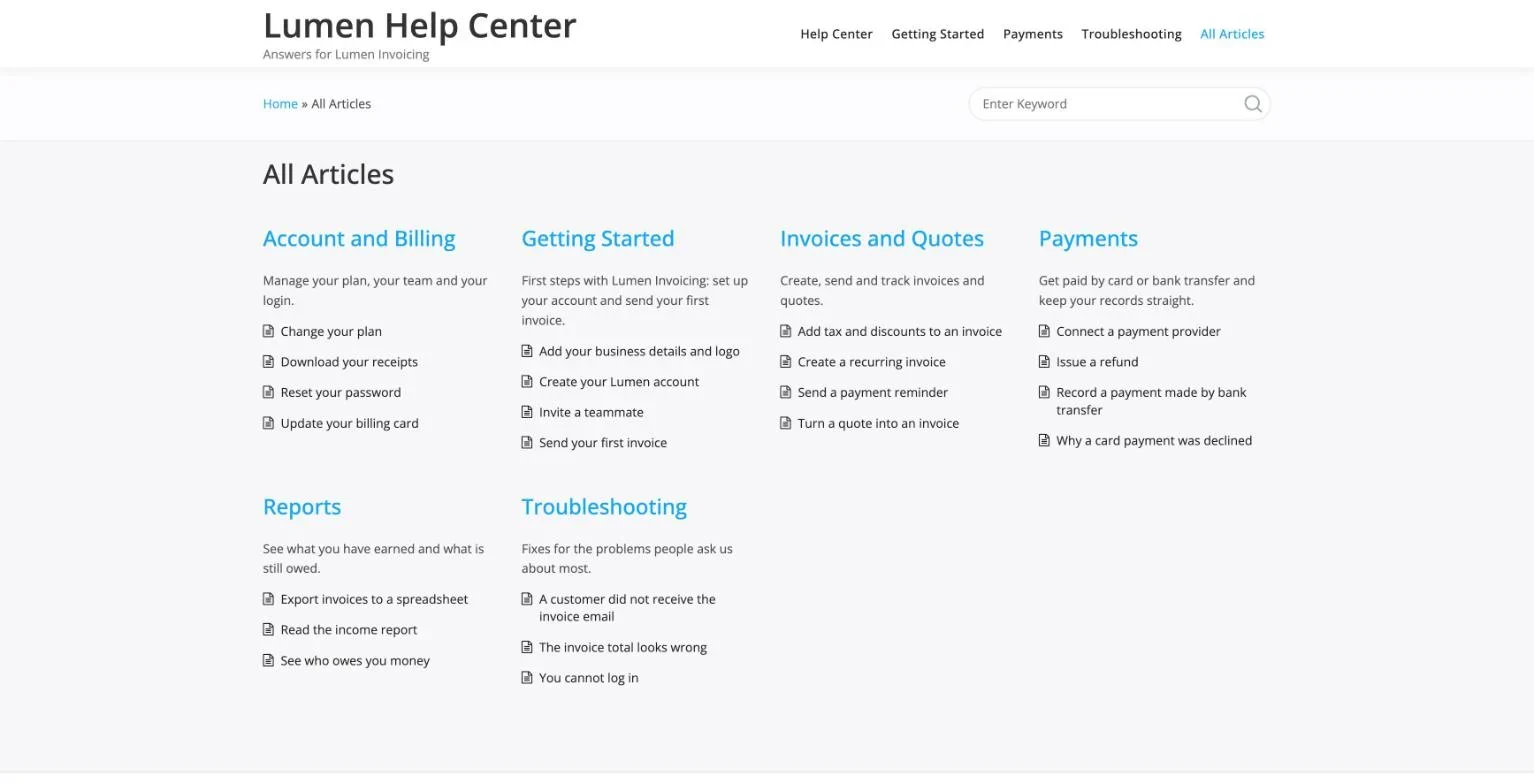
Here is the method on a real-looking case: a small company that sells invoicing software. It is the same sample help center you can open in our live demo.
Step 1: List the questions
The support team pulls every repeated question from a month of email. They end up with twenty-two, including:
- How do I send my first invoice?
- How do I add my logo?
- Can I set an invoice to repeat every month?
- How do I add tax?
- How do I connect a payment provider?
- A customer paid by bank transfer. How do I mark it paid?
- How do I refund someone?
- Why was a card declined?
- How do I change my plan?
- Where are my receipts?
- My customer says they never got the invoice email.
- The total on an invoice looks wrong.
- I cannot log in.
Step 2: Group without naming
They write each question on a card and sort the cards into piles that feel alike, without naming the piles yet. This matters. Naming first makes you force cards into categories. Sorting first lets the categories come from the content.
Step 3: Name each pile in the customer’s words
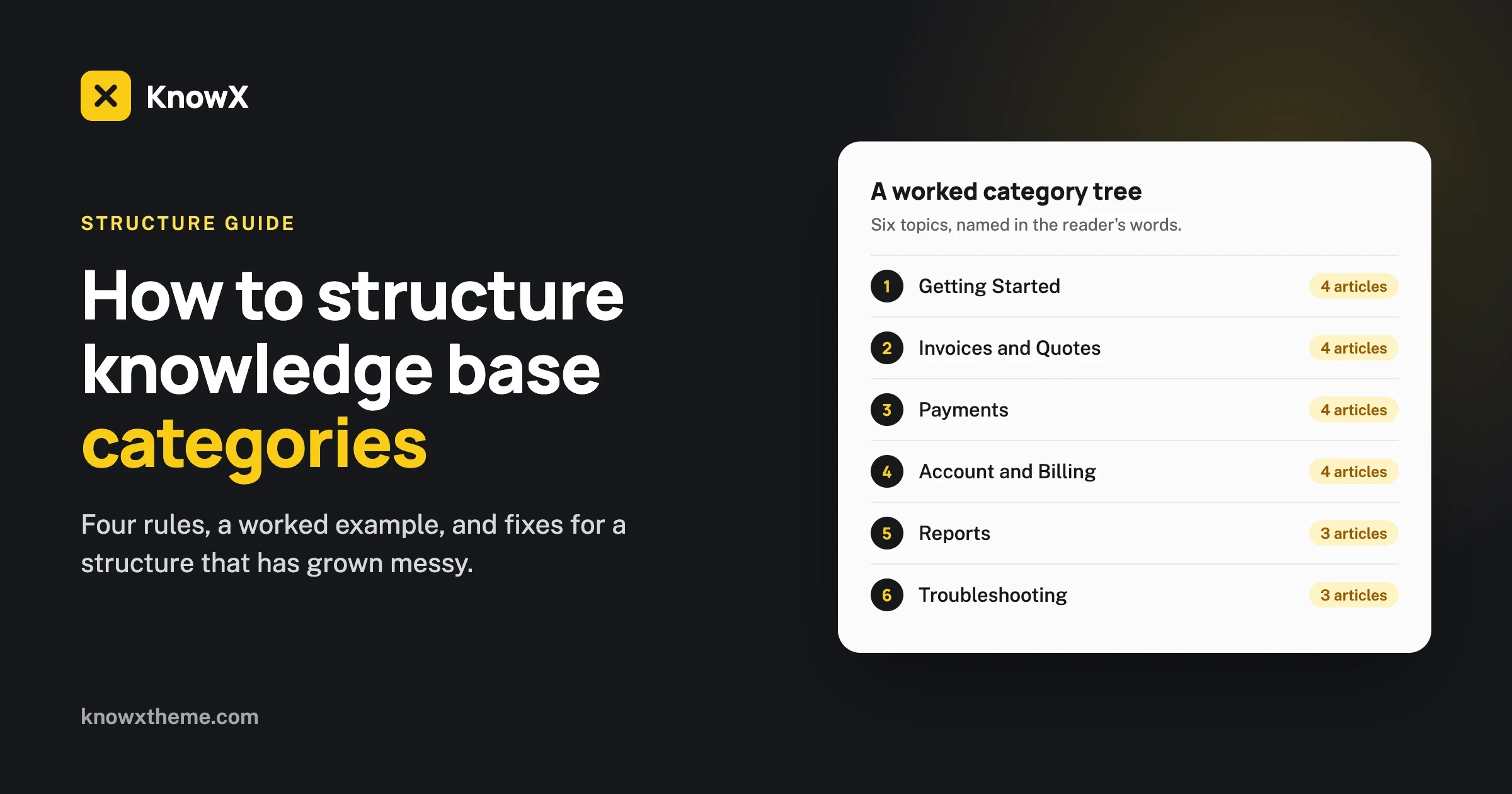
Six piles appear. They name them using words from the emails:
Category | One-line description | Example articles |
|---|---|---|
Getting Started | Set up your account and send your first invoice | Create your account, Add your business details and logo, Send your first invoice |
Invoices and Quotes | Create, send and track invoices and quotes | Create a recurring invoice, Add tax and discounts, Send a payment reminder |
Payments | Get paid by card or bank transfer | Connect a payment provider, Record a bank transfer, Issue a refund |
Account and Billing | Manage your plan, your team and your login | Change your plan, Update your billing card, Download your receipts |
Reports | See what you have earned and what is owed | Read the income report, See who owes you money |
Troubleshooting | Fixes for the problems people ask about most | A customer did not receive the invoice email, The invoice total looks wrong |
Step 4: Check every pile
- Does each have at least three articles? Reports has three. Good.
- Is any pile much bigger than the rest? No. If Invoices and Quotes had fifteen, it would be worth a look.
- Does any card fit two piles? “Issue a refund” could be Payments or Troubleshooting. It goes in Payments, with a link from Troubleshooting.
Step 5: Test it on a stranger
They show the six names to someone from another team and ask: “Where would you look to find out why a card was declined?” The person says Payments straight away. They ask five more questions like that. One answer is slow, so they adjust a description. The whole test takes ten minutes.
Why does every knowledge base need a Troubleshooting category?
Because people with a problem think in symptoms, not features. Someone whose customer did not get an invoice does not know whether the cause is the email settings, the customer’s address or a spam filter. They cannot pick the right feature category, because they do not yet know which feature is at fault.
A Troubleshooting category gives them one obvious door. Title its articles with the symptom as the reader would say it: “A customer did not receive the invoice email”. Inside, list the likely causes in order and link to the feature articles for the fixes.
How should articles be ordered inside a category?
Put the most-needed first. Readers scan from the top and often stop at the third or fourth title.
There are three sensible orders:
- By how often they are needed. Best for most categories. Your support inbox tells you the order.
- By sequence. Best for Getting Started, where step two follows step one.
- By name. Best for long reference lists where people know the exact title.
Ordering by date, newest first, is the default in many tools and is rarely what a reader wants. They do not care when an answer was written.
Should you use sub-categories?
Only when a category has grown past about fifteen articles and has a clear group inside it. Until then, a flat list with good titles is faster to scan than a list of sub-categories that each need a click.
When you do add them, keep to one level, name them by the same rules, and make sure each has at least three articles.
Categories or tags: which should you use?
Categories carry the structure. Tags are optional extras.
A category answers “where does this live?” and each article has one. A tag answers “what else is this about?” and an article can have several. Tags can help search and can link related articles across categories. A reader should never need a tag to find an answer, and a knowledge base with no tags at all works perfectly well. If your team is small, skip them. They are one more thing to keep consistent.
How should the structure change as the knowledge base grows?
It should grow one step behind the content, never ahead of it. Here is what a sensible structure looks like at three sizes.
Up to 30 articles
Three to five categories and no sub-categories. Show everything on one page if your tool allows it, so a reader can see the whole knowledge base at once. At this size, structure is mostly about good names and good titles. Resist the urge to build for the size you hope to reach.
30 to 100 articles
Five to eight categories. One or two of them will have passed fifteen articles. Those are the ones to look at for a split or for a first sub-category. This is also the size where duplicates start to appear, because no one person remembers every article. Make “search before you write” a habit now.
More than 100 articles
Still eight or fewer at the top, now with sub-categories in the larger ones. Search carries more of the load, so titles and the first lines of articles matter more than ever. Review the structure twice a year, and give one person the job of keeping it tidy. If you support two distinct products or two distinct audiences, this is the point to consider two separate knowledge bases, each with its own short list of categories.
At every size the test is the same. Can a stranger pick the right category on the first try?
How do you run a category sort with your team in an hour?
The card sort in the worked example does not need special tools. You can run it in a meeting room or on a shared document.
- Before the meeting, collect thirty to fifty real questions from your support inbox. Write each on a sticky note or a line in a document. Use the customer’s wording.
- First ten minutes: everyone sorts the questions into groups in silence. No names yet, and no discussion.
- Next ten minutes: compare. Where people made the same groups, you have a category. Where they disagree, you have found an unclear subject that needs a better split or a better name.
- Next twenty minutes: name each group using a word that appears in the questions. Write a one-line description for each.
- Last twenty minutes: bring in someone who was not in the room. Read them six questions and ask which category they would open for each. Change any name that makes them hesitate.
An hour of this saves months of small arguments about where things go, because the structure came from the questions and not from anyone’s opinion.
Where do awkward articles go?
Every knowledge base has a few articles that do not fit neatly. Three kinds come up often.
- Articles that span two subjects, such as “Refund an invoice paid by card”. Pick the home by where the reader starts, and link from the other category.
- One-off or seasonal articles, such as year-end tax steps. File them under the subject they belong to, not in a category of their own. If they only matter for a month, add a link from the home page for that month.
- Policy and legal pages, such as terms or a privacy notice. These are not help articles. Keep them on your main website and link to them from the footer.
How do you fix a category structure that has grown messy?
Most knowledge bases are not planned. They grow, and after a couple of years they show the same handful of problems. Each has a clear fix.
Too many categories
What you see: fifteen or twenty top-level categories.
Check: count the articles in each. How many have fewer than three?
Fix: merge the small ones into their nearest neighbour until you have eight or fewer.
Prevent: the three-article rule for new categories.
A category called General, Other or Misc
What you see: a catch-all with a random mix of articles.
Check: read every title in it.
Fix: move each article to the category a reader would expect, then delete the catch-all.
Prevent: if a new article fits nowhere, ask whether it belongs in the knowledge base at all.
The same answer in three places
What you see: similar articles with slightly different steps.
Check: search your own knowledge base for a common task and count the results.
Fix: keep the best one, fold in anything useful from the others, and redirect or delete the rest.
Prevent: search before you write.
Categories that mirror the company
What you see: categories named after teams, product code names or releases.
Check: would a new customer know these words?
Fix: rename and regroup around tasks.
Prevent: test names on someone outside the team.
One giant category
What you see: one category with sixty articles and four with five each.
Check: look for natural groups of three or more inside it.
Fix: split the two clearest groups out as categories of their own.
Prevent: review any category that passes fifteen articles.
Changing structure without breaking links
When you rename or merge categories, article addresses can change. Before you start, check how your tool builds addresses. If the category is part of the address, set up redirects from the old addresses to the new ones, so links in old emails and search results still work.
How do you set this up in WordPress with KnowX?
In KnowX, our free knowledge base theme, a category is a normal WordPress category and an article is a normal post.
- Go to Posts > Categories and create one category per topic. Add the one-line description.
- Write each article as a post and tick one category.
- Choose a layout. Layout One shows a tile for each top-level category. Layout Two lists every category with its articles underneath, and can show the category description.
- Hide any category that is not ready with the Exclude category by ID setting.
Two details are worth knowing. Layout One shows top-level categories only, and shows them even when they are empty, so exclude the ones without articles. And WordPress puts any post without a category into Uncategorized. Change the default category under Settings > Writing to one of your real topics, so that never appears.
The full setup is in our guide to building a knowledge base on WordPress with KnowX, and the features are listed on the KnowX features page.
Questions about knowledge base categories
Should categories be based on product features or on user tasks?
On tasks where you can, using the product’s own labels. “Get paid” and “Payments” both work. “Payment Gateway Module” does not.
How many articles should a category have?
Between three and about fifteen. Fewer than three, merge it. More than fifteen, look for a group to split out.
Should there be a category for new features or announcements?
Not in the knowledge base. Announcements belong on your blog or changelog. In the help center, update the articles the new feature affects.
Do internal knowledge bases follow the same rules?
Yes, with team subjects in place of product subjects: Getting Started, How We Work, Fix It. See our comparison of an internal wiki and a knowledge base.
How often should you review the structure?
Twice a year. Count the articles per category, look for catch-alls and duplicates, and run the stranger test again.
What should you do next?
Count your top-level categories and the articles in each. If you have more than eight categories, or any with fewer than three articles, merge today. Then run the ten-minute stranger test on the names. Those two steps fix more findability problems than any redesign.
To see well-structured categories in practice, look at our knowledge base examples.