How to Make Your Knowledge Base Readable by AI Assistants
Seven checks that decide whether ChatGPT, Claude, Perplexity and Google can read and quote your help articles, with fixes a non-developer can make.

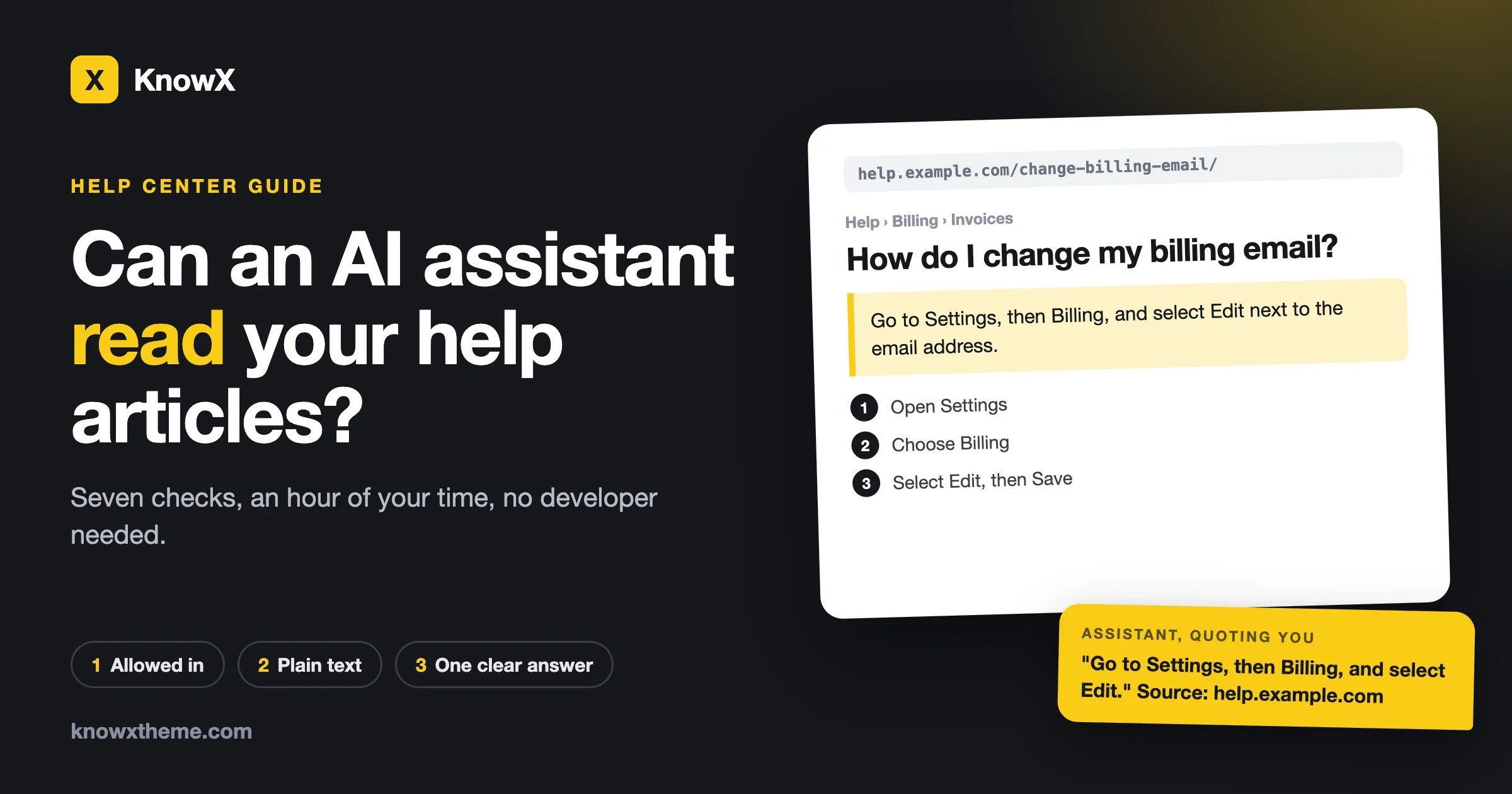
An AI assistant can only quote a help article it is allowed to fetch, can read as plain text, and can understand without the rest of your site around it. Most knowledge bases fail on one of those three, and the owner never finds out, because nothing looks broken to a human visitor. This guide gives you seven checks, each with a fix, and none of them needs a developer. Set aside an hour and one browser.
We make KnowX, a free knowledge base theme for WordPress, and we ran the checks that need no outside tool (robots.txt, page source and sitemap) on our own site before writing it. One thing to be honest about at the start: nobody outside the AI companies can promise that an assistant will quote you. What you can do is remove every reason it could not. Everything here about a specific company comes from that company’s own documentation, which we read on 12 October 2026 and link to. We did not measure whether these changes raise how often a site is quoted, and we say so again where it matters.
What does “readable by AI assistants” mean?
It means that when someone asks ChatGPT, Claude, Perplexity or Google a question your article answers, the assistant is able to open that article, read the words, and tell where the answer starts and stops. That is three separate hurdles.
- Access. The assistant’s program is not turned away by your robots.txt file, your firewall or a login screen.
- Text. The answer is in the page as words, not inside an image, a video, a PDF, or a box that only fills in after scripts run.
- Clarity. The article answers one question, says which product and version it covers, and puts the answer near the top.
A customer benefits from all three as well. That is the useful way to think about this work. You are not writing for machines. You are removing the things that make a page hard to read for anyone, or anything, arriving cold.
How do AI assistants reach a help article?
In three ways, and each one uses a differently named program. The names matter because your site can allow one and block another.
Purpose | What it does | What blocking it costs you |
|---|---|---|
Search | Builds the index an assistant searches when it looks for sources | Your articles stop appearing as sources and links |
User request | Opens one page because a person asked a question or pasted your link | The assistant cannot read the page a customer points it at |
Training | Collects text that may be used to train future models | Nothing today for support. Your text is left out of future training. |
Here are the names each company publishes. Check each company’s page before you rely on this table, because the lists change.
Company | Search | User request | Training |
|---|---|---|---|
OAI-SearchBot | ChatGPT-User | GPTBot | |
Claude-SearchBot | Claude-User | ClaudeBot | |
PerplexityBot | Perplexity-User | Perplexity says PerplexityBot is not used to gather text for training its models | |
Googlebot, the same one used for normal search | Not listed separately on that page | Google-Extended, a name used only in robots.txt |
Two details are easy to miss. OpenAI’s page says each of its settings works on its own, so a site can allow OAI-SearchBot and disallow GPTBot. And Google-Extended is not a separate visitor. Google’s page says it has no user agent of its own. It is a switch in robots.txt that controls whether content Google already crawls may be used for Gemini training and grounding.
Check 1: Is your robots.txt turning assistants away?
Symptom. An assistant answers questions about your product from other people’s blog posts and forum threads, never from your own help center.
Check. Type your address followed by /robots.txt into a browser, for example example.com/robots.txt. Every site has one. Look for any of the names in the table above, or a line reading User-agent: *, followed by Disallow: /. That pair of lines tells the named program to stay out of the whole site.
Fix. Decide what you want, then make the file say it. For a public help center, most teams want search and user requests allowed. Training is a separate choice, covered below. A file that allows search and user requests but declines training looks like this:
User-agent: GPTBot
Disallow: /

User-agent: ClaudeBot
Disallow: /

User-agent: Google-Extended
Disallow: /

User-agent: *
Allow: /

Sitemap: https://example.com/sitemap.xml
On WordPress, the file is usually produced by WordPress itself or by your SEO plugin, and most SEO plugins have a screen for editing it. Also open Settings, then Reading, and make sure “Discourage search engines from indexing this site” is not ticked. It is often left on after a site moves from staging to live.
Prevent. Put a reminder in your calendar to open the file twice a year. Plugins and hosts change it without telling you.
Check 2: Is your host or firewall blocking them before they arrive?
Symptom. Your robots.txt allows everything, yet an assistant says it could not open a page when you paste the link.
Check. A firewall sits in front of your site and can refuse a visitor before robots.txt is ever read. If your site uses Cloudflare, look at its AI bot settings. Cloudflare’s documentation describes three groups it can treat differently: Search, Agent (a program acting for a person in real time) and Training. The same page says that from 15 September 2026 the default for new domains blocks Training and Agent bots on pages that display ads, and leaves Search allowed. Cloudflare can also add its own lines to the top of your robots.txt, which is why the file you see in the browser may not match the one you wrote.
Fix. Set Search and Agent to allow for the help center. If you are not on Cloudflare, send your host one question: “Do you block any AI crawlers or AI user agents by default, and where do I change it?” Security plugins have similar switches, usually under a heading such as bot protection.
Prevent. After any change of host, CDN or security plugin, run check 7 again.
Check 3: Is the answer in the page as text?
Symptom. The assistant opens your article but its summary is thin, or it describes the menu and footer and misses the instructions.
Check. Open the article, right-click, and choose View Page Source. Press Ctrl+F (Cmd+F on a Mac) and search for a full sentence from the middle of the answer. If the sentence is there, a program that fetches the page can read it. If it is missing, the text is being added by a script after the page loads, or it lives inside an image.
Then look at the article itself for these four patterns:
- Steps shown only as screenshots. A picture of a settings screen with arrows on it reads as nothing.
- The answer inside a PDF. A link that says “download the guide” hides the answer one step further away.
- A video with no written steps.
- Tabs or accordions that load their content only when clicked.
Fix. Write the steps out as a numbered list under the screenshot. Give every image a short description in its alt text that says what the picture shows. Move PDF content into ordinary articles and keep the PDF as an optional download. Under each video, add the steps in writing.
A WordPress site built on a classic theme sends the finished article in the page. With KnowX, an article is an ordinary WordPress post, so the text you type in the editor is the text in the page source. Problems come from what is added afterwards: page-builder widgets, embedded tools, and plugins that pull content in with scripts.
Prevent. Add one line to your writing checklist: “Could someone follow this with images switched off?”
Check 4: Does each article answer one question, at the top?
Symptom. The assistant quotes your article but gives the wrong part of it, or mixes instructions for two different plans.
Check. Read only the title and the first two sentences of ten articles. Could you answer the customer’s question from those alone? Count how many pass.
Fix. Rewrite the failures with this shape:
- Title as the customer would ask it. “How do I change my billing email?” beats “Billing settings overview”.
- The answer in the first two sentences. Include where to click.
- Who it applies to. Name the product, the plan and the version, in words, in the article. “On the Team plan” is better than “on your plan”.
- Numbered steps. One action per step.
- What to do if it does not work.
Here is the difference in practice.
Hard to quote | Easy to quote | |
|---|---|---|
Title | Account management | How do I change my billing email? |
Opening | Welcome to the account section. Here you will find everything about your account. | Go to Settings, then Billing, and select Edit next to the email address. The change applies to your next invoice. |
Scope | Not stated | Applies to all plans. Only the account owner can change it. |
Split any article that answers several unrelated questions. A long page called “Frequently asked questions” with forty answers is the hardest kind for an assistant to use, because every answer shares one title and one address. Our article template has the five-part shape with three finished examples.
Prevent. Make “answer in the first two sentences” a rule for every new article, checked by a second person before publishing.
Check 5: Are old and duplicate articles competing with the right one?
Symptom. The assistant gives customers steps for a screen you redesigned last year.
Check. Search your own help center for your five most common questions. For each, count how many articles come back that could plausibly answer it. More than one is a problem. An assistant has no way to know which of two similar articles you consider current.
Fix.
- Merge duplicates into the best one and redirect the others to it.
- Retire articles for features that no longer exist. Redirect them to the nearest current article. Do not leave them live “for reference”.
- Show a “last updated” date on articles, and change it only when the content changes.
- Keep version-specific articles honest. Put the version in the title: “Export your data (version 3 and earlier)”.
Tidy categories help here as well. When each article has one obvious home, duplicates are easier to spot. See how to structure knowledge base categories for the four rules we use.
Prevent. Review the twenty most-viewed articles every quarter. They are the ones most likely to be quoted.
Check 6: Can a program find every article?
Symptom. Popular articles are quoted. Newer or deeper ones never are.
Check. Open example.com/sitemap.xml, or /wp-sitemap.xml on a WordPress site without an SEO plugin. This is the list of pages your site offers to crawlers. Confirm your newest article is in it. Then start at your help center home page and try to reach that article by clicking only, without using search. If you cannot, a crawler following links cannot either.
Fix. Make sure every article sits in a category that is linked from the help center home page. Link related articles to each other in the text. Keep addresses stable. If you must change one, redirect the old address to the new one.
Private content is a separate matter. An article behind a login cannot be read by any outside assistant, and that is the correct result for an internal knowledge base. Just be sure nothing public has ended up behind the login by accident.
Prevent. Add “appears in the sitemap and is linked from its category” to your publishing checklist.
Check 7: What happens when you ask the assistants yourself?
Symptom. You do not know whether any of the above applies to you.
Check. This is the test that tells you the most, and it takes ten minutes. Use at least two assistants that can browse the web.
- Paste a link. Give the assistant the address of one help article and ask: “Summarise the steps on this page.” If it says it cannot open the page, you have an access problem. Go back to checks 1 and 2. If the summary misses the steps, go back to check 3.
- Ask without a link. Type a real customer question that includes your product name. Look at which sources it lists. If your help center is absent and third-party pages are present, work through checks 4, 5 and 6.
- Ask a version question. Ask about something that changed recently. If it gives the old answer, find which page it took that from. It is often an old article of your own.
Write down the date, the assistant, the question and the result in a simple sheet. Results differ between assistants and from one week to the next, so a single test proves little. A record over a few months shows the direction.
Prevent. Repeat the same five questions on the first working day of each month.
Should you block AI crawlers instead?
For a public help center, we would allow search and user requests, and treat training as a business decision. Here is the reasoning.
Support content exists to be found. If a customer asks an assistant how to do something in your product and the assistant cannot read your article, it will answer from somewhere else, and that answer may be wrong or out of date. Blocking the search and user-request programs does not stop the question being asked. It only removes your version of the answer.
Training is different. Anthropic’s page says that restricting ClaudeBot signals that a site’s future material should be left out of its training data, and OpenAI describes GPTBot the same way. Blocking those has no effect on whether your article can be found and linked today. Some companies allow training because they want models to know their product. Others decline it. Either is a reasonable position, and you can change your mind later.
Remember that robots.txt is a request. Cloudflare’s documentation puts it plainly: the file expresses your preferences and does not technically prevent access. The companies named in this guide say they respect it. If you need a hard stop, that is a firewall rule, not a text file.
There are two cases where blocking everything is right: paid content, and anything that should not be public at all. Both belong behind a login, where no crawler reaches them.
Do you need an llms.txt file?
No. It is optional, cheap to add, and unproven. Do it last.
llms.txt is a proposal first published by Jeremy Howard in September 2024 and revised in August 2026. The idea is a short plain-text file at example.com/llms.txt that tells an assistant what the site is and links to its most useful pages. The proposal says the only required part is a title line with the name of the site. After that come a one-paragraph summary and lists of links with a short note on each. It also suggests offering a plain-text version of each page.
It is a proposal, not a rule that assistants have agreed to follow. We did not find a statement in the OpenAI, Anthropic, Perplexity or Google pages linked above that their programs read it. We publish one on this site at knowxtheme.com/llms.txt because it took minutes and does no harm. We have not measured any effect from it, and we would not put it ahead of any of the seven checks.
If you want one, write it by hand for a small help center: the name, one sentence on what the product is, then your ten most important articles with a line each. Several WordPress plugins generate the file as well. We have not tested them, so read each plugin’s own page before installing.
Does structured data help?
It helps a program understand what kind of page it is reading. It does not replace clear writing, and it will not win you a special display in Google for help articles.
Structured data is a small block of labels in the page, invisible to visitors, that says things like “this is an article, written by this person, last changed on this date”. Most SEO plugins add the basic article labels for you. Two points for help centers:
- Breadcrumb labels are worth having. They tell a program where an article sits, for example Help, then Billing, then Invoices.
- FAQ labels are not worth chasing. Google’s documentation says the FAQ display is shown only for well-known, authoritative government and health websites.
Google is also direct about its own AI features. Its guidance for site owners says there are no additional requirements to appear in AI Overviews or AI Mode and no special optimisations are necessary. The ordinary basics apply: the page can be crawled, the text is in the page, and the content is useful.
What will not help?
A few things are sold as fixes and are not.
- Writing “for AI”. Stuffing an article with every phrasing of a question makes it worse for the customer and no clearer to a program. Write one clean answer.
- Hidden text. Text shown to crawlers and hidden from people is against search engine rules and is not a risk worth taking for a help center.
- A chatbot on your own site. That is a different project. It answers visitors who are already on your site. It does nothing for a customer asking an outside assistant.
- One giant “everything” page. Assistants link to pages. One page per question gives them something exact to link to.
Where does KnowX fit in?
KnowX is a free theme on WordPress.org that makes a WordPress site look and work like a help center. For this topic, three plain facts about it are relevant.
- Articles are ordinary WordPress posts and topics are ordinary categories, so the article text is in the page and your content is not tied to the theme.
- Article pages have breadcrumbs, and the knowledge base home page links to every topic.
- KnowX does not include an AI chatbot or AI answers, and it does not create an llms.txt or robots.txt file. Those come from WordPress, your SEO plugin, or a plugin you choose.
So the theme handles the reading experience and the structure. Access rules, sitemaps and structured data are settings in WordPress and your other plugins. If you are starting from nothing, this walkthrough builds a help center with KnowX step by step, and the customer help center page shows what the result looks like.
The one-hour checklist
Minutes | Do this | You are done when |
|---|---|---|
5 | Open /robots.txt and read it | No assistant name is disallowed by accident |
5 | Check firewall or CDN AI bot settings | Search and user-request access are allowed |
10 | View Page Source on three articles and search for a sentence | The sentence is found each time |
15 | Read the title and first two sentences of ten articles | You have a list of the ones to rewrite |
10 | Search your help center for your five top questions | You have a list of duplicates to merge |
5 | Open the sitemap and find your newest article | It is listed |
10 | Ask two assistants, with and without a link | Results are written down with the date |
The hour finds the problems. Fixing the writing takes longer, and it is the part that pays back twice, because the same rewrite that helps an assistant helps the customer who reads the article directly. Looking at what good knowledge bases have in common is a quick way to see the target.
Questions about AI assistants and knowledge bases
Will allowing AI crawlers slow my site down?
Not for a normal help center. These programs request pages the way a search engine does. If your host reports heavy traffic from one of them, ask the host to limit the rate for that visitor before you block it outright.
Can I see whether assistants are visiting?
Yes, in your server access logs or your CDN’s bot report. Look for the names in the table near the top of this guide. Ordinary analytics tools usually do not show these visits, because the programs do not run the tracking script.
Does this affect normal Google search?
The checks in this guide help both. Google says its AI features use the same basics as search. The one name to handle with care is Google-Extended, which controls Gemini training and grounding and is separate from Googlebot. Disallowing Googlebot itself would remove you from Google search.
How long before a change shows up?
It varies by company and nobody publishes a schedule for it. Perplexity’s page says robots.txt changes may take up to 24 hours to be reflected in its systems. For rewritten articles, expect weeks, and judge by your monthly test log.
We use a hosted help desk tool, not WordPress. Does this still apply?
Yes. Checks 3 to 7 are the same anywhere. For checks 1 and 2, you depend on what the tool lets you change, so ask its support team how its robots.txt and bot blocking are set. If the answer is that you cannot change them, that is worth knowing before your next renewal.
What should you do next?
Run check 7 today. It takes ten minutes and tells you which of the other six to look at. Then fix access first, text second, and writing third, in that order, because a well-written article that cannot be fetched helps no one.
If your help center is on WordPress and you want it to look like one, KnowX is free on WordPress.org. If you would like our team to review or rebuild a help center with you, tell us what you have and we will take a look.