Internal Knowledge Base Software: What to Look For and What a Small Team Can Self-Host
Ten checks for internal knowledge base software, how WordPress handles private content, and what a small team can self-host with KnowX.

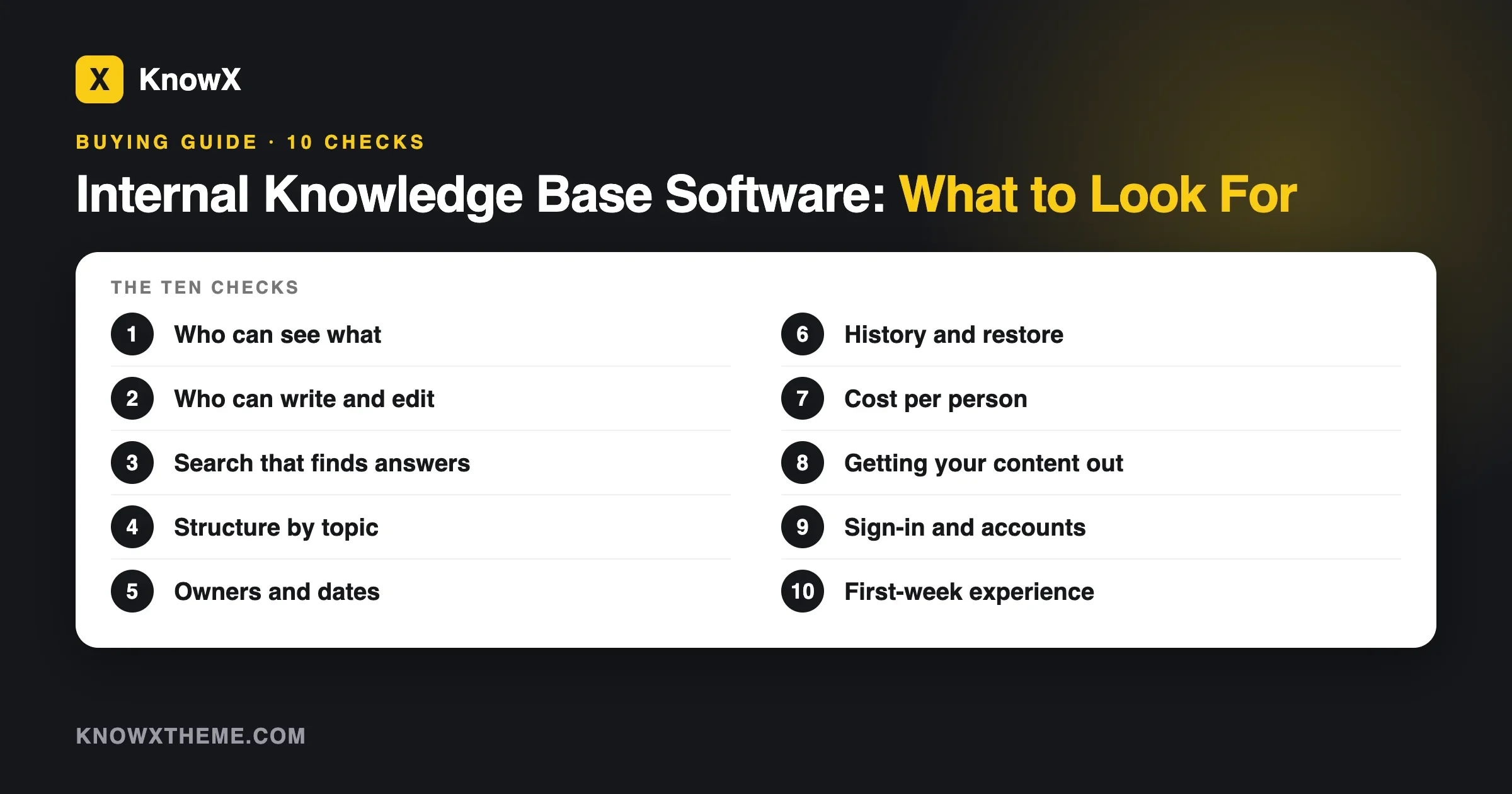
When you pick internal knowledge base software, check ten things: who can see each article, who can edit, how people search, how articles are organised, who owns each page, how old pages get found, what the history looks like, how the tool is priced per person, how you export your content, and how easy it is for a new starter to find the first answer. A small team can self-host an internal knowledge base on WordPress with the free KnowX theme, but only if staff-only access is added with a plugin or a server rule, because the theme does not restrict access itself. This guide gives you the checklist, the tests and the trade-offs. It is about buying criteria. For the earlier question of whether you need a wiki or a knowledge base at all, read internal wiki vs knowledge base first.
We make KnowX, so we say plainly where it stops. KnowX has no article voting, no search analytics, no AI answers, no ticketing and no per-article access roles. Facts about third-party software in this guide come from each product’s own documentation, and we say which page and when we read it.
What is internal knowledge base software?
Internal knowledge base software is a place where your team keeps the answers it needs to do its work: how to run payroll, how to set up a laptop, what the refund rules are, how a customer onboarding goes. The readers are your staff, not your customers.
It is different from a public help center. A help center is written for customers and is meant to be found by search engines. An internal knowledge base is private, and the main job of the software is to keep the right people in and everyone else out, while making it fast for staff to find an answer. If you are weighing the two, read our guide on knowledge base or community forum for support for the customer side.
What should you look for in internal knowledge base software?
Use these ten criteria. For each one, we give the question to ask and a test you can run in an afternoon.
1. Who can see what
Ask: can the tool keep everything private to staff? Can it keep some sections private to some teams?
Test: open the site in a private browser window, logged out. Try to reach an article by its address. If you can read it, the tool is not private.
This is the first criterion because a leak is the costliest mistake. Write down whether you need one rule (“staff only”) or several (“finance sees payroll, everyone sees the handbook”). Many small teams need only the first.
2. Who can write and edit
Ask: can anyone on the team write, or only administrators? Is there an approval step?
Test: create a test user with the lowest writing role and try to add and edit an article. Then try to delete someone else’s article.
A knowledge base that only one person can edit goes stale. One that anyone can edit without a trace can go wrong. Look for a middle path: many writers, clear owners and a record of changes.
3. Search
Ask: does search find an article from the words a colleague would type?
Test: write down ten real questions from your team’s chat. Type each into the search box and note whether the right article comes up first. Our guide on knowledge base search not finding answers shows how to fix wording when it does not.
4. Structure
Ask: can you group articles by topic, and see the structure at a glance?
Test: add three topics and six articles. Can a new person find each one in two clicks? Our guide on how to structure knowledge base categories has four rules for the tree.
5. Owners and dates
Ask: does each article show who owns it and when it was last updated?
Test: open an article. Can you tell, without asking anyone, how old it is and who to contact? KnowX 2.0.0 shows a “Last updated” date on articles, according to its WordPress.org page. An owner field is a matter of your own habit, such as a line at the bottom of each article.
6. History and recovery
Ask: can you see earlier versions of an article and restore one?
Test: edit an article twice. Find the first version and restore it.
WordPress keeps revisions of posts, so you can see and restore earlier versions. That covers history for articles. It is not the same as a live view of several people typing at once.
7. Cost per person
Ask: does the price grow with each reader or each writer?
Test: count everyone who will read the knowledge base, not just the writers. Multiply by the price. Then add the people you plan to hire this year.
The shape of the cost differs between hosted and self-hosted tools. A hosted tool often charges per person per month. A self-hosted site has a cost for hosting, a domain and the time to look after it. We compare the two in what free knowledge base software really costs and in self-hosted on WordPress or a SaaS help center.
8. Getting your content out
Ask: if we leave, can we take our articles with us?
Test: find the export feature and run it on your six test articles. Open the file. Are images and links still there? Our guide on moving a knowledge base off a hosted tool lists five checks to run before you commit.
9. Sign-in and accounts
Ask: how do people sign in? Do you have to create accounts by hand? Can staff use the same login they use elsewhere?
Test: add a new test colleague and time how long it takes to give them access. Then remove them and check that access ends.
Single sign-on, where one login works across tools, is a feature many small teams do not need at the start, and it is often sold on higher plans. Decide if you need it before you choose.
10. First-week experience
Ask: can a new starter find answers on day one without a tour?
Test: ask someone who has never seen it to find three things: the holiday policy, the expenses rule and the first-week checklist. Watch where they click.
A scorecard you can copy
Score each tool from 0 to 3 on each criterion, then multiply by how much it matters to you. This is our own template, not a standard.
Criterion | Importance (1 to 3) | Tool A (0 to 3) | Tool B (0 to 3) |
|---|---|---|---|
Private to staff | 3 | ||
Different access by team | 1 to 3 | ||
Easy to write and edit | 3 | ||
Search finds answers | 3 | ||
Clear structure | 2 | ||
Owners and dates | 2 | ||
History and restore | 2 | ||
Cost for everyone, not just writers | 3 | ||
Export | 2 | ||
Sign-in and accounts | 2 | ||
First-week experience | 2 |
Keep the scorecard short. If two tools score close, decide on privacy and cost, because they are the hardest things to change later.
How does WordPress handle private content?
This is the part most small teams get wrong, so we spend time on it. It uses the WordPress documentation on content visibility, which we read on 11 November 2026.
- Public is the default. Anyone can read the post.
- Password protected shows visitors a password box before the content.
- Private hides the content from the public. It is visible only to people with the right permission level, which the documentation gives as Editor or Administrator.
The documentation also gives a warning. On a site with several editors or administrators, they can see private and password-protected posts in the editing screen without the password, and they can edit them or make them public. Think about that before you put sensitive material on a site with many editors.
The documentation says hiding an entire site from public view, or restricting it to certain users, is not part of core WordPress. It points to plugins, and says you could also use a server rule such as a rule in the .htaccess file. That matches what our own page says about KnowX: the theme has no per-article or per-role access settings, so a private site needs a plugin or a server rule that makes every visitor log in first.
What this means in practice
- Staff-only site, one rule. Use a login requirement for the whole site. This is the simplest case and the most common one.
- A few private articles on an otherwise open site. Use the Private setting, and accept that editors and administrators can see them.
- Different sections for different teams. This needs a membership or access plugin, or custom work. KnowX alone cannot do it.
- Single sign-on. This is custom work too. Decide whether you really need it before paying for it.
We have not named or tested access plugins in this guide. Pick one only after reading its own page on the day, and test it on a staging copy: check that a logged-out visitor cannot read an article, an image or a search result.
What can a small team self-host?
Self-hosting means you run the software on your own hosting instead of renting a hosted tool. For an internal knowledge base, the realistic option for a team that already knows WordPress is WordPress plus a knowledge base theme.
What WordPress with KnowX gives you
- Topics and a section tree. According to the WordPress.org page, products are top-level categories, sections are child categories and articles are posts. For an internal site, you might use one “product” for the whole company, or one for each team.
- Instant search. A search overlay opens with Ctrl or Cmd plus K.
- Article pages with an “On this page” list, previous and next links, related articles and a “Last updated” date.
- Revisions. WordPress keeps earlier versions of each post.
- No per-reader fee. The theme is free under the GPL. You pay for hosting and a domain.
- Posts you can take anywhere. Articles are ordinary WordPress posts, so they are not locked to the theme.
What it does not give you
- No built-in privacy. You add a login requirement.
- No per-article or per-role access settings.
- No article voting, no search analytics, no AI answers and no ticketing.
- Not a real-time editor where several people type in the same document.
- No built-in single sign-on.
Who it fits
It fits a team of five to fifty that wants simple, topic-grouped articles, already has someone who can manage a WordPress site, and can live with one staff-only rule. It does not fit a team that needs different sections for different departments from day one, or that wants live co-editing. For those, a hosted tool, or custom work on top of WordPress, may be a better answer.
Hosted or self-hosted: the questions that decide it
- Who will look after it? Self-hosted needs someone to run updates, backups and security. Hosted tools do that for you.
- How strict is your privacy need? A login-only site is fine for many teams. Strict, per-team rules favour a tool built for it.
- How many people read it? A hosted tool’s price grows with people. A self-hosted site’s price grows with hosting needs, which are small for text.
- Do you need live co-editing? If yes, check that the tool offers it on the plan you can afford.
- How soon do you need it? A hosted tool can start in an hour. A WordPress site takes longer the first time.
Three small teams, three choices
These are examples to show how the criteria play out. They are not real customers.
A twelve-person agency
The team needs a handbook, a client onboarding checklist and an expenses guide. Everything can be visible to everyone on staff. The agency has someone who knows WordPress. Privacy needs one rule. Cost per person matters, because freelancers come and go. A self-hosted WordPress site with a login requirement fits, and the team adds a “last reviewed” line to each article.
A thirty-person company with finance and HR sections
Payroll and contracts must be visible only to two people. The rest is open to all. This team needs team-level access from day one. On WordPress, that means an access plugin or custom work, so the company should score that criterion highly and test candidates on it first. A hosted tool with built-in permissions may be quicker to set up.
A five-person shop
Most of what the team needs is a few pages: opening hours, supplier contacts, how to handle a return. The Private setting on a handful of posts, or even a shared document, may be enough. The right answer here may be “not yet”. A tool is only worth the effort when the pages stop fitting in one place.
A thirty-day plan for rolling one out
- Days 1 to 3: decide the rule. Write one sentence about who can see what, and who can write. Pick two tools to test.
- Days 4 to 7: run the ten tests. Use six real articles and a real colleague. Fill in the scorecard.
- Days 8 to 10: choose and set up. Add your login requirement before content. Test the logged-out view.
- Days 11 to 20: write the first three topics. Two articles each, in your team’s own words, with an owner and a date on each.
- Days 21 to 25: test with a new starter. Ask them to find five answers. Fix titles and search words where they struggle.
- Days 26 to 30: announce and set the review habit. Tell the team where it lives, and put a monthly review on the calendar.
If thirty days sounds slow, remember that the tool is the quick part. Writing the answers is the work, and it is the work no software does for you. A tool with ten good articles beats a tool with a hundred stale ones.
One habit helps more than any feature: when someone answers the same question twice in chat, they write it down once and link it the third time. Over a quarter, that habit builds most of a small team’s knowledge base without a special project.
Questions to ask any vendor
Whether you pick hosted or self-hosted, ask these before you pay:
- Where is our data stored, and who can access it?
- How do I export everything, and in what format?
- What happens to access when someone leaves?
- What does the price become when we double in size?
- Which features are on the plan I am looking at, and which are on a higher one?
- What is the renewal price?
Read the answers on the vendor’s own page and keep a dated copy. Prices and plans change, and a note of what the page said on the day protects you in a later discussion.
What goes wrong, and how do you fix it?
The knowledge base is public by accident
Symptom: someone outside the company reads an internal article.
Check: open the address in a private window, and search for a phrase from the article on a search engine.
Fix: add a login requirement, and set the affected articles to Private while you fix it. Ask the search engine to remove the cached page if needed.
Prevent: test the logged-out view before anyone adds real content.
Nobody trusts the articles
Symptom: people ask in chat instead of looking things up.
Check: open five articles. How old are they? Does each have an owner?
Fix: give every article an owner and a review month. Our guide on keeping a knowledge base current has a routine.
Prevent: add a review reminder to your team calendar.
Only one person writes
Symptom: the knowledge base has fifty articles by one author and none by anyone else.
Check: who has a writing role? Is it clear how to add an article?
Fix: give each team a topic and an owner. Use a template so a first article takes ten minutes. Our article template is a good start.
Prevent: make “write it down” part of finishing a task.
Different teams need different access
Symptom: someone asks for a section only finance can see.
Check: is this one request or a pattern?
Fix: for one or two articles, use the Private setting and think about who has editor roles. For a pattern, look at a membership or access plugin, or custom work.
Prevent: decide on day one whether you will need team-level access.
Questions about internal knowledge base software
What is the best internal knowledge base software?
We do not rank products. The best one is the one that keeps the right people in, is easy for your team to write in, and costs a sensible amount for everyone who reads it. Use the scorecard above.
Can I build an internal knowledge base on WordPress?
Yes. Staff-only access needs a plugin or a server rule. Our internal knowledge base page explains what KnowX does and does not do for an internal site.
Is an internal knowledge base the same as an intranet?
Not quite. An intranet is a wider private site that may hold news, tools and people pages. An internal knowledge base is the part that holds how-to answers. Some teams use one site for both.
Is there free internal knowledge base software?
Some tools have free plans with limits, and WordPress with KnowX is free to install. In each case there are costs elsewhere, such as hosting, time or limits on users and articles. Read what free really includes before you rely on it.
How do I start?
Pick three topics your team asks about most, write two articles in each, and test with a new starter. Our guide on internal wiki vs knowledge base shows how to start with three topics.
What we could not confirm
We did not test any internal knowledge base product, and we did not name hosted tools or access plugins, because their features and prices change and we had not read their pages for this guide. The WordPress facts come from the WordPress documentation on content visibility, last modified in January 2023, which describes the classic editor. KnowX facts come from its WordPress.org page and our internal knowledge base page, both read on 11 November 2026. The scorecard is our own template. The size range we gave for who it fits (five to fifty) is our judgment, not a measured limit.
What to do next
Pick two tools. Run the ten tests on each, with six real articles and a real colleague. If a self-hosted WordPress site looks right, start with the internal knowledge base page and download KnowX, and add your login requirement before you add content.
Facts read from the sources named above on 11 November 2026.