Knowledge Base Search Not Finding Answers? Symptom, Check, Fix
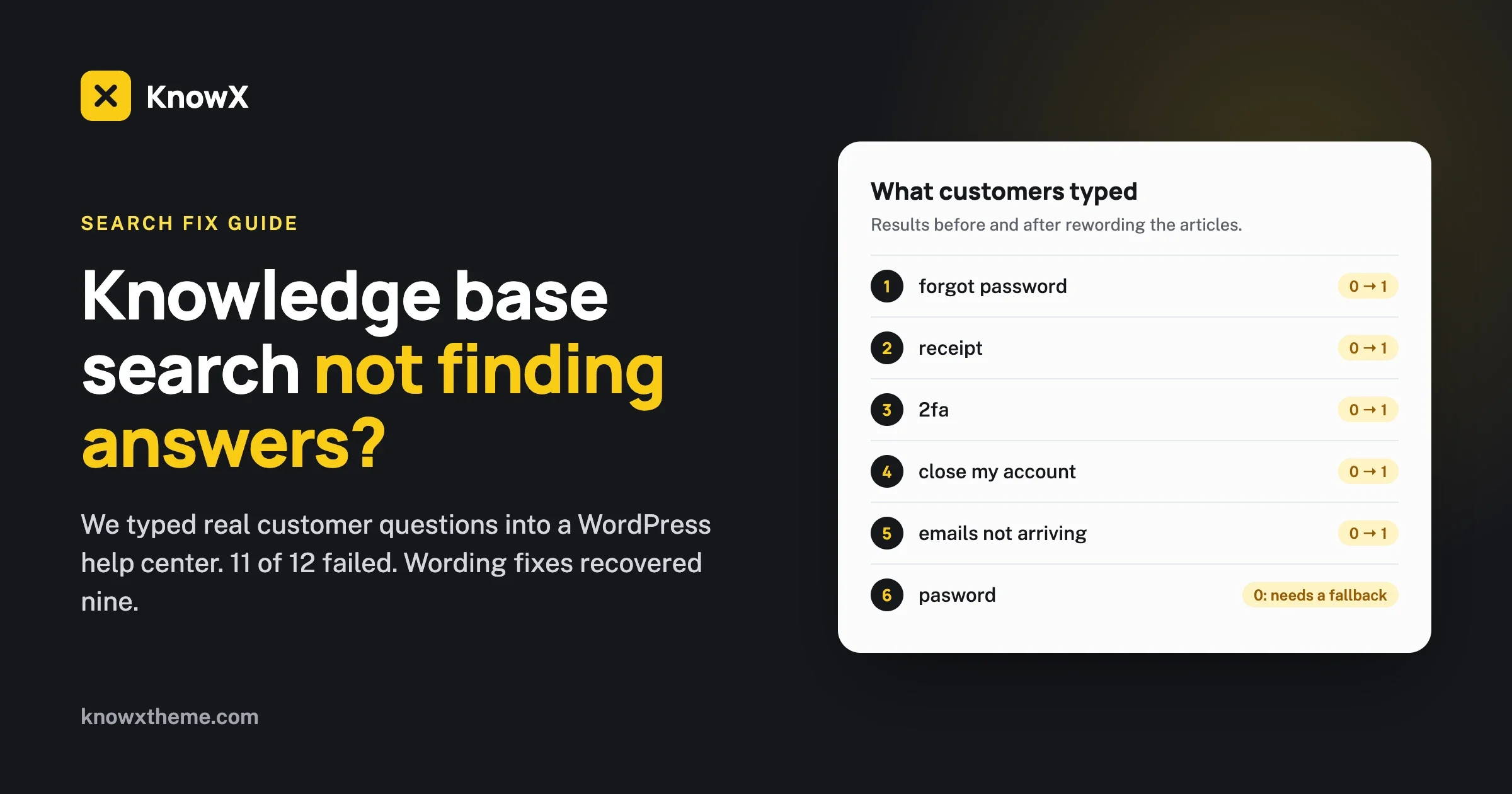
Knowledge base search returning nothing for answers you have? We tested a WordPress help center: 11 of 12 customer questions failed. Word changes fixed nine, plus a better no-results page.

A customer types their question into your help center’s search box, gets “nothing matched your search terms”, and emails support. The answer was in your knowledge base all along, under a title they would never have typed. When knowledge base search does not find answers, the usual cause is not the search engine. It is the words.
We built a small help center on WordPress with the free KnowX theme, wrote fourteen typical support articles, and typed the questions real customers ask. Then we fixed the articles and ran the same searches again. This guide shows what failed, why, the fix for each problem, and how to find failing searches yourself, even without a search analytics tool.
The short answer
- Write titles in your customers’ words, ideally as the question they would ask. “Forgot your password? How to reset it” is found by people who type “forgot password”. “Reset your password” is not.
- Add a short “also searched as” line to articles where customers use different words, such as receipt for invoice, or 2FA for two-step verification.
- Give the “no results” page a way out: a list of categories people can browse.
- Test zero-result searches yourself every month, using your server’s access log as the list of what people actually typed.
In our test, those changes took nine searches from zero results to the right article.
How search works on a WordPress knowledge base
KnowX uses WordPress’s built-in search: the search box in the knowledge base hero and in the sub-header both send visitors to the standard WordPress search results page. Knowledge base articles in KnowX are ordinary posts grouped by category, so the search looks through article titles, excerpts and content. Three rules explain almost every failed search we saw:
- Every word must appear. WordPress drops a few very common words such as “how” and “to”, then requires every remaining word to be somewhere in the article. “reset password” finds the article; “how do I reset my password” found nothing in our test, because “do”, “I” and “my” were not all in it.
- It matches letters, not meaning. There are no synonyms and no typo tolerance. “receipt” does not find “invoice”, and “pasword” finds nothing.
- Category names are not searched. Our help center had a category called “Account & Login”, but searching “login” returned nothing, because no article itself said “login”.
Two things KnowX does not include, so you know where you stand: there are no live search suggestions as people type, and no search analytics showing what people searched for. Both are available from WordPress plugins if you need them later. This guide works without either.
Our test: the questions customers actually type
The test help center, “Lumen Help Center”, had four categories (Account & Login, Billing, Getting Started, Troubleshooting) and fourteen short articles with typical titles such as “Reset your password”, “Download an invoice” and “Request a refund”. We searched it with the wording customers use:
What the customer typed | Results | The article that should have appeared |
|---|---|---|
reset password | 1 | Reset your password (found) |
forgot password | 0 | Reset your password |
can’t log in | 0 | Reset your password |
login | 0 | Reset your password |
how do I reset my password | 0 | Reset your password |
receipt | 0 | Download an invoice |
money back | 0 | Request a refund |
2fa | 0 | Turn on two-step verification |
close my account | 0 | Delete your account |
emails not arriving | 0 | Emails from us are going to spam |
import contacts from excel | 0 | Import contacts from a CSV file |
pasword | 0 | Reset your password |
Eleven of twelve everyday questions failed, on a help center where every answer existed. The articles were written by the team, in the team’s words. The searches were typed by customers, in theirs.
Problem 1: your titles use your words, not theirs
Symptom: people search, find nothing, and contact support about something that has an article.
Check: read your article titles out loud and ask, “would a stuck customer type this?” Titles like “Credential management” or “Download an invoice” describe the feature. Customers describe their problem: “forgot password”, “can’t find my receipt”.
Fix: rewrite titles as the question or problem a customer has, and use their words in the first sentence. Our article template guide, how to write a knowledge base article, covers this in more depth. We changed seven titles:
Before | After |
|---|---|
Reset your password | Forgot your password? How to reset it |
Download an invoice | How do I download an invoice or receipt? |
Request a refund | Can I get a refund? |
Turn on two-step verification | Turn on two-step verification (2FA) |
Delete your account | How do I delete or close my account? |
Import contacts from a CSV file | Import contacts from a CSV or Excel file |
Emails from us are going to spam | Emails not arriving? Check spam first |
Prevent: when support answers the same question twice, copy the customer’s exact wording into the article title or first line.
Problem 2: customers use different words for the same thing
Symptom: searches for synonyms fail: receipt and invoice, 2FA and two-step, money back and refund.
Check: list the words your customers use in support emails for each topic. Your support inbox is the best synonym dictionary you will ever have.
Fix: because WordPress search matches letters, the other words have to be somewhere in the article. A single short line near the top does it without spoiling the article:
Also searched as: receipt, bill, payment proof.Put it in plain view, not hidden text. Hidden keyword blocks are a bad habit search engines dislike, and an honest “also called” line helps readers recognise they are in the right place.
After the fixes: the same searches again
What the customer typed | Before | After | Found |
|---|---|---|---|
forgot password | 0 | 1 | Forgot your password? How to reset it |
can’t log in | 0 | 1 | Forgot your password? How to reset it |
login | 0 | 1 | Forgot your password? How to reset it |
receipt | 0 | 1 | How do I download an invoice or receipt? |
money back | 0 | 1 | Can I get a refund? |
2fa | 0 | 1 | Turn on two-step verification (2FA) |
close my account | 0 | 1 | How do I delete or close my account? |
emails not arriving | 0 | 1 | Emails not arriving? Check spam first |
import contacts from excel | 0 | 1 | Import contacts from a CSV or Excel file |
how do I reset my password | 0 | 0 | still not found |
pasword | 0 | 0 | still not found |
Nine of eleven fixed by changing words alone, with no plugin and no code. The two that still fail need a different answer: a good fallback.
Problem 3: long questions and typos
Symptom: full-sentence questions and misspellings return nothing, even for topics you cover well.
Check: search your own help center for your top five topics as a full question (“how do I ...”) and with one typo each.
Fix: you cannot write every possible sentence or typo into your articles, so make the search page useful when it fails (Problem 5), and keep the knowledge base home easy to browse. On KnowX’s Layout One home, the hero search sits above a tile for every top-level category, so a visitor who does not want to search can click “Billing” instead. Our guide to structuring knowledge base categories covers naming categories in customers’ words too, which matters because those tiles are the fallback.
Prevent: question-style titles help long searches as well. “How do I download an invoice” found the article in our test after the title became a question, because the words “how”, “do” and “I” were then in the title.
Problem 4: category names are not searchable
Symptom: searching a word that is a category name, such as “login” or “billing”, finds nothing or only some articles.
Check: search each of your category names. In our test, “login” returned nothing despite the “Account & Login” category.
Fix: make sure the most important word of each category appears in its key articles, as in our “Can’t log in or forgot your login password?” line. Visitors who think in categories will use the category tiles; visitors who type will only find words that are in the articles.
Problem 5: the “no results” page is a dead end
Symptom: after a failed search, visitors leave or open a ticket.
Check: search for nonsense and look at what your visitors see. On our test site, the results page said “Sorry, but nothing matched your search terms. Please try again with some different keywords.” with a search box. The sidebar beside it held WordPress’s default widgets for a fresh install: another search box, Recent Posts and Recent Comments. That made three search boxes on the page, and the category list sat far down the sidebar.
Fix: KnowX includes a KnowX Categories widget. We removed the default widgets from the Right Sidebar and kept only that one. The category list moved up the page:
Where the category list started | Before | After |
|---|---|---|
Desktop (1280 px wide) | 748 px down the page | 184 px, beside the message |
Phone (390 px wide) | 1,084 px down, below the first screen | 542 px, within the first screen |
You do this under Appearance, Widgets. A failed search now offers four clear ways forward instead of three more search boxes.
Prevent: after any theme or widget change, search for something that does not exist and look at the page on a phone.
Four more things we noticed while testing
Search | Results | What it shows |
|---|---|---|
invoice | 2 | The singular also found an article that only said “Invoices” and one that mentioned an “invoice number” |
invoices | 1 | The plural only found the article containing “Invoices” |
inv | 5 | Part of a word matches anything containing those letters: every article that mentions an invoice or an invite |
account | 3 | Articles with “account” in the title came first; the one that only mentioned it in the text came last |
- Write the shorter form of a word. Because search matches letters, a search for “invoice” also finds “invoices”, but a search for “invoices” does not find an article that only says “invoice”. The simplest habit: use the singular in titles and the plural somewhere in the text, as natural sentences do anyway.
- Very short searches are noisy. A two- or three-letter search returns everything that contains those letters. There is nothing to fix here except good titles, so the right article stands out in the list.
- Titles decide the order. WordPress puts articles whose title matches the search above articles that only mention it in the text. That is one more reason to put the customer’s words in the title, not only in the body.
- The search box asks for keywords. On KnowX’s knowledge base home, the hero search box sends visitors to the standard WordPress search, and its placeholder text reads “Enter Keyword”. That suits how WordPress search works: two or three keywords succeed far more often than a full question. If most of your visitors type full sentences, question-style titles matter even more.
Write for the search box you have
It is tempting to treat search as a technical problem and look for a smarter engine. On a small or medium knowledge base, that usually solves the wrong problem. The test above shows the pattern: the engine did exactly what it was asked, and the articles simply did not contain the words customers used.
Three writing habits keep a WordPress knowledge base findable without any plugin:
- One problem per article, named the way customers name it. An article called “Account settings” that covers passwords, emails and deletion is hard to find for any of the three. Split it, and give each its own question title.
- The customer’s words in the first sentence. “Can’t log in or forgot your password? Here is how to reset it.” That one sentence carries “log in”, “forgot” and “password”.
- Consistent names for your own features. If the button says “Payment method”, do not call it “card details” in one article and “billing info” in another. Pick the word on the screen and add the other names once, in an “also searched as” line.
Find failing searches without search analytics
KnowX does not record what people search for, and neither does WordPress. But every search is a page visit to an address like /?s=receipt, and your web server already writes those to its access log. Most hosts let you download the log from the control panel. This command lists the most common searches:
grep -oE 'GET /\?s=[^ &"]*' access.log | sed 's/GET \/?s=//' | sort | uniq -c | sort -rn | head -50And this one keeps only the searches that found nothing, by repeating each search against your site and checking for the “nothing matched” message:
SITE=https://help.example.com
grep -oE 'GET /\?s=[^ &"]*' access.log | sed 's/GET \/?s=//' | sort | uniq -c | sort -rn |
while read count query; do
  curl -s "$SITE/?s=$query" | grep -q "nothing matched" && echo "$count  $query  (no results)"
done
On our test site, after a few searches, it printed:
3  pasword  (no results)
1  refund+status  (no results)
1  how+do+I+reset+my+password  (no results)
That is your monthly to-do list: each line is either a missing article or an existing article that needs the customer’s words added. Two notes. A plus sign in the log means a space. And if your site sits behind a page cache or CDN, repeated searches may never reach your server’s log; check your CDN’s logs or analytics instead.
Not comfortable with a command line? The manual version works too. Once a month, take the last twenty support emails, type each customer’s first sentence into your search box exactly as they wrote it, and fix every one that fails.
When to add a plugin
Words and a good fallback page fix most knowledge base search problems. A search plugin starts to make sense when:
- you have hundreds of articles and want results to appear while people type;
- you need typo tolerance or synonyms managed in one place rather than in each article;
- you want a report of searches and zero-result searches inside WordPress, without reading logs.
Several WordPress plugins do these things. Check each one’s own page for what it supports with a classic theme like KnowX before you install it, and test it with the same customer questions you used above. A plugin that still cannot find “forgot password” in an article titled “Credential management” has not solved your problem.
A monthly search checkup
- Pull the top searches and the zero-result searches from your access log.
- Type the first sentence of 20 recent support emails into your search box.
- Rewrite failing titles as customer questions, in their words.
- Add an “also searched as” line where customers use other words.
- Search each category name and your top five topics as full questions.
- Search for nonsense and check the “no results” page on a phone.
- Note which searches still fail and why: missing article, or missing words.
Frequently asked questions
Why does my knowledge base search not find articles that exist?
Usually because the customer’s words are not in the article. WordPress search requires every word of the search (apart from a few very common words) to appear in the article, with no synonyms or typo tolerance. Rewrite titles in customers’ words and add the other words they use.
Does WordPress search look at category names?
No. In our test, searching “login” found nothing even though a category was named “Account & Login”. Put the important category words into the articles themselves.
Does KnowX have live search suggestions or search analytics?
No. KnowX has a search box in the knowledge base hero and in the sub-header, using WordPress’s own search. Live suggestions and search analytics come from WordPress plugins if you need them.
How can I see what people search for without analytics?
Your web server’s access log records every search as a visit to an address with ?s=. The commands in this guide turn the log into a list of searches and a list of searches that found nothing.
Should article titles be questions?
For problems customers ask about, yes. A question title in the customer’s words matches what they type, and it tells them immediately they have found the right article.
Will adding “also searched as” lines hurt my SEO?
Not when they are short, visible and honest. Hidden keyword lists are the thing to avoid. A visible line naming the other words customers use helps readers as well as search.
What should a “no results” page show?
A way forward: the list of categories, and ideally a link to contact support. On KnowX, the KnowX Categories widget in the Right Sidebar does this.
Why does a very short search show unrelated articles?
Because WordPress matches the letters anywhere inside words. In our test, “inv” returned five articles, because it is part of both “invoice” and “invite”. Good question-style titles help the right article stand out in that list.
Does search read the excerpt as well as the article?
Yes. WordPress search looks at the title, the excerpt and the content. An excerpt written as a one-sentence answer in the customer’s words helps both search and the results list, where it is often shown under the title.
How we tested this
On 17 October 2026 we installed WordPress 7.1.3 and KnowX 1.7.4 from WordPress.org on a local test server (PHP 8.3, Apache, MariaDB 11), created a sample help center with four categories and fourteen articles, and ran each search through WordPress’s search, counting results exactly and checking the visible results page in a browser at desktop and phone width. The before-and-after tables are those results. The access-log commands were run against the test server’s real log. We did not test any search plugin. Every fix to the articles and the search page is something a site owner can do from the WordPress admin, without code or a developer.
Building a help center customers can actually search? See how KnowX works as a customer help center, read about the free WordPress knowledge base theme, or download KnowX from WordPress.org.