Keeping a Knowledge Base Current: A Review Routine for Stale Articles
A knowledge base maintenance routine that fits a small team: owners, review triggers, finding stale articles in WordPress, showing the updated date in KnowX, and retiring articles without breaking links.

Knowledge base articles do not break loudly. A button moves, a plan is renamed, a setting gets a new home, and an article that was right last spring quietly starts sending customers to a screen that no longer exists. Nobody reports it; they just give up and open a ticket. Good knowledge base maintenance is less about writing and more about a routine that catches drift before customers do.
This guide is that routine: who owns which articles, how to find the ones nobody has touched in a year, what to check in a review, and when to update, merge or retire an article. We tested every step on a WordPress help center running the free KnowX theme, so the instructions match what you will actually see, including two things about dates and retired articles that most guides skip.
The short version
- Give every article an owner, the person who knows the feature it describes.
- Review on a schedule and on triggers: every 6 to 12 months, and whenever the product or policy it describes changes.
- Find stale articles by “last updated”, oldest first. WordPress can list them this way with no plugin.
- Show readers the updated date, not only the published date. In our test, KnowX hid the updated date until we added a few lines of CSS.
- Retire carefully. Renaming an article keeps its old link working; unpublishing or merging one breaks the link unless you add a redirect.
Why knowledge base articles go stale
Almost every stale article we see falls into one of five causes:
Cause | Example | How it shows up |
|---|---|---|
The interface changed | “Click Settings, then Billing” after Billing moved to the account menu | Customers follow steps that do not match the screen |
A name changed | A plan, feature or button renamed | Searches for the new name find nothing |
A policy changed | Refund window, pricing, limits | Customers quote your own help center back at you |
A workaround became unnecessary | A fix for a bug that is long gone | Extra steps that confuse more than they help |
Duplicates drifted apart | Two articles on the same task, one updated, one not | Customers find the wrong one first |
None of these is solved by writing more articles. They are solved by looking at existing ones on purpose, regularly.
Step 1: give every article an owner
An article without an owner is an article nobody will update. The owner does not have to write every change; they are the person who notices when their feature changes and knows the article needs a look.
- Small team: one person owns the whole knowledge base, with a short list of experts they can ask per area.
- Growing team: owners by category. Billing articles belong to whoever runs billing, Getting Started to whoever runs onboarding. If your categories mirror how your customers think, as we suggest in how to structure knowledge base categories, they usually map neatly to owners too.
- Record it somewhere simple. A shared spreadsheet with article, owner, last reviewed and next review date is enough. In WordPress, the article’s author field can also stand for the owner, but it is shown publicly on the article in KnowX, so use it only if you are happy for readers to see it.
Step 2: decide when articles get reviewed
Two kinds of review keep a knowledge base current, and you need both.
Scheduled reviews
A regular pass through every article, oldest first. A useful starting rule:
Article type | Review at least every |
|---|---|
Billing, pricing, refunds, legal or security | 6 months |
Step-by-step instructions for the product | 6 to 12 months |
Concepts and explanations | 12 months |
Troubleshooting for a specific error | 12 months, or retire when the error is gone |
Trigger reviews
Some changes should send an owner to their articles immediately, without waiting for the schedule:
- a product release that changes screens, names or steps;
- a pricing or policy change;
- the same question arriving in support twice in a week, even though an article exists;
- a customer pointing out that an article is wrong.
The simplest way to make trigger reviews happen is to add one line to your release checklist: “Which help articles mention this?” Search your own knowledge base for the old name of anything you are changing before the release goes out.
Step 3: find the articles nobody has touched
WordPress records when each article was last updated, and you can sort by it with no plugin. In the WordPress admin, open Posts and add ?orderby=modified&order=asc to the address:
https://help.example.com/wp-admin/edit.php?orderby=modified&order=ascIn our test help center, that listed the articles from the least recently updated to the most recent. One catch we found: the Date column on that screen still shows the published date, not the last-updated date, even though the list is sorted by last update. The order is right; the dates you see beside the titles are not the ones the list is sorted on. Do not read those dates as “last reviewed”.
If someone on your team uses WP-CLI, this lists the same articles with the real last-updated date beside each one:
wp post list --post_type=post --orderby=modified --order=asc --fields=ID,post_title,post_modifiedID post_title post_modified
12 The app is slow to load 2023-02-17 10:00:00
7 Update your card details 2023-08-21 10:00:00
5 How do I download an invoice? 2024-03-10 10:00:00
9 Turn on two-step verification (2FA) 2024-12-05 10:00:00Start your review at the top of that list. An article untouched for two or three years is not necessarily wrong, but it is the most likely to be.
Which stale articles matter most
Not every old article deserves the same attention. Review first the ones customers actually read. If you use the Popular Articles section on KnowX’s knowledge base home, it is filled by the WordPress Popular Posts plugin, which counts views, so the most-read articles are already listed there. Your support inbox is the other signal: articles customers mention, or should have found, come first.
Step 4: what to check in a review
A review is not a rewrite. For each article, work through this list, and stop as soon as you find a reason to update it:
- Follow the steps yourself, in the live product, as a customer would. Every click, every menu name, every screenshot.
- Check names of plans, features, buttons and settings against the current product.
- Check numbers and policies: prices, limits, time windows, contact details.
- Check links, both to other articles and to outside pages.
- Check the title still matches how customers ask. Read recent support emails on this topic and see whether the words have changed. Our guide to fixing knowledge base search explains why the customer’s words in the title matter so much.
- Check for duplicates. Search your knowledge base for the topic and make sure only one article answers it.
- Check the screenshots. Old screenshots are the fastest way to make a correct article look wrong.
Then decide: keep as it is, update, merge, or retire.
Step 5: show readers when an article was last updated
An article you reviewed this week should not look three years old. Readers judge whether to trust instructions partly by the date, and an old date makes them doubt steps that are correct.
Here is what we found on KnowX. After we edited an article, its page contained both dates in the code: the published date (August 21, 2023) and the updated date (October 17, 2026). But only the published date was visible. The updated date was in the page with display: none, so readers saw “August 21, 2023” on an article we had corrected that day.
The fix takes a minute and no developer. In the WordPress admin, go to Appearance, Customize, Additional CSS, and paste:
/* Show "Updated <date>" instead of the original publish date */
.entry-meta time.published:not(.updated) { display: none; }
.entry-meta time.updated { display: inline; }
.entry-meta time.updated::before { content: "Updated "; }
After saving, our edited article showed “Updated October 17, 2026” where it had shown the 2023 date. An article that was never edited keeps showing its original date, now labelled “Updated”, which is still accurate: that is the last time it changed.
One caution: WordPress updates this date on any save, even fixing a typo. That is fine for readers, but it means “last updated” is not the same as “last reviewed”. Keep the real review date in your spreadsheet, or add a line at the end of the article such as “Reviewed October 2026” when you do a full review.
Step 6: update, merge or retire
Decision | When | What to do in WordPress |
|---|---|---|
Keep | Everything still matches | Note the review date; no need to touch the article |
Update | Steps, names or numbers changed | Edit the article; WordPress keeps the old version as a revision |
Rename | The title or address no longer matches the topic | Change the slug; WordPress redirects the old address automatically |
Merge | Two articles answer the same question | Move the useful parts into one, then retire the other with a redirect |
Retire | The feature or problem no longer exists | Unpublish, and redirect the address if anything links to it |
What we saw when we renamed and retired articles
Action | Old address after the change |
|---|---|
Changed the article’s slug | 301 redirect to the new address, automatically |
Set the article to Draft | 404 not found |
Set the article to Private | 404 for visitors |
Moved the article to Trash | 404 not found |
Renaming is safe: WordPress remembers the old slug and sends visitors and search engines to the new one. Retiring is not, on its own. Links in old emails, other articles and search results lead to a “not found” page. For a merge or a retirement where a replacement exists, add a redirect from the old address to the best remaining article. WordPress does not do this between two different articles by itself, so use your host’s redirect tool, a server rule, or a redirect plugin. If nothing replaces it, a 404 is honest; make sure the 404 page offers your knowledge base categories so the visitor is not stranded.
Do not use category exclusion to hide a retired article. KnowX lets you exclude categories from the knowledge base layouts, but in our testing the Recent Articles section on the Layout One home still shows posts from excluded categories. Unpublishing the article is the reliable way to take it out of view.
Revisions are your history
Each time an article is saved with changes, WordPress keeps the previous version as a revision. In our test, two edits to one article left two revisions, which WordPress lets you compare and restore from the editor. That is the version history KnowX sites have: WordPress’s own. There is no separate approval or versioning system, so if your team needs sign-off before changes go live, agree on a simple process, such as saving as a draft and asking the owner to review, rather than expecting the software to enforce it.
Step 7: let readers tell you what is wrong
KnowX does not include a “Was this helpful?” button or article ratings, and WordPress does not either. You can still collect the signal that matters most, which is “this is wrong”:
- A line at the end of each article: “Something here out of date? Let us know,” linking to your contact page. It costs nothing and turns readers into reviewers.
- Your support inbox: when a customer asks a question an article should have answered, log the article for review.
- Comments, if you leave them open on articles, sometimes contain exactly the correction you need, though they also need moderating.
If you later want ratings or feedback forms, WordPress plugins can add them. Check what a plugin supports on its own page before installing it.
One review, start to finish
Here is a single review from our test help center, so you can see how little time a good one takes.
- Found it. Sorted by last update, “Update your card details” was second from the top, untouched since August 2023.
- Followed it. The article said “Open Billing and choose Payment method to replace the card.” In our imaginary product, the button is now called “Replace card”, and the new card is used from the next renewal, which the article did not say.
- Updated it. The steps became “Open Billing, then Payment method, and choose Replace card. The new card is used from the next renewal.” Two sentences changed; nothing else needed to.
- Checked what readers see. Before the CSS fix, the article still showed “August 21, 2023”. After it, “Updated October 17, 2026”.
- Recorded it. Owner, review date and the next review date went into the spreadsheet: six months later, because it is a billing article.
Five minutes, most of it spent clicking through the product. That is what a review should feel like. If every review turns into a rewrite, the schedule will slip, and stale articles will pile up again.
Common review mistakes
- Reviewing from memory. The whole point is to catch what changed while you were not looking. Open the product.
- Treating “last updated” as “last reviewed”. A typo fix updates the date without anyone checking the steps.
- Rewriting instead of reviewing. Change what is wrong, leave what works, and keep the article’s address.
- Deleting without redirecting. A retired article still has links pointing at it from old emails and other pages.
- Reviewing alone. Ask support which articles customers struggle with; their list is usually better than any spreadsheet.
A knowledge base maintenance routine you can actually keep
Most review processes fail because they are too ambitious. This one fits into a small team’s month:
When | Who | What |
|---|---|---|
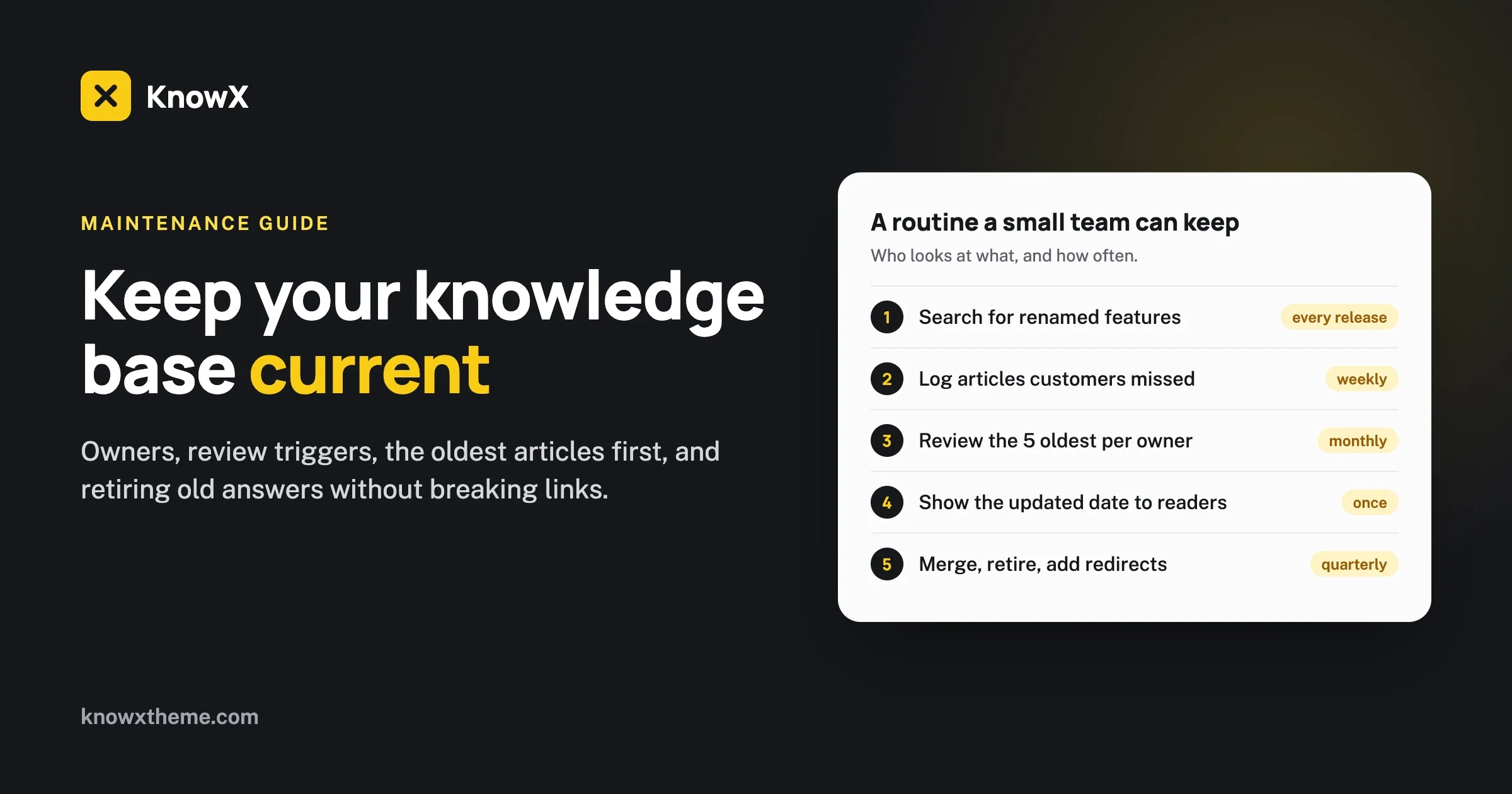
Every release | Whoever ships the change | Search the knowledge base for anything renamed or moved; flag articles to the owner |
Every week | Support | Note articles that customers mentioned, or should have found, in a shared list |
Every month | Each owner | Review the 5 oldest articles in their area, plus anything flagged |
Every quarter | Knowledge base owner | Merge duplicates, retire dead articles with redirects, check the 404 page |
Five articles a month per owner sounds small. Across four owners, that is 240 reviews a year, more than most small help centers contain.
Internal knowledge bases go stale faster
Everything above applies to customer help centers. Internal knowledge bases and team wikis drift even faster, because nobody outside the team reports mistakes and the people who wrote the pages move on. If your knowledge base is internal, give the owner rule even more weight, and review on every process change rather than waiting for a schedule. Our comparison of an internal wiki and a knowledge base covers which one suits which kind of content.
Review checklist
- Every article has a named owner.
- Review dates are recorded somewhere other than “last updated”.
- Release checklists include “which help articles mention this?”
- Stale articles are found oldest first, with the most-read reviewed first.
- Steps are followed in the live product, not read from memory.
- Readers see the updated date, not only the published date.
- Renamed articles keep their old address working; merged and retired ones get a redirect.
- Retired articles are unpublished, not hidden through category exclusion.
- Every article ends with a way to report a mistake.
Frequently asked questions
How often should knowledge base articles be reviewed?
Every 6 to 12 months on a schedule, with billing, pricing and policy articles at the shorter end, and immediately whenever the product or policy they describe changes.
How do I find outdated articles in WordPress?
Sort the Posts screen by last update with ?orderby=modified&order=asc added to its address, or run wp post list --orderby=modified --order=asc. Note that the admin Date column shows the published date, not the last-updated date.
Does KnowX show when an article was last updated?
The updated date is in the page but hidden by default; readers see the published date. A few lines of Additional CSS, shown in this guide, display “Updated” with the last-updated date instead.
Does KnowX have version history?
It uses WordPress’s own revisions: each saved change keeps the previous version, which you can compare and restore from the editor. There is no separate versioning or approval system.
What happens to links when I retire an article?
Unpublishing, making private or trashing an article makes its address return “not found”. Add a redirect to the best replacement article. Renaming an article’s slug is different: WordPress redirects the old address automatically.
Can I hide old articles by excluding their category?
Not reliably on KnowX: in our testing, the Recent Articles section still shows posts from excluded categories. Unpublish articles you want out of view.
Does KnowX have “Was this helpful?” voting?
No. A short “Something out of date? Let us know” link at the end of each article, and your support inbox, give you the most important feedback without a plugin.
Who should own knowledge base articles?
The person who knows the feature or policy the article describes, not necessarily the person who writes best. On a small team one person can own the whole knowledge base and ask experts per area; on a larger team, give each category an owner who hears about changes first.
How we tested this
On 17 October 2026 we installed WordPress 7.1.3 and KnowX 1.7.4 from WordPress.org on a local test server, created a help center of nine articles with different last-updated dates, and checked: sorting by last update in the admin and with WP-CLI, what readers see before and after an edit, the Additional CSS fix, revisions after two edits, and the address of an article after renaming, drafting, making private and trashing it. The Recent Articles behaviour with excluded categories is from our own earlier testing of KnowX. Every result in this guide is from those tests.
Running a help center or an internal knowledge base? See how KnowX works as an internal knowledge base or a customer help center, read our guide to writing knowledge base articles people finish, or download KnowX from WordPress.org.