Product Documentation Site on WordPress: Help Center vs Docs, URL Structure, and Release Notes
How to plan a product documentation site on WordPress with KnowX: help center or docs, the URL structure to choose before launch, Layout One vs Layout Two, release notes and versions.

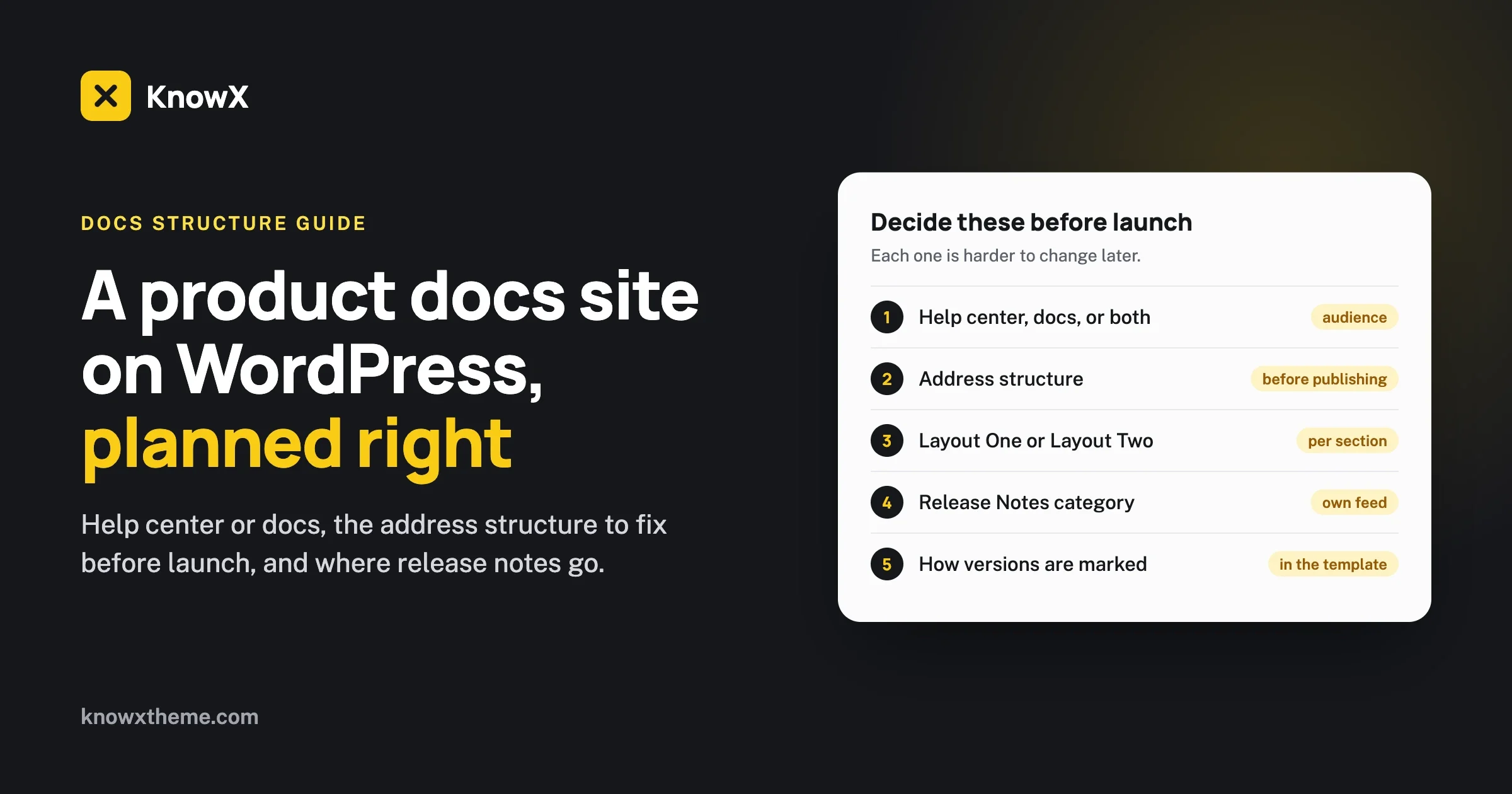
If you make software, a plugin or a product with settings, you eventually need a place where customers can learn how to use it without emailing you. Most teams start by publishing a few blog posts, then a “Docs” page that links to them, and a year later have a pile of articles nobody can navigate. A product documentation site works when three decisions are made early: what kind of site it is, how its addresses are structured, and where release notes live.
This guide walks through those decisions for a documentation site built on WordPress with KnowX, a free WordPress documentation theme and knowledge base theme. We tested the structure on a local KnowX install, including one result that should change the order you do things in: changing your URL structure after launch broke the old addresses in our test.
The short version
- Decide whether you need a help center, docs, or both. They answer different questions and are organised differently.
- Choose your URL structure before you publish anything. In our test, switching an existing site to category-based addresses made an existing article’s old address return “not found”.
- Use KnowX Layout One for a help center (search first, then topics) and Layout Two for documentation (every topic with its articles listed).
- Keep release notes in their own category, with their own page and feed, and exclude that category from the docs listing.
- Plan for versions honestly. KnowX does not have per-version documentation, so decide how you will mark version-specific instructions.
Help center or documentation: which do you need?
The two words are often used as if they mean the same thing. They are built for different readers:
Help center | Product documentation | |
|---|---|---|
Reader | A customer with a problem, right now | A user learning the product, or a developer building on it |
Arrives by | Searching for their problem | Browsing a topic, or following a link from the product |
Article shape | One question, one answer | A feature or setting, explained fully |
Organised by | Customer problems: billing, login, errors | The product: modules, settings, integrations, developer reference |
Read | One article, then leave | Several related pages in order |
Small products often need only one of these. A plugin with a handful of settings might be fully served by a well-organised help center. A product with configuration screens, integrations and a developer API usually needs documentation, and later a help center for the questions customers ask most. If you need both, they can live on the same WordPress site as different sections. Our comparison of an internal wiki and a knowledge base covers the third option, documentation for your own team.
Decide the URL structure first
Your documentation’s addresses get copied into support replies, the product itself, other people’s tutorials and search results. Changing them later is expensive, so choose once, before you publish.
In KnowX, documentation articles are ordinary WordPress posts grouped by categories, so the address comes from WordPress’s permalink setting (Settings, Permalinks). The two structures that suit documentation are:
Structure | Example address | Good for |
|---|---|---|
Post name: |
| Help centers, small docs sites, articles that might move between topics |
Category and post name: |
| Larger docs where the address should show where a page sits |
We tested both. With the category structure, nested categories carried through into the address: an article in “Email Settings”, a sub-category of “Configuration”, lived at /configuration/email-settings/connect-an-smtp-provider/, and the category pages had their own addresses too.
What happened when we switched after publishing
Our test site started with post-name addresses and already had articles. We then switched to the category structure, as a team might when the docs grow. The results:
Address | Result |
|---|---|
New category-style address of an article | 200, works |
The same article’s old post-name address | 404 not found |
Another existing article’s old address | 404 not found |
Every link to the old addresses, in support replies, in the product and in search results, would have led to “not found”. You can repair this with redirect rules, but it is far easier to choose the structure before launch. If you are already live with post-name addresses and they work, keep them; nested categories still organise the docs on the page even when they are not in the address.
One more trade-off of the category structure: an article’s address changes if you move it to another category. Post-name addresses survive reorganising. If you expect to restructure your docs as the product grows, that is a strong reason to choose post names.
Choosing a KnowX layout for each section
KnowX has two knowledge base page templates, and they map neatly onto the help center and documentation split.
Layout One: a help center home
Layout One opens with a hero heading, text and a search box, then a tile for each top-level category, a Popular Articles list, a Recent Articles list and a support call-to-action section. It suits readers who arrive with a problem and want to search or jump to a topic. On first activation, KnowX creates a Knowledge Base page with Layout One and sets it as the front page; you can change that in Settings, Reading.
Two practical notes from the facts we work from. Popular Articles needs the WordPress Popular Posts plugin, and without it the section prints “No data found.” The support section’s default text is placeholder text until you set it in the Customizer, so fill it in before launch.
Layout Two: a documentation index
Layout Two shows the page’s own content first, then every category with its articles listed underneath. There is no hero and no support section. It suits documentation, where readers browse a topic and want to see all its pages at once. Its options include posts per category, ordering posts by date or by name, showing the page title, a “View All” link and the category description.
We built a Documentation page with Layout Two on our test site. Every category appeared as its own section with its articles listed beneath, and the page had no horizontal scrolling at phone width. Two things to tidy before launch:
- “Uncategorized” appeared as a section. Any post without a category lands there. Rename the default category to something useful, or exclude it.
- Sub-categories appear as their own sections in the list, alongside the top-level categories, rather than nested inside their parent. Name sub-categories so they make sense on their own: “Email Settings” reads well; “Email” under “Configuration” might not.
For documentation, ordering posts by name rather than date usually reads better, unless you number your pages (“1. Install”, “2. Configure”) to force an order.
Where release notes belong
Release notes are not documentation. They describe what changed, in date order, and they go stale by design. Mixing them into your docs index buries the pages people actually need. Keep them separate:
- Create a “Release Notes” category and publish one post per release, titled with the version: “Version 2.5 release notes”.
- Exclude that category from your documentation page. Layout Two’s exclusion setting (per page in a meta box, or site-wide in the Customizer) takes category IDs.
- Link to the category page from your docs and your product. WordPress gives every category its own archive page and RSS feed.
In our test, excluding the Release Notes category from the Layout Two documentation page removed it completely, while its own pages kept working:
Address | Result |
|---|---|
| 200, a list of every release post, newest first |
| 200, an RSS feed customers can subscribe to |
A single release post | 200 |
The Layout Two documentation page | Release Notes section not shown |
One caution on the help center side: on Layout One, the Recent Articles section does not honour category exclusion in our testing, so release notes posts would still appear there even with their category excluded. If you use Layout One as your home and publish release notes as posts, expect them to show in Recent Articles, or keep release notes somewhere else.
What to put in each release note
Keep each note short and scannable: a one-line summary, then one line per change, labelled by type (New, Improved, Fixed, Security). Link each change to the documentation page it affects, so readers can go from “what changed” to “how it works now” in one click. And update those documentation pages on the same day; release notes that point to stale docs undo the point of both.
Handling versions
KnowX does not provide per-version documentation: there is no built-in switcher between “version 2” and “version 3” docs. Most small and medium products do not need one, because they document the current version only. If you do support several versions at once, pick one of these approaches before you write:
Approach | How | Suits |
|---|---|---|
Current version only | Update docs when you release; old behaviour lives in release notes | Most products, especially with automatic updates |
Version notes in the article | A short line: “In version 2.4 and earlier, this setting is under Advanced” | A few differences between supported versions |
A category per major version | “Version 3 Docs” and “Version 2 Docs” as top-level categories | Two major versions supported side by side |
A separate site per major version | For example a second WordPress install for legacy docs | Long-term support of old versions with very different behaviour |
Whatever you choose, keep the reader’s question in mind: “does this page apply to me?” A version line near the top of each affected page answers it faster than any navigation.
Writing a documentation page
Documentation pages are read differently from help center answers. People skim for the setting they are looking at, then read that part closely. A consistent page shape makes every page faster to use:
- What this is for, in one or two sentences: what the feature or setting does and who needs it.
- Before you start: the plan, permission or earlier step required.
- Steps, numbered, using the exact names on the screen.
- Settings explained, as a table: setting, what it does, default value.
- Version note, if the page differs between supported versions.
- Related pages: the next step, and the troubleshooting page for this feature.
Using the same shape on every page means a reader who has used one page knows where to look on the next. Our guide to writing knowledge base articles people finish has a template you can copy, and most of it applies to documentation pages too.
Link to the docs from inside your product
The best documentation traffic comes from the product itself: a small “Learn more” or help icon beside a setting, linking straight to the page that explains it. Three rules make those links last:
- Link to stable addresses. This is the other reason to settle the URL structure early: product releases ship links, and old versions stay installed for years.
- Link to the exact page, not the docs home. A user who clicks help beside the email settings wants the email settings page.
- Keep a list of every address the product links to. Before renaming or retiring a docs page, check the list. Renaming an article’s slug in WordPress redirects the old address automatically, but deleting or unpublishing it does not.
A structure that works for most product docs
Here is a starting structure we would use for a typical software product or plugin. Adjust the names to your product, but keep the order: it follows the path a new user takes.
- Getting Started: installation, first setup, a five-minute tour.
- Using [Product]: the everyday tasks, one page each.
- Configuration: every settings screen, with sub-categories for large areas.
- Integrations: one page per connected service.
- Troubleshooting: known problems, written as symptoms.
- Developer Reference: hooks, APIs and code examples, if you have them.
- Release Notes: excluded from the docs index, linked from the header.
Our guide to structuring knowledge base categories goes deeper on naming, and how to build a knowledge base on WordPress with KnowX covers the setup step by step.
Theme or plugin for WordPress documentation?
KnowX is a theme: it controls how the whole site looks, and documentation articles are ordinary WordPress posts and categories, with no custom post type and no lock-in. A documentation plugin adds docs to an existing site and theme, usually with its own content type. Which one fits depends mostly on whether the documentation is its own site or a section of a site you already have. Our comparison, WordPress knowledge base: theme or plugin?, walks through the trade-offs.
Using ordinary posts has one practical advantage for docs: every WordPress tool already works with them, from the editor and revisions to search, feeds, and the import and export tools. If you ever move the documentation, it leaves as standard WordPress content.
What KnowX includes, and what you would add
So you can plan the whole site, here is the honest split:
Included in KnowX | Not included; add a plugin or a process if you need it |
|---|---|
Two knowledge base layouts (help center and documentation index) | Live search suggestions as people type |
Category exclusion, posts per category, ordering | Search analytics |
Breadcrumbs, sticky header, sub-header with search | Article voting or “was this helpful” feedback |
Sidebars and a KnowX Categories widget | Per-version documentation |
Block editor support, page templates, custom login screen | Per-article access roles |
WordPress revisions for history | Version history beyond WordPress revisions, approvals |
From our own experience
Wbcom Designs, the team behind KnowX, previously ran its own product documentation on KnowX, with a custom child theme that added hierarchical docs addresses, a docs home grouped by product, category archive templates, sidebar navigation on each doc, live search filtering and category images. That site has since moved to a different stack, and our product release notes are published separately from the docs, for example the KnowX release notes. The lesson we would pass on is the one at the top of this guide: decide the structure early, because everything else builds on it.
If your documentation needs more than the two layouts, such as product-grouped homes or custom navigation, that is child theme work. Our custom development page explains how we approach it.
Launch checklist for a product docs site
- Help center, documentation, or both: decided, with a section for each.
- Permalink structure chosen and saved before the first article is published.
- Categories created in reading order, named in your users’ words.
- “Uncategorized” renamed or excluded.
- Documentation page on Layout Two, ordered by name, Release Notes excluded.
- Release Notes category with a link to its page and feed in the header or footer.
- Version approach chosen and written into your article template.
- Layout One support section filled in (no placeholder text left).
- Every docs page checked on a phone.
Frequently asked questions
What is the difference between a help center and product documentation?
A help center answers specific customer problems, one question per article, usually found by search. Product documentation explains the product feature by feature, organised the way the product is built, and is often read page after page.
Which URL structure is best for WordPress documentation?
Post-name addresses are simplest and survive reorganising. Category-based addresses show where a page sits and support nested categories, but change when an article moves category. Choose before launch: in our test, switching an existing site to category addresses made old addresses return “not found”.
Can KnowX be used as a WordPress documentation theme?
Yes. Its Layout Two template lists every category with its articles, which suits documentation, and Layout One suits a help center home. Articles are ordinary WordPress posts and categories.
Does KnowX support versioned documentation?
No, there is no per-version switcher. Document the current version, add version notes to affected articles, or use a category per major version if you support two at once.
Where should release notes go?
In their own category, one post per release, excluded from the documentation index. WordPress gives the category its own page and RSS feed. On a Layout One home, release posts will still appear in Recent Articles.
Do I need a documentation plugin as well as KnowX?
Not for the structure in this guide, which uses KnowX and standard WordPress features. Plugins become useful for things KnowX does not include, such as live search suggestions or article feedback.
Why does “Uncategorized” appear on my documentation page?
Posts without a category are placed in WordPress’s default category, and Layout Two lists every category. Rename the default category or exclude it by ID.
How should documentation pages be ordered?
In the order a new user needs them: install, set up, everyday use, settings, integrations, troubleshooting. On Layout Two, ordering by name keeps pages stable as you add more; number the titles (“1. Install”, “2. Configure”) if you need a fixed sequence inside a category.
Should the help center and the docs be separate sites?
Usually not. One WordPress site with a help center section and a documentation section shares one search, one design and one set of categories, and is simpler to keep current. Separate sites make sense mainly when different teams own them, or when legacy versions need their own documentation.
Can customers subscribe to release notes?
Yes. WordPress gives every category an RSS feed, so the Release Notes category’s feed (for example /category/release-notes/feed/) lets customers follow new releases in any feed reader.
How we tested this
On 17 October 2026 we used WordPress 7.1.3 and KnowX 1.7.4 (the current version on WordPress.org, last updated 20 November 2025) on a local test server. We published articles with post-name addresses, switched to category-based addresses and checked old and new addresses, created a nested category, built a Layout Two documentation page with the Release Notes category excluded, and checked the Release Notes archive and feed. Layout descriptions come from the KnowX templates and documentation; the Recent Articles exclusion behaviour is from our earlier testing. Every address in the tables above was requested directly on the test site, and the status code it returned is the one shown.
Planning documentation for your product? Read about the free WordPress knowledge base theme, see how KnowX works as a customer help center, or talk to us about custom documentation development.