A Collaborative Knowledge Base Your Class or Lab Can Improve
Docs staff own, a wiki members improve and write-ups that go live after approval: how to build a collaborative knowledge base for a class or lab on WordPress with KnowX, WB Member Wiki and WB Member Blog.

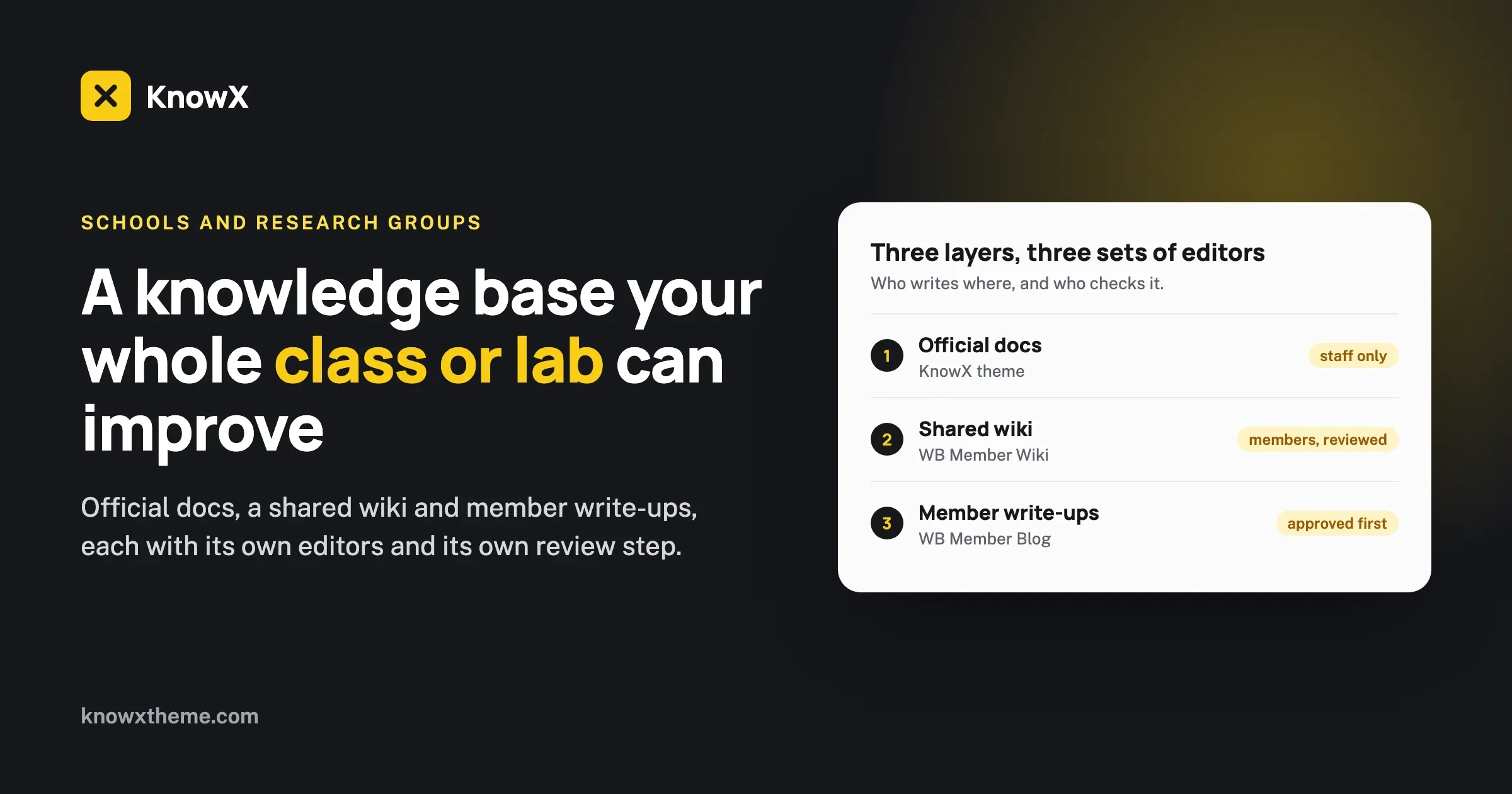
A collaborative knowledge base for a school or research group works best in three layers: official docs that staff own, a shared wiki that members improve together, and member write-ups that go live after approval. On WordPress you can build all three with the free KnowX theme for the docs, WB Member Wiki for the wiki and WB Member Blog for the write-ups. Each layer has its own editors and its own review step, so opening the site to students or researchers does not put the official answers at risk.
This guide is for the person who gets asked to “set up somewhere we can keep all this”: a teacher running a course site, a department coordinator, a lab manager, a librarian or the one postdoc who knows WordPress. You do not need to be a developer. We explain what each layer is for, how to set it up, how to keep students’ work out of the official pages until it is ready, and how to get people contributing instead of just reading.
In short
- Split the site into docs (staff write, everyone reads), a wiki (members edit, history and review protect it) and write-ups (members post, staff approve).
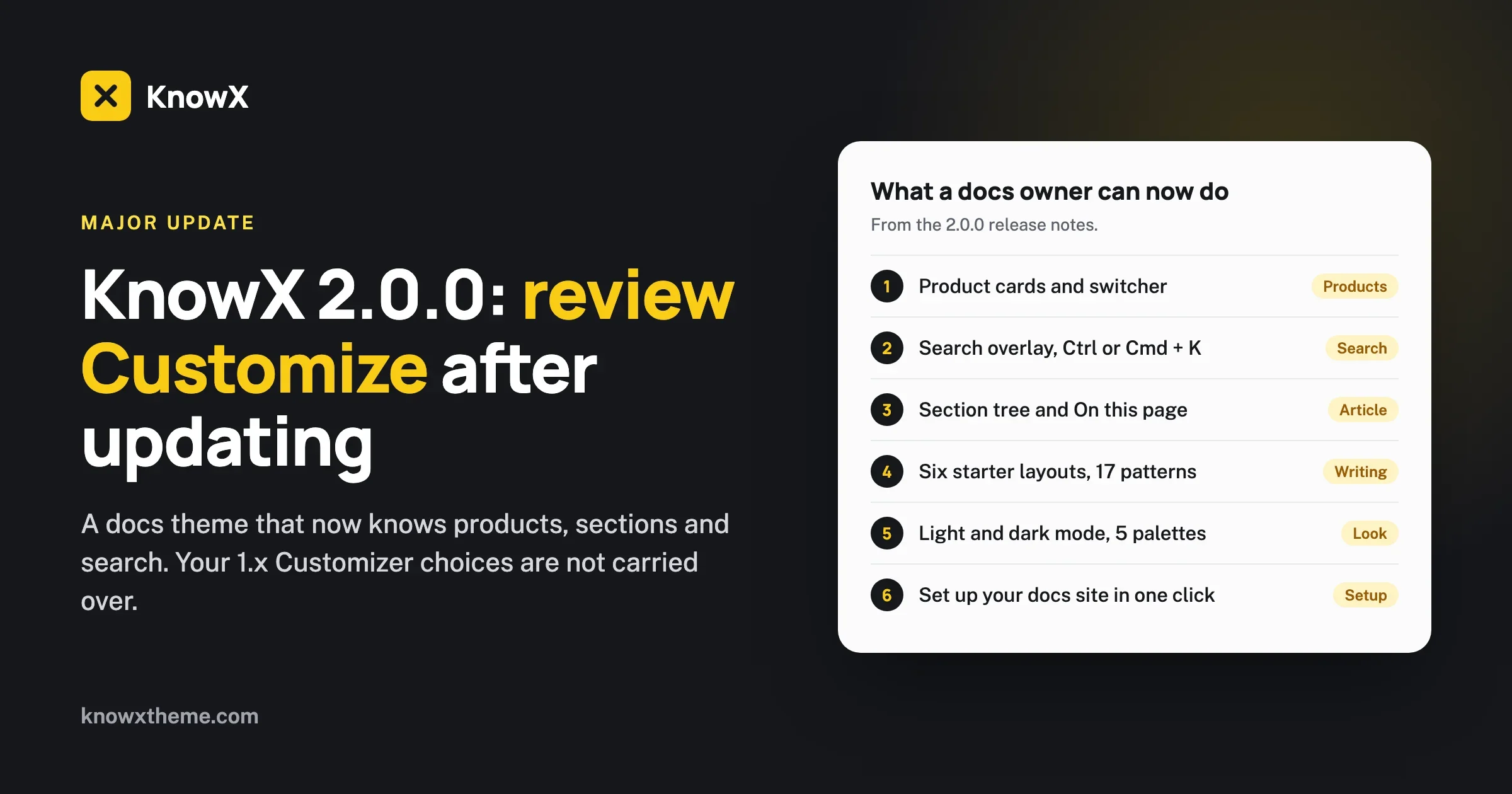
- KnowX 2.0.0 handles the docs: products and sections, a section tree, Ctrl+K search and a last updated date on every article.
- WB Member Wiki handles the wiki:
[[Page Title]]links, red links for missing pages, revision history, edit locking and edits that wait for review. - WB Member Blog handles write-ups: a front-end editor, drafts that save themselves and admin approval before anything is published.
- Member Blog posts are ordinary WordPress posts, the same kind KnowX docs use. Give them their own category and keep it out of the docs index.
- Getting people to contribute is a design job: show what is missing, credit every edit, make mistakes cheap to undo and promote good work upward.
Why does a collaborative knowledge base need more than one kind of page?
Because people write different things for different reasons, and one tool forces them into one shape.
A course or a research group produces three kinds of knowledge. There are the settled answers: the syllabus, the lab safety procedure, how to book the microscope, the citation style the department expects. There is shared working knowledge that grows over time: a glossary, a list of useful datasets, notes on a method, the fix for that error the analysis script throws every spring. And there are personal accounts: what a student found on a field trip, how a researcher got a protocol working, a summary of a paper they presented.
Put all three in one place with one set of permissions and something breaks. If everyone can edit everything, the safety procedure gets a well-meant but wrong change the week before an inspection. If only staff can edit, the glossary never grows and students go back to sharing notes in chat threads that vanish at the end of term. If personal accounts land in the docs, readers cannot tell an approved procedure from one student’s experiment.
Splitting the site into layers fixes that. Each layer gets the right editors and the right safety net. We wrote about the general version of this choice in internal wiki vs knowledge base. For schools and research groups the answer is usually “both, plus a place for write-ups”, and the rest of this guide shows how.
What are the three layers, and which tool runs each one?
Here is the whole setup on one screen. The rest of the guide goes layer by layer.
Layer and tool | Who writes | Safety net |
|---|---|---|
Official docs | Staff: teachers, lab leads, admins. Everyone reads. | Only staff accounts can publish |
Shared wiki | Members you allow, by role | Revision history, edit locking, edits held for review, protected pages |
Member write-ups | Members you allow, by role or member type | Admin approval before publishing, limited categories |
All three run on plain WordPress. You do not need BuddyPress or any community plugin to start. If you later add one, the wiki and the blog both connect to member profiles, and the wiki can attach pages to groups. More on that near the end.
Layer 1: How do you set up the official docs with KnowX?
KnowX is a free WordPress theme for documentation sites, help centers and knowledge bases, made by our team at Wbcom Designs. Version 2.0.0 (on WordPress.org since 19 October 2026) turns ordinary posts and categories into a proper docs site. It needs WordPress 6.9 or newer and PHP 8.1 or newer.
Map your courses or projects to products and sections
In KnowX 2.0.0 your top-level categories become products, shown as cards on the docs home, each with an icon, a description and an accent colour. Under each product you add sections (child categories), and articles go into sections.
For a school, a product is usually a course or a department. For a research group, a product is a project, an instrument or a shared facility. A small example:
- Product: Biology 201, with sections for Getting started, Lab procedures, Assignments and Assessment.
- Product: Confocal microscope, with sections for Booking, Safety, Standard settings and Troubleshooting.
- Product: Thesis support, with sections for Formatting, Citations, Ethics approval and Submission.
A header switcher lets readers jump between products, and the Ctrl+K (Cmd+K on a Mac) search can be limited to the current product. That matters in a department where two courses both have a “Lab 3”. If you are not sure how deep to nest, our guide to structuring knowledge base categories covers the rules.
Put the reading order where it belongs
Each article has an Article Order field. Number the Getting started articles 1, 2, 3 and they appear in that order in the section tree and the previous and next links, instead of by date. For a course, that turns the docs into a path a new student can follow week by week.
Use the starter layouts so every guide looks the same
KnowX 2.0.0 ships six starter layouts (getting started steps, troubleshooting, API endpoint, docs home, FAQ and changelog entry) and 17 block patterns, including callouts, prerequisites and next steps. Pick three or four as house style. When five teachers write lab guides, readers learn where the prerequisites box sits and stop missing it. Our article template shows the shape we use.
Show the date, because procedures change
Every KnowX article shows a last updated date, and an applies to version badge can mark which edition of a course or which version of an instrument’s software an article covers. A student reading a guide from two years ago can see that it is two years old. Pair it with a simple review routine, for example checking each course’s docs in the week before term starts.
Keep staff as the only publishers
The docs layer is not where students write. In WordPress, give students and researchers a role that cannot publish posts in the docs categories (the default Subscriber role cannot publish anything). Staff who maintain docs get Author or Editor. That one decision is what keeps the official answers official while the other two layers stay open.
If you are starting from nothing, the full install walkthrough is in our guide on building a knowledge base on WordPress with KnowX, and the KnowX 2.0.0 overview lists every new setting.
Layer 2: How does a member wiki let people improve pages safely?
WB Member Wiki adds a wiki to WordPress, as its own type of content, separate from your posts. Members you allow can create and edit pages together, and a dashboard page (added with the [member-wiki-dashboard] shortcode) gives them the page list, search, filters and every wiki action in one place. We checked the features below against version 1.2.0, the current release.
Linking is how a wiki grows
Members link pages by typing [[Page Title]]. If the page exists, it becomes a normal link. If it does not exist yet, it shows as a red link. That small detail does a lot of work in a class: a student writing up “PCR troubleshooting” types [[Primer design]], nobody has written that page yet, and now there is a visible, clickable invitation for the next person to write it.
Pages can be nested as parent and child with breadcrumbs, filed under wiki categories and tags, and each long page gets a table of contents built from its headings.
Every edit is kept, and any version can come back
The wiki keeps a revision history for every page, with a side-by-side comparison of two versions and one-click restore. If a page is damaged by a bad edit, a staff member restores the last good version in seconds. This is the single feature that makes it reasonable to let a class of thirty edit the same pages.
Two smaller features prevent the most common accidents. Edit locking stops two people overwriting each other when they open the same page at once, and auto-save keeps a draft while someone types, so a dropped connection does not lose an hour of notes.
Edits can wait for review while the page stays online
This is the part that suits schools best. In version 1.2.0, edits to a published page by moderated members wait for review while readers keep seeing the current text. A reviewer compares the waiting edit with the live page, then approves it (the edit is credited to the member) or rejects it, and the member gets an email either way.
The permission to approve is separate from the permission to edit, and it is Administrator-only until you grant it under the wiki’s Permissions settings. Give it to the teachers or lab leads who should review, not to every editor.
Lock the pages that must not drift
Page protection lets you lock specific wiki pages so only admins can edit them. Use it for anything that is close to policy but lives in the wiki, such as the group’s data handling rules. Role-based permissions decide who can create, edit, delete and protect pages, so you can let first-years edit but not delete.
Credit people, and let readers say what helped
Every editor of a page is recorded as a contributor, and each member has a “My Wiki” page listing their own pages, drafts and pages awaiting review. Members can also answer “Was this helpful?” on a page (one answer each, which they can change), and the dashboard can sort by Most Helpful. For a teacher, that is a quick view of which pages students actually rely on.
Add a wiki your members can safely edit
WB Member Wiki brings wiki links, revision history, edit locking and review before changes go live to any WordPress site.
Layer 3: Where do student and researcher write-ups go?
Some knowledge is a story, not a reference page: “how our group got the field sensors working in the rain”, “what I learned presenting at my first conference”, “week 6 lab notes”. It belongs to a person, has a date and a point of view, and should not be rewritten by others. That is what WB Member Blog is for.
Member Blog gives members a front-end editor, so they write without seeing the WordPress admin. You can choose a block-style editor, the classic editor or a distraction-free Medium-style editor, drafts save automatically, and members can add a featured image, categories and tags. It runs on plain WordPress, and the free version covers this setup. A Pro version adds extras such as co-authors with shared bylines.
Turn on approval before anything goes live
Member Blog has post moderation with admin approval. Switch it on, and a student’s post waits for a teacher to approve it before it appears. You decide who may write at all with role-based access, and you can narrow it further by member type, for example letting graduate students post while first-years read.
The one setup step people miss: keep write-ups out of the docs
Member Blog publishes ordinary WordPress posts, and KnowX builds its docs from ordinary posts and categories too. If you do nothing, a student could file a post under “Lab procedures” and, once approved, it would sit in the docs tree next to the official procedure. Two settings stop that:
- Create a separate top-level category for write-ups, for example “Notes and write-ups”. In Member Blog’s Content and Categories settings, exclude every docs category, so members can only choose the write-ups category (or child categories you create under it).
- Exclude that category from the KnowX docs index. KnowX’s exclude setting hides an excluded product’s sections and articles from the Docs Index, so write-ups stay in the blog and never mix with the docs.
Do this before you invite anyone. Fixing it later means moving posts between categories, which changes their URLs.
How do you get people to contribute to a collaborative knowledge base?
Tools make contributing possible. They do not make people do it. In our experience with community sites, contribution grows when four things are true, and this setup gives you a lever for each.
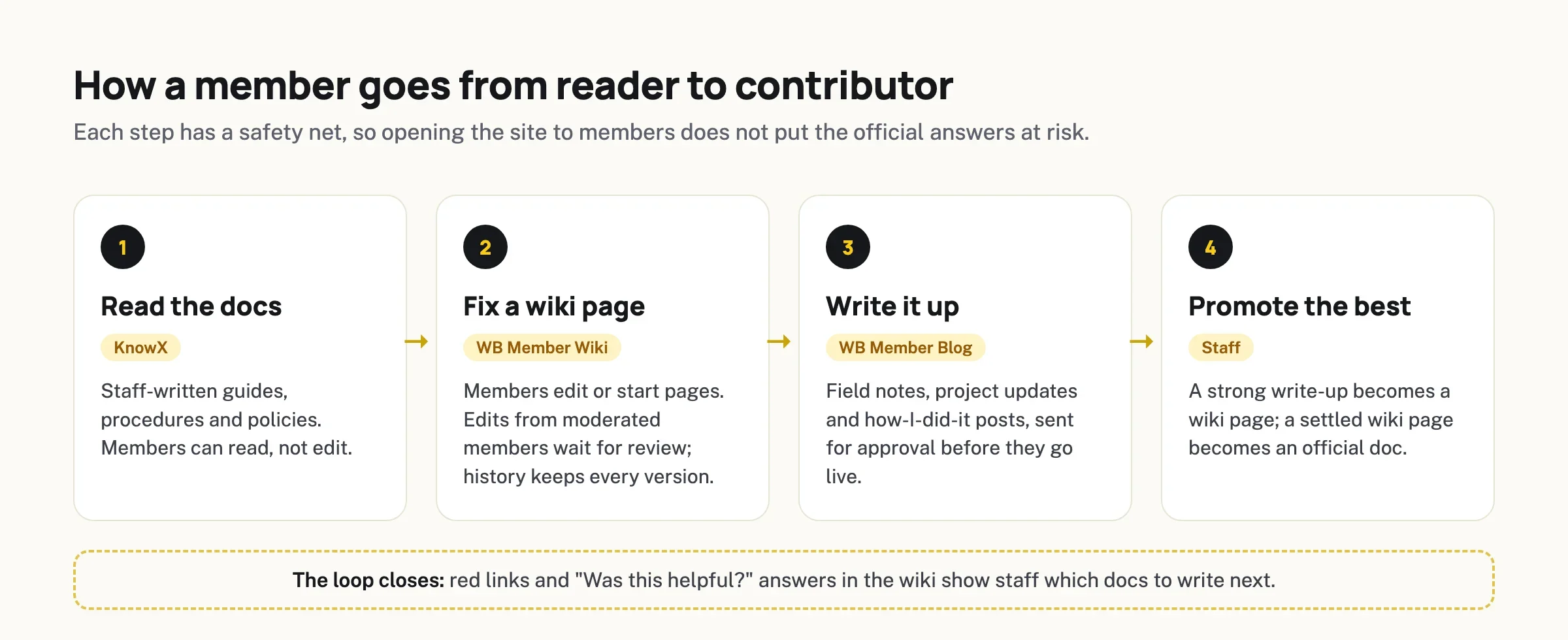
1. People can see what is missing
A blank wiki is intimidating. A wiki with red links is a to-do list. Seed the wiki with a handful of real pages that link to pages nobody has written yet. In the first week of term, ask each student to turn one red link into a page. You now have thirty pages and a class that knows how editing works.
2. Edits get credit
Contributor lists and the My Wiki page make work visible. Some teachers count wiki contributions toward participation, and the record is already there. In a research group, a well-maintained methods page with five named contributors is a better handover document than any single person’s notes.
3. Mistakes are cheap
New contributors hold back because they fear breaking something. Tell them plainly: every version is kept, edits are reviewed and nothing they do can damage the official docs. Then show them the History screen once. Fear drops when people see the undo button.
4. Good work moves up
This is the loop that keeps the site alive. When a write-up explains something better than the wiki page, a teacher asks the author to fold it into the wiki. When a wiki page has been stable for a term and many people found it helpful, a staff member turns it into an official doc. Students see their work become the reference the next class uses. That is the strongest motivation we know of, and it costs nothing.
The signals for what to promote are already in the tools: red links show gaps, “Was this helpful?” answers and the Most Helpful sort show which wiki pages matter, and approved write-ups show what people are working on.
Can the site be private to our class or lab?
Partly, and it is worth being exact here so nobody is surprised.
- KnowX does not have per-article access roles. As a theme, it shows published docs to anyone who can reach the site. It also has no article voting, search analytics, AI answers or ticketing; those come from plugins if you need them.
- Editing in the wiki and the blog is controlled by role. You decide who can write, edit, approve and delete. That covers “everyone can read, only our members can write”.
- Wiki pages can be limited to a group. If you run BuddyPress or BuddyBoss, version 1.2.0 can attach a wiki page to a group, so only that group’s members can read and edit it, with a Wiki tab on the group.
- For a fully members-only site, add a membership or login plugin that hides the whole site from visitors who are not logged in. Check that plugin’s own page for what it covers before you rely on it.
One more point for schools: check your institution’s policy on publishing student names and work before the site goes public. Member display names and the approval step give you control over what appears, but the policy decision is yours to make first.
Setup checklist: from empty site to first contribution
Work through this in order. Most groups finish it in an afternoon.
- Confirm your host runs WordPress 6.9 or newer and PHP 8.1 or newer, then install KnowX from WordPress.org.
- Run “Set up your docs site” on a staging copy to see how products and sections fit, then plan your own.
- Create one product per course, project or facility, with sections under each. Fill in each product’s icon, description and colour.
- Write or move in the first ten official docs. Set Article Order on the getting started path.
- Create a “Notes and write-ups” category and exclude it from the KnowX docs index.
- Install WB Member Blog. Turn on admin approval, limit writing to the right roles, and exclude every docs category so members can only post to write-ups.
- Install WB Member Wiki. Add the dashboard page with
[member-wiki-dashboard], set who can create, edit, delete and protect pages, and grant the approval permission to your reviewers. - Seed the wiki with five to ten real pages full of
[[links]], including some to pages that do not exist yet. - Protect the wiki pages that must not drift.
- Invite members, point them at the red links and approve the first write-ups quickly. A fast first approval does more for participation than any welcome email.
Common problems, and the fix
A student’s post appeared inside the docs
Symptom: an approved member post shows in a docs section. Check: its category. Fix: move it to the write-ups category, then exclude every docs category in Member Blog’s settings. Prevent: set the category rules before inviting anyone.
Wiki edits are going live without review
Symptom: changes to published wiki pages appear at once. Check: whether those members are set as moderated in the wiki permissions. Fix: moderate the roles that should be reviewed, and grant “Who Can Approve Pending Pages” to your reviewers. Prevent: test with a student test account before term starts.
Nobody is editing the wiki
Symptom: the wiki is read but not written. Check: are there red links, and does anyone know how to edit? Fix: seed red links, give a five-minute demo of editing and History, and set one small contribution task. Prevent: approve and credit early contributions quickly and publicly.
Two teachers keep overwriting each other’s lab guide
Symptom: changes disappear from a doc. Check: whether it is a KnowX doc or a wiki page. Fix: give each doc an owner; if it needs many editors, move it to the wiki, where edit locking and revision history help. Prevent: agree which pages are docs and which are wiki before writing.
Can this grow into a full community later?
Yes. Everything here works on plain WordPress, which is the right place to start. If your group later wants member profiles, groups and an activity feed, WB Member Blog is built for BuddyNext, and both plugins also connect to BuddyPress, BuddyBoss and PeepSo profiles. The wiki can then add group-only pages and a Wiki tab on each group. You do not have to decide that now; the three layers stay the same.
Where to start
A collaborative knowledge base does not have to launch all at once. Start with the docs, because that is the layer people trust. Add the wiki once you have ten good docs and a few questions they do not answer. Add write-ups when members start asking where they can share what they did. Each step stands on its own, so you can stop at any layer that is enough for your class or lab.
Build your class or lab knowledge base
Start with KnowX for the docs, free on WordPress.org. Add WB Member Wiki and WB Member Blog when your members are ready to contribute.
For more on running a knowledge base just for your own people, see our page on internal knowledge bases with KnowX, or get KnowX free on WordPress.org.