Notion AI Now Runs on Credits: What a Small Team's Wiki Really Costs, and When a Self-Hosted Wiki Is Cheaper
Notion AI now runs on credits. See what a 5, 10 and 25 person team pays on Plus and Business, what happens when credits run out, and when a self-hosted wiki is cheaper. Checked 29 November 2026.

Prices and plan details on this page were read on Notion’s own pricing and help pages on 29 November 2026. Notion changes them often, so check the live pages before you decide.
What changed with Notion AI credits, and who does it affect?
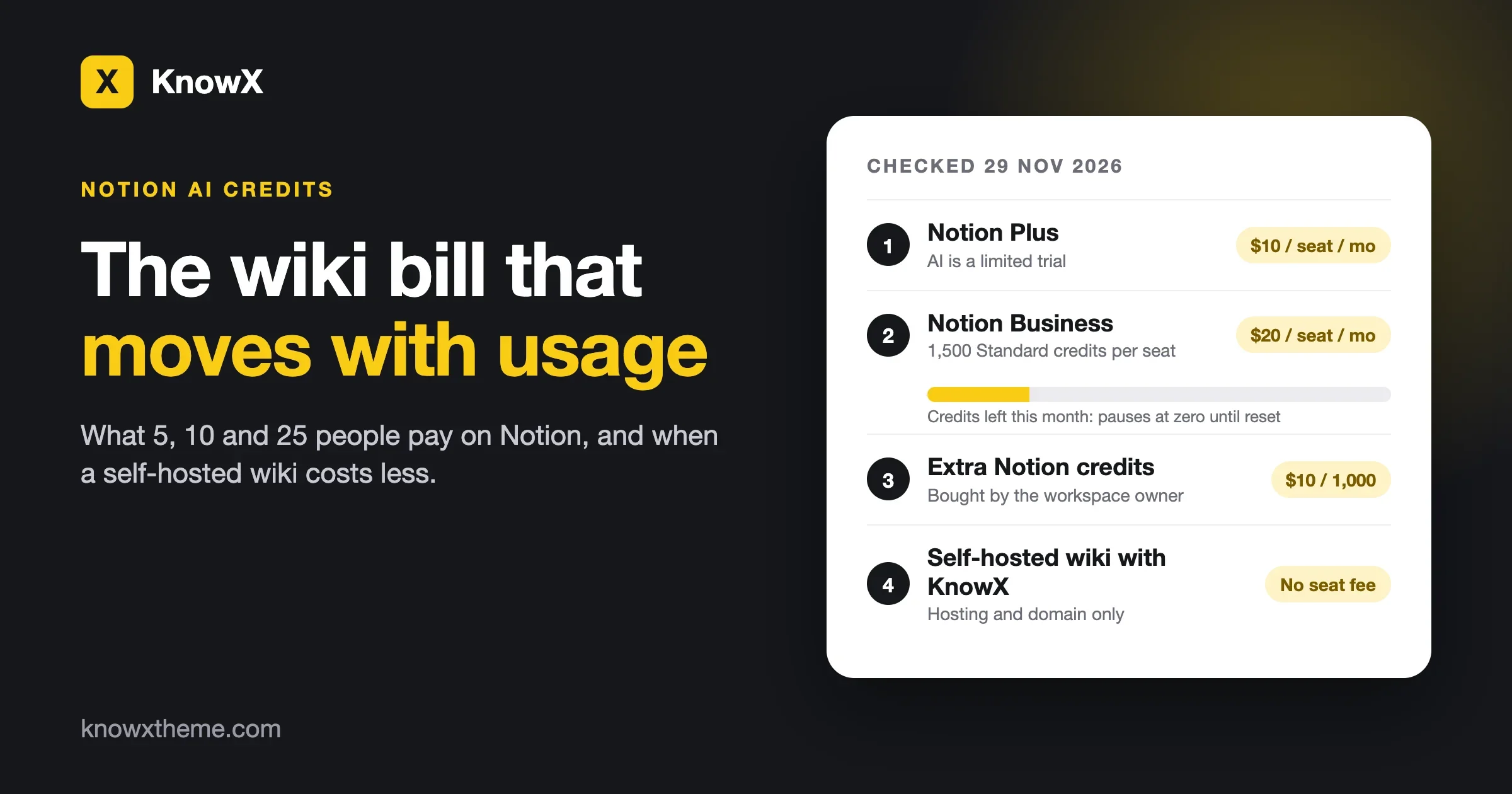
Notion AI is no longer a flat add-on. On Notion’s pricing page, AI work is metered in credits. The Business plan includes 1,500 Standard credits and 500 Select credits per seat, every month. Free and Plus show only a “Limited Trial” of AI. Enterprise is custom.
So who feels it? Any small team that wants Notion’s AI agent, not just pages and databases. If you only use Notion as a wiki, your bill is the seat price and nothing else. If you want the AI, you are being steered to Business, which costs twice as much per seat as Plus.
Here is what the seat prices add up to over a year. We used the prices on Notion’s pricing page, shown under its “Pay yearly” view: Plus at $10 per seat per month and Business at $20 per seat per month. Yearly cost is seats times price times 12 months.
Team size | Plus, per year | Business, per year | Extra cost of Business |
|---|---|---|---|
5 people | 5 x $10 x 12 = $600 | 5 x $20 x 12 = $1,200 | $600 |
10 people | 10 x $10 x 12 = $1,200 | 10 x $20 x 12 = $2,400 | $1,200 |
25 people | 25 x $10 x 12 = $3,000 | 25 x $20 x 12 = $6,000 | $3,000 |
Two cautions on those numbers. First, Notion’s page says “Save up to 20% with yearly”, so paying month by month costs more than the table shows. We could not read the monthly figures on Notion’s own page, so we have left them out rather than guess. Second, these are list prices for seats only. Anything you buy on top, such as extra credits, is added later in this guide.
The short version: for a 10-person team, moving from Plus to Business for the AI features adds $1,200 a year before you buy a single extra credit. A self-hosted wiki on WordPress, which we cover below, has no per-seat fee at all. It also has real trade-offs, and we will not pretend otherwise.
What are Notion AI credits, and which features use them?
Notion describes three kinds of credit on its help pages.
- Standard credits. A per-person balance for work where Notion picks the AI model. Notion Agent on Auto uses these. So do Database Autofill and, according to the pricing page, AI Meeting Notes.
- Select credits. A per-person balance for work where you pick the model yourself, plus Custom Agents that you own.
- Notion credits. A separate, workspace-wide balance that an owner can buy. It covers usage beyond the included allowance when an owner allows it, and it funds high-consumption models and Custom Agents.
The included allowance is per seat, not per team. Standard and Select credits cannot be pooled, passed to a colleague or swapped for the other type. They reset at the start of each billing cycle and do not roll over. If one person uses all 1,500 Standard credits by the 10th of the month and a colleague has barely touched theirs, the unused credits stay with the colleague.
What does one credit buy?
Notion does not define a credit in dollars or in words. What it does publish is a rough guide by task size. In Notion’s estimates, a simple task uses about 5 credits, a medium task about 10, and a complex task about 25. Actual use varies with the task and how much context it pulls in.
Do the sums on that guide. A Business seat’s 1,500 Standard credits cover about 300 simple tasks, or about 150 medium ones, or about 60 complex ones. A heavy user who sends agents on long research jobs will see the 60 figure much sooner than the 300 one.
Notion also says Connected apps and the Notion API use credits only when you run Notion Agent or a Custom Agent through them. Ordinary use does not cost credits, though rate limits may apply. And a note on meeting notes: the pricing page lists AI Meeting Notes among Standard-credit work, while a help page says meeting notes do not currently reduce balances but may in the future. Notion’s two pages disagree, so treat that one as unsettled.
How do you buy more credits, and what do they cost?
Only a workspace owner can buy extra Notion credits, and only on Business or Enterprise plans. You cannot buy them if you subscribed through an app store. Notion’s help center gives two prices:
Type | Price | How it works |
|---|---|---|
Monthly Notion credits | $10 per 1,000 credits | Reset each month, billed with the subscription |
Annual Notion credits | $13 per 1,000 credits | Paid upfront, usable any time in the subscription year, expire at the end |
Yes, the annual credits cost more per credit than the monthly ones. Notion’s own FAQ confirms it: annual credits are not cheaper. What you pay extra for is flexibility, because you can spend them whenever you like during the year.
An illustration, using Notion’s monthly price. Say a 10-person team decides its included 15,000 Standard credits are not enough and adds 10,000 credits a month. That is 10 x $10 = $100 a month, or $1,200 a year. Added to the $2,400 for ten Business seats, the total comes to $3,600 a year. That is an example, not a prediction: we cannot tell you how many credits your team will use, and neither can Notion’s pricing page.
What happens when your team runs out of credits?
Notion’s help center says that once you use all your Standard or Select credits, the affected work pauses until your credits reset. Standard and Select are separate, so running out of one does not stop the other.
There is one way around the pause. A workspace owner can allow members to carry on using the workspace’s Notion credits, if the workspace has bought any. Owners can also set a limit per member, so one person cannot drain the shared balance. If you are out of credits even after the workspace buys more, an owner needs to set or raise your personal limit.
For a small team lead, that means a choice you have to make on purpose: either some AI features go quiet near the end of the month, or you buy credits and accept a bill that moves with usage. Neither is a disaster. Both are different from the old arrangement, where you paid a fixed amount and stopped thinking about it.
Why does AI use make the bill hard to predict?
A seat price is easy to budget. You count heads and multiply. Credits are different because the cost depends on what people ask for, and nobody knows that in advance.
A few reasons the bill is slippery:
- Task size is not obvious. One request to “summarise this page” is small. One request to “compare these twelve documents and draft a report” is not. Both look like a single prompt to the person typing.
- Context counts. Notion says actual credit use varies with the task and its context. An agent that reads a big workspace uses more than one working on a single page.
- Allowances are per person. Your most curious team member can run out in the first week while three others never use theirs.
- Agents run without anyone watching. Custom Agents are built to handle repetitive tasks on their own. An agent set up with a loose instruction can use credits overnight.
- Two pools, two rules. Standard and Select credits reset monthly and cannot be moved. Extra Notion credits are bought separately, with their own monthly or annual price.
None of that is a flaw in Notion. It is how metered AI works across the industry. The point for a small team is simple: before you commit, ask who will actually use the AI, and how often. If the honest answer is “one person, now and then”, a Business seat for everyone is a lot to pay.
Notion gives owners a credits dashboard to track usage, which helps once you are on the plan. It does not help you forecast before you sign up, so run a month with a small group and read the numbers before you roll it out wider.
What does a small team actually use a wiki for?
Before you spend on AI, look at what your team does in its wiki day to day. For most small teams the list is short:
- Writing down how things are done: onboarding steps, standard operating procedures, checklists.
- Keeping policies and reference pages in one place.
- Finding a page quickly through search.
- Deciding who can see or edit what.
- Looking back at an earlier version of a page when someone overwrites it.
That is pages, search, permissions and history. Notion does all of it well, and you get most of it before you pay for AI. Notion’s pricing page shows page history of 7 days on Free, 30 days on Plus and 90 days on Business, so even the history question depends on your plan.
Notion’s databases, linked views and live co-editing are where it pulls ahead of a plain wiki. If your team runs projects, tasks and CRM-style tables inside Notion, you are using it as more than a wiki, and moving off it is a bigger decision. If your team uses it mostly to store how-tos, policies and meeting notes, you are paying for a lot of capability you do not touch.
It is worth an honest audit. Open your workspace, sort pages by last edited, and count how many are databases and how many are plain pages. Most small teams find that the pages vastly outnumber the databases. That tells you what you are really buying.
When is a self-hosted wiki cheaper than Notion?
When most of your use is pages, search and permissions for a team that is not growing fast, and nobody needs Notion’s AI or databases. In that case a wiki on your own WordPress site costs less over a year, because there is no per-seat fee. You pay for hosting and a domain, and you spend some of your own time on upkeep.
We build KnowX, so weigh what follows with that in mind. KnowX is a free WordPress theme from Wbcom Designs, released under the GPL v3 licence. It turns normal WordPress posts and categories into a knowledge base. Each category becomes a topic, each post becomes an article. Your articles stay in your own WordPress database, on a site you own.
What do you get with KnowX?
We list only what the theme does:
- Two knowledge base home pages. Layout One has a search hero, a tile for each topic and a list of recent articles. Layout Two lists every topic with its articles underneath.
- A search bar and breadcrumbs, so readers can see where they are and look things up.
- Sidebars, a categories widget and four footer widget areas.
- A login screen in your own branding.
- Google Fonts hosted on your own server, if you want it.
- Settings for logo, colours and fonts in the WordPress Customizer, with no code.
The theme is free on WordPress.org. There is no seat count and no credit meter, because there is no AI in it to meter.
What does it cost to run?
KnowX itself costs nothing. The costs are the ones every WordPress site has:
- Hosting. A small WordPress site runs on ordinary shared or managed WordPress hosting. As a planning range, plan for roughly $5 to $30 a month depending on the host and the plan. That is a rough range and not a quote, so price two or three hosts yourself. Over a year it is about $60 to $360.
- A domain. A yearly fee that varies by name and registrar.
- Theme or plugin licence. $0 for KnowX. If you later add a paid plugin for something the theme does not cover, that is a separate cost, and you should read that plugin’s own pricing page on the day.
- Your time. Updates, backups and the occasional broken thing. We come back to this below.
Set that against the table earlier. A 10-person team on Plus pays $1,200 a year for seats alone. On Business it pays $2,400. Even at the top of our hosting range, a WordPress wiki is a fraction of either number, and the gap grows with every person you add. But a lower price is not the same as a better fit, so read the next part.
What does KnowX not do?
This matters more than the price. KnowX does not include article voting or “was this helpful” feedback, search analytics, AI answers or a chatbot, ticketing, or per-article access roles. It adds no version history beyond what WordPress already keeps as revisions. If you need one of those things, you add a WordPress plugin for it, and that plugin has its own cost and its own upkeep.
It is also a classic theme, not a block theme. You change the look through the Customizer, menus and widgets, and you write articles in the normal block editor.
What are the honest trade-offs of self-hosting?
Self-hosting swaps a monthly bill for a few jobs that become yours. Be clear about them before you move.
You run the updates. WordPress, your theme and any plugins need updating. Skipping updates is how small sites get hacked. Someone on your team, or a person you pay, must own that job.
You run the backups. Notion keeps your data safe for you. On your own site, you decide how often a backup runs and where it is stored, and you test that you can restore from it. Many hosts include backups. Check what yours does, and how long it keeps them.
Notion’s database features are better. Notion lets you build linked databases, filtered views, charts and dashboards. A WordPress knowledge base is a set of articles. It is not a replacement for a project tracker.
Real-time collaboration is better in Notion. Several people editing one page at once, comments in the margin, a live sidebar: that is Notion’s strength. In a WordPress wiki, people write and publish articles in the editor, and the flow is closer to publishing than to a shared whiteboard.
Access control is simpler. Notion offers teamspaces and permission groups. KnowX has no per-article access roles. WordPress can keep a whole site private behind a login, and you can restrict individual posts with WordPress’s own options, but if you need many levels of who-sees-what, test it first. Our guide on internal knowledge base software covers what to check.
There is no AI in the box. If your team really does use Notion’s agent every day and would miss it, a self-hosted wiki will not replace that. Some teams keep an AI tool separate from the wiki and paste in what they need. That brings a different question: which AI tools your team is using, and who knows about them. We wrote a short guide on keeping an AI tool register in your internal wiki for exactly that.
Should you stay on Notion, mix, or move?
Use this table as a starting point. It is a judgement call, and your own numbers should settle it.
Your situation | What we would do | Why |
|---|---|---|
Your team uses Notion AI daily and would struggle without it | Stay on Notion (Business) | The AI is the product you are paying for. Watch the credits dashboard and set per-member limits. |
You run projects and databases in Notion, and the wiki is a side use | Stay on Notion, stay on Plus if you can | Databases are the hard part to replace. Plus has only a limited AI trial, so confirm you do not need more. |
A few people want AI, most just read and write pages | Mix | Keep Notion for the small group and for databases. Put stable how-tos, policies and onboarding on a self-hosted wiki everyone can read. |
Your wiki is mostly pages, you rarely use AI and you are growing | Move to a self-hosted wiki | Seat fees grow with the team. Hosting does not. |
Nobody on your team can look after updates and backups | Stay on Notion, or pay someone to host and maintain the site | Self-hosting only saves money if the upkeep is covered. |
You handle client or staff information that needs strict permissions | Stay on Notion, or test WordPress access options carefully first | KnowX has no per-article access roles. |
A mixed setup deserves a second look. It lets you keep the one thing Notion does best for the people who need it, and puts the content that rarely changes somewhere with no seat fee. The cost is that you now have two places to look. Decide up front which kinds of page go where, and write that rule down, or people will guess.
How do you export your pages from Notion?
Before you move anything, take a copy. Notion’s pricing page lists a workspace export as HTML, Markdown and CSV, and a separate workspace export as PDF. The page lists those under its admin and security features. Which plans include which export, and who can run it, is something to confirm in your own workspace settings, because the pricing page does not spell it out for each plan.
A sensible order of work:
- Export first, change nothing. Run the full export in Markdown and CSV and keep the files. This is your safety copy whether or not you move.
- List your pages. Note which are plain pages and which are databases. Plain pages move easily. Databases mostly do not.
- Pick a small batch. Move ten pages that matter, such as onboarding and the core policies, not everything.
- Check images, links and formatting. Exports often leave images and internal links needing a tidy.
- Run both for a month. Let the team use the new wiki while Notion stays as the fallback.
- Cancel or downgrade only after that. Not before your own export is checked.
If you want a deeper walk-through of the checks, read moving a knowledge base off a hosted tool. It covers the export, images, links, redirects and lost features. If you want us to do the move for you, our knowledge base migration page explains how that starts.
How does this compare with other wiki options?
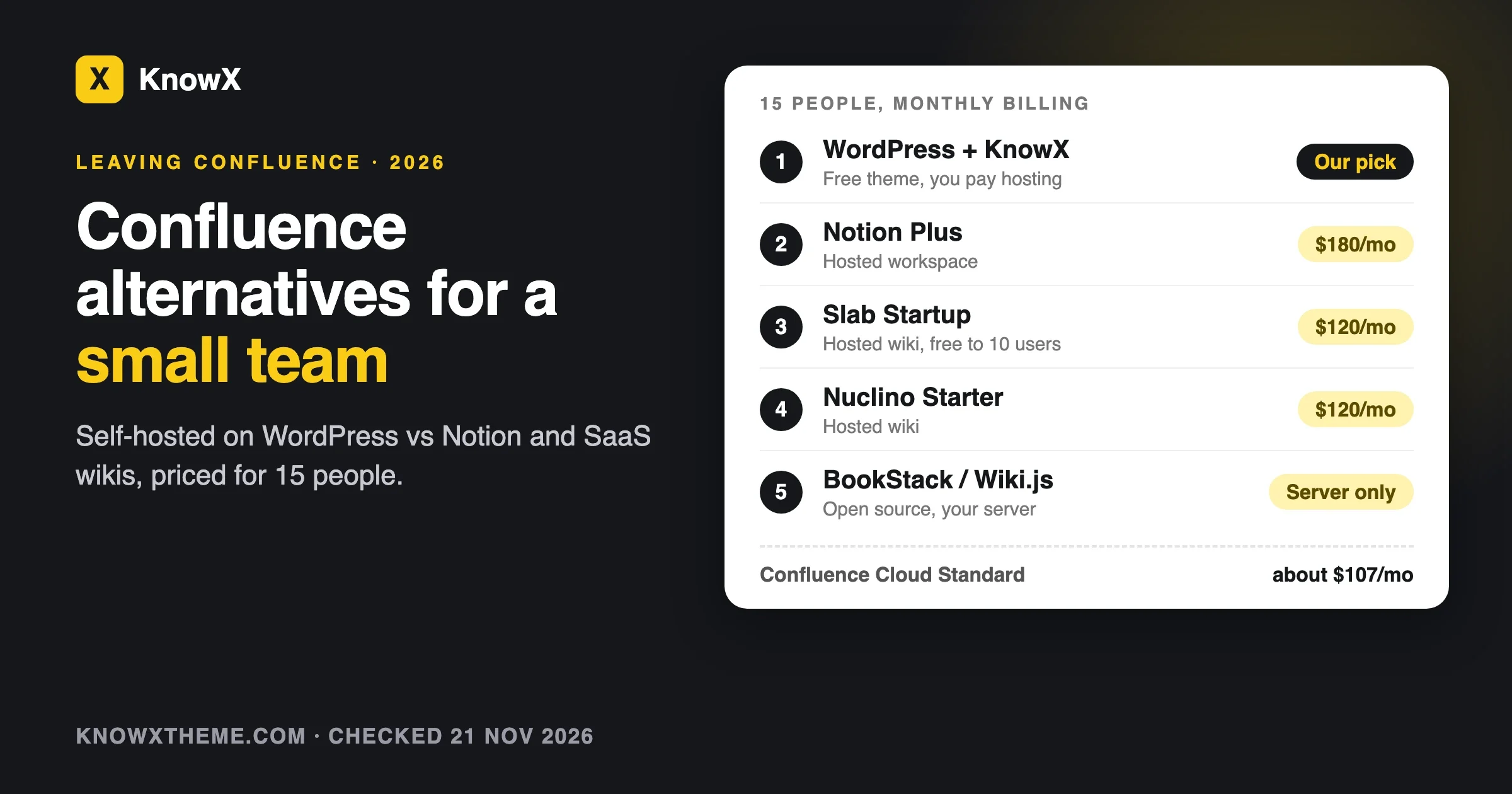
Notion is not the only paid tool a small team might leave, and WordPress is not the only place to go. We compared several options, with prices and fit, in Confluence alternatives for a small team. If you are weighing plugins against a theme for a WordPress build, our comparison of knowledge base plugins shows what each paid option adds. And for a broader look at the money side, see self-hosted on WordPress or a SaaS help center.
Whichever way you go, do the sums with your own head count and your own honest guess at AI use. A list price does not tell you what your team will pay. Your usage does.
Notion AI credits: common questions
How do Notion AI credits work?
Credits meter AI work. Each Business seat gets 1,500 Standard credits and 500 Select credits every month, which reset at the start of the billing cycle and do not roll over. Standard credits cover work where Notion chooses the model. Select credits cover work where you choose the model or use a Custom Agent you own. Notion’s guide is roughly 5 credits for a simple task, 10 for a medium one and 25 for a complex one. Free and Plus show a limited AI trial instead.
How much does Notion cost for a small team?
On Notion’s pricing page we read $10 per seat per month for Plus and $20 for Business, under its yearly view. For a team of 5 that is $600 a year on Plus and $1,200 on Business. For 10 people it is $1,200 and $2,400, and for 25 people it is $3,000 and $6,000. Paying monthly costs more, and extra credits are priced separately at $10 per 1,000 monthly or $13 per 1,000 annually.
What happens when you run out of Notion AI credits?
The affected AI work pauses until your credits reset. A workspace owner can allow members to continue using the workspace’s Notion credits, if the workspace has bought some, and can set a limit for each member. Standard and Select credits are separate, so running out of one does not pause the other.
Is there a self-hosted Notion alternative?
There is no self-hosted copy of Notion itself. For a wiki of pages, there are self-hosted options. One is WordPress with KnowX, our free theme, which turns posts and categories into a knowledge base on a site you own. It does not copy Notion’s databases, live co-editing or AI, and you look after updates and backups yourself. It suits teams whose wiki is mostly pages, search and permissions.
Where to go next
If the table points you to a self-hosted wiki, start small. Install KnowX from WordPress.org, move ten pages, and see how the team likes it. Our page on the internal knowledge base shows what a team wiki on KnowX looks like, and you can download the theme free from WordPress.org.
Sources, read 29 November 2026: Notion’s pricing page, and Notion’s help center pages on credits, managing AI credits, and purchasing Notion credits. Hosting figures are our own planning range.